# Excel HTML Entities Export

Develop powerful and lightweight web applications using ASP.NET MVC controls. Learn more about the ComponentOne MVC controls in ASP.NET MVC documentation.

## Content

FlexSheet supports saving an Excel (.xlsx) file with HTML entities content. In the client, **convertHtmlEntities** property of **IFlexSheetXlsxOptions** interface defines the conversion behavior for HTML entities such as """, "<", ">" and "&" using the **HtmlEntityConversion** enumeration, when exporting. The default value of the **HtmlEntityConversion** enumeration is set to Auto. The other options available in this enumeration are Yes and No. The former option can be used to always convert the HTML entities to the characters they represent and the latter can be used in case you do not want the conversion of HTML entities to be performed.

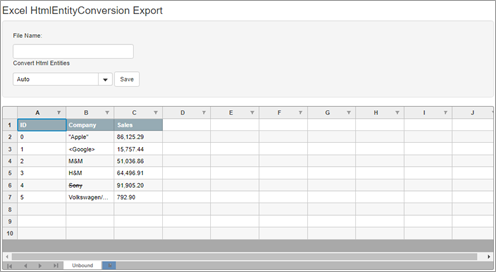
The following image showcases FlexSheet with HTML entities which can be exported to Excel (.xlsx) file using the Save button.
![FlexSheet with HTML entities](https://cdn.mescius.io/document-site-files/images/2b3ac322-100e-4637-958d-fb40dcda3f44/images/flexsheet-html-entities-export.png)

The following code demonstrates how to save an Excel (.xlsx) file with HTML entities. This example uses the [excelHTMLEntities.js](/componentone/docs/mvc/online-mvc/workwithcontrols/FlexSheet/workwithflexsheet/excel-html-entities-export#excelhtmlentitiesjs) file.

```razor
@section Scripts{
    <script type="text/javascript" src="~/Scripts/FlexSheet/excelHtmlEntities.js"></script>
}
<style>
    .btn {
        margin-bottom: 0;
    }
</style>
<div>
    <div class="copy">
        <h3>Excel HtmlEntityConversion Export</h3>
    </div>
    <div class="row">
        <div class="col-md-12 col-xs-24">
            <div class="form-inline well well-lg">
                <p>File Name:</p>
                <input type="text" class="form-control" id="fileName2" />
                <p>Convert Html Entities</p>
                @(Html.C1().ComboBox().Id("HtmlEntityConversion").IsEditable(false))
                <button class="btn btn-default" onclick="exportHtmlEntities()">Save</button>
            </div>
        </div>
    </div>
    <div>
        @(Html.C1().FlexSheet().CssClass("flexSheet").Id("excelHtmlEntitiesSheet")
        .AddUnboundSheet("Unbound", 10, 10).Height("380px"))
    </div>
</div>
```


<br>
## excelHTMLEntities.js

```javascript
c1.documentReady(function () {
    //export HtmlEntities
    var HtmlEntitiesflexSheet = wijmo.Control.getControl('#excelHtmlEntitiesSheet');
    var menu = wijmo.Control.getControl('#HtmlEntityConversion');
    generateHtmlSheet(HtmlEntitiesflexSheet);
    var items = [];
    for (var i = 0; i <= 3; i++) {
        items.push({ name: wijmo.grid.xlsx.HtmlEntityConversion[i], val: i })
    }
    menu.itemsSource = items;
    menu.displayMemberPath = "name";
    menu.selectedValuePath = "val";
});

//HtmlEntitiesConversion
function generateHtmlSheet(flexsheet) {
    var companies = ['&quot;Apple&quot;', '&lt;Google&gt;', 'M&amp;M', 'H&amp;M', '<s>Sony</s>', 'Volkswagen&#x2F;Audi'];
    flexsheet.setCellData(0, 0, 'ID')
    flexsheet.setCellData(0, 1, 'Company')
    flexsheet.setCellData(0, 2, 'Sales')
    for (var i = 0; i < companies.length; i++) {
        flexsheet.setCellData(i + 1, 0, i)
        flexsheet.setCellData(i + 1, 1, companies[i])
        flexsheet.setCellData(i + 1, 2, Math.random() * 100000)
    }
    flexsheet.columns.getColumn(1).isContentHtml = true;
    flexsheet.applyCellsStyle({
        fontWeight: 'bold', backgroundColor: '#96abb4', color: 'white'
    }, [new wijmo.grid.CellRange(0, 0, 0, 2)])
}

function exportHtmlEntities() {
    var flexSheet = wijmo.Control.getControl('#excelHtmlEntitiesSheet'), combo = wijmo.Control.getControl('#HtmlEntityConversion'),
        fileName = wijmo.getElement('#fileName2');
    if (flexSheet) {
        if (fileName.value == "") {
            fileName.value = 'FlexSheet.xlsx';
        }
        flexSheet.save(fileName.value, { convertHtmlEntities: combo.selectedItem.val });
    }
}
```