# Using Formulas through Code

Develop powerful and lightweight web applications using ASP.NET MVC controls. Learn more about the ComponentOne MVC controls in ASP.NET MVC documentation.

## Content


FlexSheet allows adding formulas within cells programmatically, apart from using them at run-time. This topic demonstrates how to use pre-defined formulas supported in FlexSheet through code at the client side.

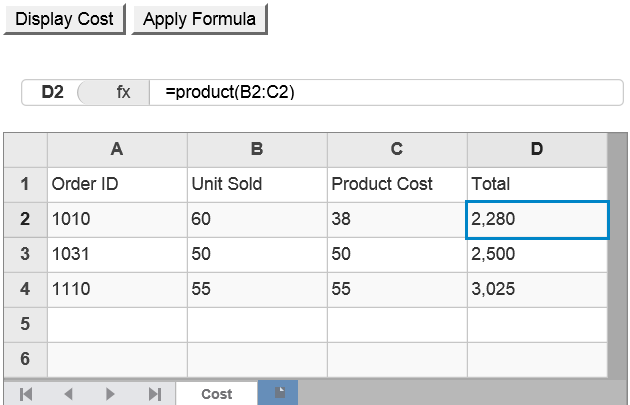
The following image shows a FlexSheet control which displays Unit Sold and Product Cost of a product. Here, formula is applied programmatically to calculate the total cost for each order. This is done through **setCellData()** method on the client side.<br />

<br />![](https://cdn.mescius.io/document-site-files/images/2b3ac322-100e-4637-958d-fb40dcda3f44/images/codeformula.png)<br />

The following code examples demonstrate how to use formula programmatically in FlexSheet.

#### In Code

**FormulaController.cs**

```csharp
public class FormulaController : Controller
{        
    // GET: Formula
    public ActionResult FormulaCodeIndex()
    {
        return View();
    }
}
```

**<br />FormulaIndex.cshtml**

```razor
<script>
    function generateCostSheet() {
        var flex = wijmo.Control.getControl("#formulaSheet");
        flex.setCellData(0, 0, "Order ID");
        flex.setCellData(0, 1, "Unit Sold");
        flex.setCellData(1, 0, "1010");
        flex.setCellData(2, 0, "1031");
        flex.setCellData(3, 0, "1110");
        flex.setCellData(1, 1, "60");
        flex.setCellData(2, 1, "50");
        flex.setCellData(3, 1, "55");
        flex.setCellData(0, 2, "Product Cost");
        flex.setCellData(1, 2, "38");
        flex.setCellData(2, 2, "50");
        flex.setCellData(3, 2, "55");
        flex.setCellData(0, 3, "Total");
    }
    function setFormula() {
        var flex = wijmo.Control.getControl("#formulaSheet");
        flex.setCellData(1, 3, "=product(B2:C2)");
        flex.setCellData(2, 3, "=product(B3:C3)");
        flex.setCellData(3, 3, "=product(B4:C4)");
    }
</script>
<div>
    <input id="bold" type="button" onclick="generateCostSheet()" value="Display Cost" />
    <input id="textAlign" type="button" onclick="setFormula()" value="Apply Formula" />
    @(Html.C1().FlexSheet().CssClass("flexSheet").Id("formulaSheet").Height("220px").Width("500px")
    .AddUnboundSheet("Cost", 6, 4).IsReadOnly(false).ShowFormulaBar())
</div>                          
```

## See Also

[Quick Start](/componentone/docs/mvc/online-mvc/workwithcontrols/FlexSheet/FlexSheetQuickStart)

**Reference**

[FlexSheet Class](/componentone/api/mvc/online-mvc/dotnet-framework-api/C1.Web.Mvc.FlexSheet/C1.Web.Mvc.Sheet.FlexSheet.html)

[FormulaBarExtension Class](/componentone/api/mvc/online-mvc/dotnet-framework-api/C1.Web.Mvc.FlexSheet/C1.Web.Mvc.Sheet.Fluent.FormulaBarExtension.html)