# Using C1 MVC PdfViewer
Develop powerful and lightweight web applications using ASP.NET MVC controls. Learn more about the ComponentOne MVC controls in ASP.NET MVC documentation.
## Content
This topic describes how to view a Pdf file in your MVC application using **C1 PdfViewer** template. The C1 PdfViewer template provides two different options to preview PDF file on the web browser. Users can preview the Pdf files that are stored on local system using the **Pdf in current project** option or can view the Pdf files that hosted on WebApi service URL using **Pdf in other Pdf service** option.
1. Under **Views**, right-click the **PDFViewer** folder, and then select **Add | New Item...** to open the Add New Item dialog.
2. Under **Installed | Templates**, select **Visual C# | Web | C1 PdfViewer View Page** to open the C1 MVC PdfViewer dialog.
3. In the **C1 MVC PdfViewer** dialog, select **Pdf in current project** option.
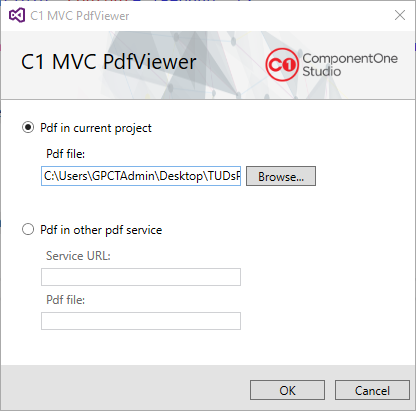
4. In the Pdf file field, click **Browse...** to locate a **Portable Document File(.pdf)** file on your system. In our case, we have used a sample pdf document.
5. Click **OK** to create **Index.cshtml** view page.
```razor
C1 MVC PdfViewer
@Html.C1().Styles()
@Html.C1().Scripts().FlexViewer()
@(Html.C1().PdfViewer().FilePath(@"~\Content\PdfFilesRoot\Selection.pdf"))
```