# Configure ActiveReports Service
Develop powerful and lightweight web applications using ASP.NET MVC controls. Learn more about the ComponentOne MVC controls in ASP.NET MVC documentation.
## Content
You can configure the ActiveReports service locally in an ASP.NET MVC application to view ActiveReports in FlexViewer. To view ActiveReports in the FlexViewer control using the ActiveReports Web Service, follow the steps given below.
> type=note
> **Note**: Make sure that the latest version of **ActiveReports** is installed on your system, before implementing the steps mentioned below.
1. Create a new ASP.NET MVC application using the ComponentOne or VisualStudio templates. For more information about creating an MVC application, see [Configuring your MVC Application](/componentone/docs/mvc/online-mvc/CreatingaNewProject) topic.
2. Add the FlexViewer library to your application.
* If using ComponentOne template, select "Include FlexViewer Library" option from the ComponentOne ASP.NET MVC Application Wizard.
* If using Visual Studio template, add the `C1.Web.Mvc.FlexViewer.dll` reference and the following markup in \\ tags below `C1.Web.Mvc` markup.
```
```
3. In the SolutionExplorer, right click the project name and then select **Add | New Item** to open the **New Item** wizard.
4. In the **New Item** wizard, on the left panel under the installed templates, select **Reporting | ActiveReports 13 Web Service** and then click **Add**. As soon as you add the service, you will notice that it adds all the dependent assembly references and updates the **Web.Config** file to include instances of assembly references and http handlers.
5. Add the following code in the **App\_Start | RouteConfig.cs** file.
```csharp
routes.IgnoreRoute("{resource}.axd/{*pathInfo}");
routes.IgnoreRoute("{*allActiveReport}", new { allActiveReport = @".*\.ar12(/.*)?" });
```
6. Add a folder named **Reports** to your application. In the **Reports** folder, add the **BillingInvoice.rdlx** report file from the following location:
_Documents\\MESCIUS Samples\\ActiveReports (latest version)\\Reports Gallery\\Reports\\Page Report\\Invoice_
7. In **Web.config** file, update the **Reports** folder path to make it accessible for the application.
```csharp
```
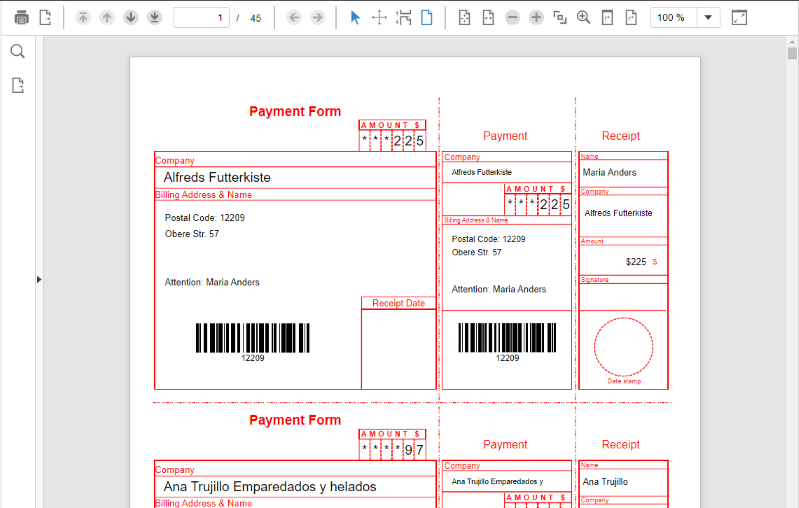
8. Add the following code in **Views | Home | Index.cshtml** file, to initialize the FlexViewer control and view an Active Report using ActiveReports 13 Web Service.
```razor
@(Html.C1().ReportViewer()
.ServiceUrl(@"~/ActiveReports.ReportService.asmx")
.FilePath("BillingInvoice.rdlx"))
```