# View SSRS reports
Develop powerful and lightweight web applications using ASP.NET MVC controls. Learn more about the ComponentOne MVC controls in ASP.NET MVC documentation.
## Content
To view a report that is stored on a SSRS report server, you need to configure your MVC application. Complete the following steps to add the view page to your application. For more information about using Report Viewer, see [Using C1 ReportViewer Template](/componentone/docs/mvc/online-mvc/workwithcontrols/FlexReportViewer/FlexViewer/FlexViewerQuickStart).
1. Under **Views**, right-click the **Report** folder, and then select **Add \| New Item\.\.\.** to open the Add New Item dialog.
2. Under **Installed \| Templates**, select **Visual C\# \| Web \| C1 ReportViewer View Page** to open the C1 MVC ReportViewer dialog.
3. In the **C1 MVC ReportViewer** dialog, select **Report in SSRS server** option.
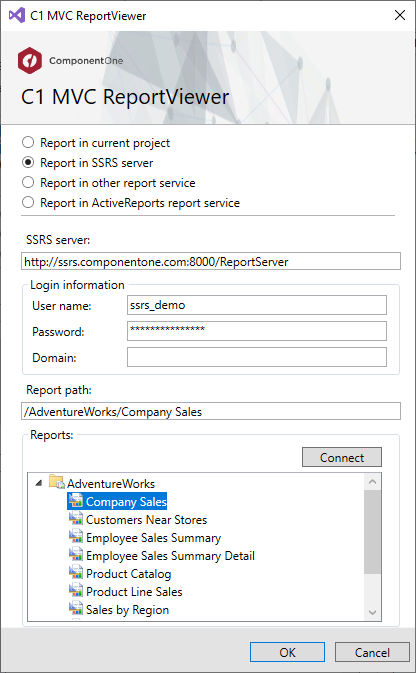
4. In the **SSRS server** field, enter a SSRS server URL to access the reports. For example, "http://ssrs.componentone.com:8000/ReportServer".
5. In the **Login information** section, specify the Username and the password to access the SSRS server URL.
6. In the **Report Path** field, specify the folder location where the SSRS reports is stored.
7. Click **Connect** to establish a connection to the SSRS server. Once you are connected to the SSRS server, **Reports** section displays all the report names.
8. Select a report from the list and, then click **OK** to create **Index.cshtml** view page.
```razor
C1 MVC ReportViewer
@Html.C1().Styles()
@Html.C1().Scripts().FlexViewer()
@(Html.C1().ReportViewer().FilePath(@"SSRS/AdventureWorks/Company Sales"))
```