# View Reports using report service
Develop powerful and lightweight web applications using ASP.NET MVC controls. Learn more about the ComponentOne MVC controls in ASP.NET MVC documentation.
## Content
To view a report that is stored on a report service, you need to configure your MVC application. Complete the following steps to add view page to your application. For more information about using Report Viewer, see [Using C1 ReportViewer Template](/componentone/docs/mvc/online-mvc/workwithcontrols/FlexReportViewer/FlexViewer/FlexViewerQuickStart).
1. Under **Views**, right-click the **Report** folder, and then select **Add | New Item...** to open the Add New Item dialog.
2. Under **Installed | Templates**, select **Visual C# | Web | C1 ReportViewer View Page** to open the C1 MVC ReportViewer dialog.
3. In the **C1 MVC ReportViewer** dialog, select **Report in other report service** option.
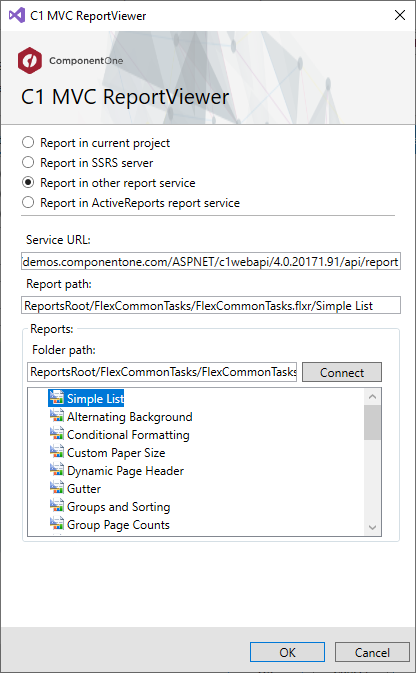
4. In the **Service URL** field, enter a Web API Service URL to access the reports. For example, [https://demos.componentone.com/ASPNET/c1webapi/4.0.20171.91/api/report](https://demos.componentone.com/ASPNET/c1webapi/4.0.20171.91/api/report).
5. In the **Report Path** field, specify the report root location where the report is stored.
6. Click **Connect** to establish a connection to the WebApi server. Once you are connected to the WebApi server, **Reports** section displays all the report names.
7. Select a report from the list and, then click **OK** to create **Index.cshtml** view page.
```razor
C1 MVC ReportViewer
@Html.C1().Styles()
@Html.C1().Scripts().FlexViewer()
@(Html.C1().ReportViewer().ServiceUrl(@"https://demos.componentone.com/ASPNET/c1webapi/4.0.20171.91/api/report")
.FilePath(@"ReportsRoot/FlexCommonTasks/FlexCommonTasks.flxr").ReportName(@"Simple List"))
```
> type=note
> **Note**: If the report is using any local database file, you need to copy that database file to the App\_Data folder. The connection string of the report should point to the database file in this folder. This can be updated in the report file itself by opening it in XML editor inside Visual Studio like this:
>
> ```
>
>
> Main
> OLEDB
> Provider=SQLNCLI11;Integrated Security=SSPI;
> Data Source=(localdb)\\v11.0;Initial File Name=|DataDirectory|\\C1Demo.mdf;Persist Security Info=False
>
> Employees
>
>
> ```