# View Reports in current project
Develop powerful and lightweight web applications using ASP.NET MVC controls. Learn more about the ComponentOne MVC controls in ASP.NET MVC documentation.
## Content
To view a report that is stored in current project, you need to configure your MVC application. Complete the following steps to view reports that are stored in your current project. For more information about Report Viewer, see [Using C1 ReportViewer Template](/componentone/docs/mvc/online-mvc/workwithcontrols/FlexReportViewer/FlexViewer/FlexViewerQuickStart).
1. Under **Views**, right-click the **Report** folder, and then select **Add | New Item...** to open the Add New Item dialog.
2. Under **Installed | Templates**, select **Visual C# | Web | C1 ReportViewer View Page** to open the C1 MVC ReportViewer dialog.
3. In the C1 MVC ReportViewer dialog, select **Report in current project** option.
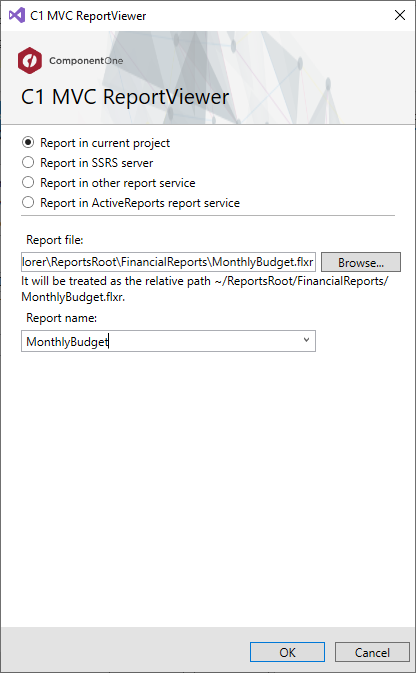
4. In the **Report file** field, click **Browse...** to locate a FlexReport (.flxr) file on your system. In our case, we have used FlexCommonTasks.flxr report.
5. In the **Report name** drop down, select a **report name** from the list to view it in the FlexViewer. In our case, we have specified **Simple List** report.
6. Click **OK** to create the Index.cshtml view page.
```razor
C1 MVC ReportViewer
@Html.C1().Styles()
@Html.C1().Scripts().FlexViewer()
@(Html.C1().ReportViewer().FilePath(@"~/Content/ReportsRoot/FlexCommonTasks.flxr").ReportName(@"Simple List"))
```