# Unbound Columns in FlexGrid
Develop powerful and lightweight web applications using ASP.NET MVC controls. Learn more about the ComponentOne MVC controls in ASP.NET MVC documentation.
## Content
FlexGrid supports selective column binding, which means the control can be customized to contain unbound columns apart from data bound columns. While the bound columns display data from a datasource, unbound columns contain custom data. The following example demonstrates this customization, using **ItemFormatter**.
In the below example, the values displayed in the cells of an unbound column of FlexGrid are calculated using values from the cells of other columns that are bound to a data source. The below code examples make use of rich client side API to customize FlexGrid cells through itemFormatter property.
The following image shows a FlexGrid having an unbound column **TargetValue**. This column displays the values obtained after dividing the values in **Amount** column by hundred.
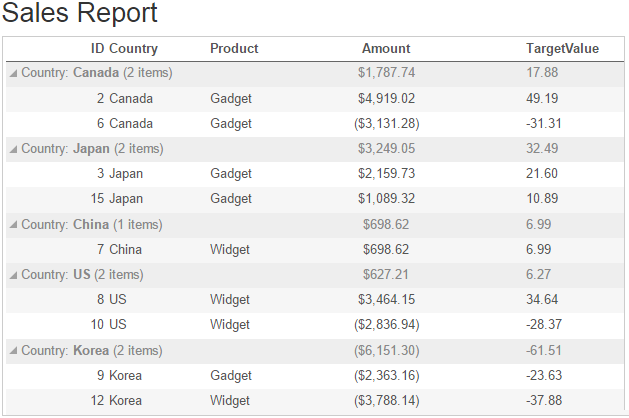
The following code examples demonstrate how to add an unbound column in a FlexGrid control, and assign calculated values to its cells. The example uses sales data from **Sale.cs** model added in [QuickStart](/componentone/docs/mvc/online-mvc/workwithcontrols/FlexGrid/FlexGridQuickStart).
#### UnboundcolumnController.cs
```csharp
public ActionResult Index()
{
return View(Sale.GetData(15));
}
```
#### Unboundcolumn.cshtml
Include the MVC references as shown below.
```csharp
@using MVCFlexGrid.Models
@using C1.Web.Mvc.Grid
@model IEnumerable
```
Add the client script for itemFormatter function, to customize the cells of unbound column.
```javascript
```
Then, initialize the FlexGrid control using the following code.
```razor
Sales Report
@(Html.C1().FlexGrid()
.AutoGenerateColumns(false)
.Bind(Model)
.AllowResizing(AllowResizing.None)
.ItemFormatter("itemFormatter")
.GroupBy("Country")
.Columns(columns =>
{
columns.Add(column => column.Binding("ID"));
columns.Add(column => column.Binding("Country"));
columns.Add(column => column.Binding("Product"));
columns.Add(column => column.Binding("Amount").Format("c").Width("*").Align("center").Aggregate(Aggregate.Sum));
columns.Add(column => column.Header("TargetValue").Name("TargetValue"));
}))
```
## See Also
[Quick Start](/componentone/docs/mvc/online-mvc/workwithcontrols/FlexGrid/FlexGridQuickStart)
**Reference**
[ItemFormatter Property](/componentone/api/mvc/online-mvc/dotnet-framework-api/C1.Web.Mvc/C1.Web.Mvc.FlexGridBase-1.ItemFormatter.html)
[FlexGridBase Class](/componentone/api/mvc/online-mvc/dotnet-framework-api/C1.Web.Mvc/C1.Web.Mvc.FlexGridBase-1.html)