# Quick Start
Develop powerful and lightweight web applications using ASP.NET MVC controls. Learn more about the ComponentOne MVC controls in ASP.NET MVC documentation.
## Content
The quick start guides you through the steps of adding the FlexGrid control to your MVC application and populate data in it. The following example demonstrates local model binding in FlexGrid control. For detailed explanation on how to do remote binding in FlexGrid, see [Remote Data Binding](/componentone/docs/mvc/online-mvc/workwithcontrols/FlexGrid/workwithflexgrid/DataBindingFlexGrid/FlexGridDataBinding) topic.
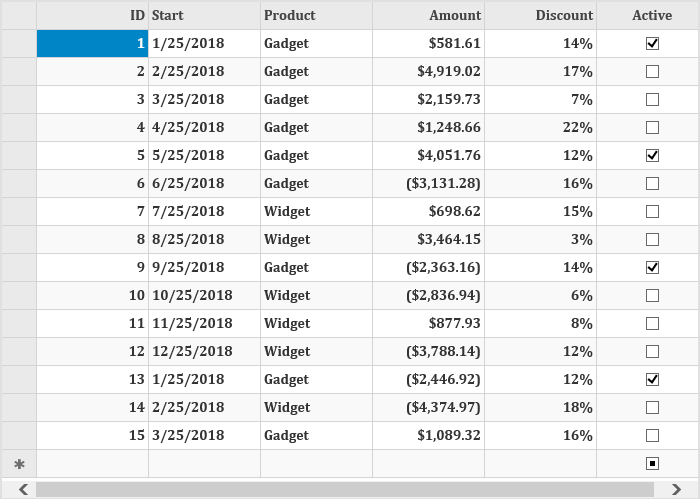
### Create an MVC Application
Create a new MVC application using the ComponentOne or VisualStudio templates. For more information about creating an MVC application, see [Configuring your MVC Application](/componentone/docs/mvc/online-mvc/CreatingaNewProject) topic.
### Create a Datasource for FlexGrid
1. Add a new class to the folder **Models** (for example: `Sale.cs`). See [Adding controls](/componentone/docs/mvc/online-mvc/addingcontrols/AddingControlsinRazor) to know how to add a new model.
2. Replace the following code in the new model to define the classes that serve as a datasource for the FlexGrid control.
```csharp
public class Sale
{
public int ID { get; set; }
public DateTime Start { get; set; }
public DateTime End { get; set; }
public string Country { get; set; }
public string Product { get; set; }
public string Color { get; set; }
public double Amount { get; set; }
public double Amount2 { get; set; }
public double Discount { get; set; }
public bool Active { get; set; }
public MonthData[] Trends { get; set; }
public int Rank { get; set; }
///
/// Get the data.
///
///
///
public static IEnumerable GetData(int total)
{
var countries = new[] { "US", "UK", "Canada", "Japan", "China", "France", "German", "Italy", "Korea", "Australia" };
var products = new[] { "Widget", "Gadget", "Doohickey" };
var colors = new[] { "Black", "White", "Red", "Green", "Blue" };
var rand = new Random(0);
var dt = DateTime.Now;
var list = Enumerable.Range(0, total).Select(i =>
{
var country = countries[rand.Next(0, countries.Length - 1)];
var product = products[rand.Next(0, products.Length - 1)];
var color = colors[rand.Next(0, colors.Length - 1)];
var date = new DateTime(dt.Year, i % 12 + 1, 25, i % 24, i % 60, i % 60);
return new Sale
{
ID = i + 1,
Start = date,
End = date,
Country = country,
Product = product,
Color = color,
Amount = rand.NextDouble() * 10000 - 5000,
Amount2 = rand.NextDouble() * 10000 - 5000,
Discount = rand.NextDouble() / 4,
Active = (i % 4 == 0),
Trends = Enumerable.Range(0, 12).Select(x => new MonthData { Month = x + 1, Data = rand.Next(0, 100) }).ToArray(),
Rank = rand.Next(1, 6)
};
});
return list;
}
}
public class MonthData
{
public int Month { get; set; }
public double Data { get; set; }
}
}
```
**vbnet**
```vbnet
Public Class Sale
Public Property ID As Integer
Public Property Start As DateTime
Public Property [End] As DateTime
Public Property Country As String
Public Property Product As String
Public Property Color As String
Public Property Amount As Double
Public Property Amount2 As Double
Public Property Discount As Double
Public Property Active As Boolean
Public Property Trends As MonthData()
Public Property Rank As Integer
Public Shared Function GetData(ByVal total As Integer) As IEnumerable(Of Sale)
Dim countries = {"US", "UK", "Canada", "Japan", "China", "France", "German", "Italy", "Korea", "Australia"}
Dim products = {"Widget", "Gadget", "Doohickey"}
Dim colors = {"Black", "White", "Red", "Green", "Blue"}
Dim rand = New Random(0)
Dim dt = DateTime.Now
Dim list = Enumerable.Range(0, total).[Select](Function(i)
Dim country = countries(rand.[Next](0, countries.Length - 1))
Dim product = products(rand.[Next](0, products.Length - 1))
Dim color = colors(rand.[Next](0, colors.Length - 1))
Dim date = New DateTime(dt.Year, i Mod 12 + 1, 25, i Mod 24, i Mod 60, i Mod 60)
Return New Sale With {
.ID = i + 1,
.Start = date,
.[End] = date,
.Country = country,
.Product = product,
.Color = color,
.Amount = rand.NextDouble() * 10000 - 5000,
.Amount2 = rand.NextDouble() * 10000 - 5000,
.Discount = rand.NextDouble() / 4,
.Active = (i Mod 4 = 0),
.Trends = Enumerable.Range(0, 12)
.[Select](Function(x) New MonthData With
{
.Month = x + 1,
.Data = rand.[Next](0, 100)
}).ToArray(),
.Rank = rand.[Next](1, 6)
}
End Function)
Return list
End Function
End Class
Public Class MonthData
Public Property Month As Integer
Public Property Data As Double
End Class
```
### Add a FlexGrid control
Complete the following steps to initialize a FlexGrid control.
**Add a new Controller**
1. In the **Solution Explorer**, right click the folder **Controllers.**
2. From the context menu, select **Add \| Controller**. The **Add Scaffold** dialog appears.
3. Complete the following steps in the **Add Scaffold** dialog:
1. Select **MVC 5 Controller - Empty** template.
2. Set name of the controller (for example: `Default1Controller`).
3. Click **Add**.
4. Include the MVC references as shown below. **csharp**
```csharp
using System.Collections;
using System.Globalization;
using System.Linq;
using System.Web.Mvc;
using C1.Web.Mvc;
using MVCFlexGrid.Models;
using System.Collections.Generic;
using System;
```
**vbnet**
```vbnet
Imports System.Collections
Imports System.Globalization
Imports System.Linq
Imports System.Web.Mvc
Imports C1.Web.Mvc
Imports MVCFlexGrid.Models
Imports System.Collections.Generic
Imports System
```
5. Replace the method Index() with the following method. **csharp**
```csharp
public ActionResult Index()
{
return View(Sale.GetData(15));
}
```
**vbnet**
```vbnet
Public Function Index() As ActionResult
Return View(Sale.GetData(15))
End Function
```
**Add a View for the controller**:
1. From the **Solution Explorer**, expand the folder **Controllers** and double click the controller (for example: `Default1Controller`) to open it.
2. Place the cursor inside the method `Index()`.
3. Right click and select **Add View**. The **Add View** dialog appears.
4. In the **Add View** dialog, verify that the View name is **Index** and View engine is **Razor (CSHTML).**
5. Click **Add**. A view has been added for the controller.
6. In the Solution Explorer, double click `Index.cshtml` to open it.
7. Replace the default code of the **Views\\Index.cshtml** file with the one given below to initialize a **FlexGrid** control.
>type=note
> **Note**: Replace **FlexGrid\_QS.Models;** with **\.Models;** in the references. **csharp**
```csharp
@using FlexGrid_QS.Models
@using C1.Web.Mvc.Grid
@model IEnumerable
//Instantiate FlexGrid and set its properties
@(Html.C1().FlexGrid()
.AutoGenerateColumns(false)
.Width(700)
.AllowAddNew(true)
.SelectionMode(C1.Web.Mvc.Grid.SelectionMode.Cell)
.CssClass("grid")
.Bind(Model)
//Binding columns data to FlexGrid
.Columns(bl =>
{
bl.Add(cb => cb.Binding("ID"));
bl.Add(cb => cb.Binding("Start"));
bl.Add(cb => cb.Binding("Product"));
bl.Add(cb => cb.Binding("Amount").Format("c"));
bl.Add(cb => cb.Binding("Discount").Format("p0"));
bl.Add(cb => cb.Binding("Active"));
}))
```
**vbnet**
```vbnet
@Imports C1.Web.Mvc
@Imports C1.Web.Mvc.Fluent
@Imports C1.Web.Mvc.Grid
@ModelType IEnumerable(Of Sale)
@(Html.C1().FlexGrid(Of Sale)() _
.CssClass("grid") _
.Bind(Model) _
.AutoGenerateColumns(False) _
.Width(700) _
.Height("800px") _
.SelectionMode(C1.Web.Mvc.Grid.SelectionMode.Cell) _
.Columns(Sub(bl)
bl.Add(Sub(cb) cb.Binding("ID"))
bl.Add(Sub(cb) cb.Binding("Start"))
bl.Add(Sub(cb) cb.Binding("Product"))
bl.Add(Sub(cb) cb.Binding("Amount").Format(c))
bl.Add(Sub(cb) cb.Binding("Discount").Format("p0"))
bl.Add(Sub(cb) cb.Binding("Active"))
End Sub) _)
```
### Build and Run the Project
1. Click **Build \| Build Solution** to build the project.
2. Press **F5** to run the project.
## See Also
**Reference**
[FlexGridBase Class](/componentone/api/mvc/online-mvc/dotnet-framework-api/C1.Web.Mvc/C1.Web.Mvc.FlexGridBase-1.html)
[Column Class](/componentone/api/mvc/online-mvc/dotnet-framework-api/C1.Web.Mvc/C1.Web.Mvc.Column.html)