# Sorting
CollectionView supports sorting in data-bound controls. Learn more about sorting in data-bound controls using ComponentOne CollectionView in MVC documentation.
## Content
The **CollectionView** class supports sorting through the **ICollectionView** interface, similar to .NET. To enable sorting, add one or more **sortDescriptions** objects to the **CollectionView.sortDescriptions** property. The result can be obtained from the **CollectionView.items** property.
**SortDescription objects** are flexible, allowing you to sort data based on value in ascending or descending order. In the sample below, you can sort the collection based on the corresponding field value chosen in the first list. You can also specify the sorting order in the second list.
>type=note
> Make sure that the **DisableServerRead** property of [ItemSource](/componentone/api/mvc/online-mvc/dotnet-framework-api/C1.Web.Mvc/C1.Web.Mvc.IItemsSource-1.html) is set to **True** if filtering, paging, sorting is to be performed on data available at client side only.
The example uses C1NWind data source, which was configured in the application in the [Quick Start](/componentone/docs/mvc/online-mvc/workwithcontrols/CollectionView/CollectionViewQuickStart):
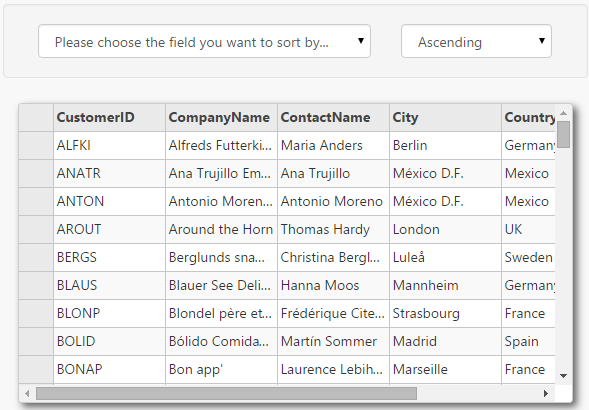
The following code example demonstrates how to apply sorting in FlexGrid through CollectionView.
**SortingController.cs**
```csharp
private C1NWindEntities db = new C1NWindEntities();
public ActionResult Index()
{
return View(db);
}
```
**Sorting.cshtml**
### ASP.NET
```razor
@(Html.C1().FlexGrid().Id("sortingGrid").IsReadOnly(true).AllowSorting(false).AutoGenerateColumns(false)
.Bind(b => b.DisableServerRead(true).Bind(Model.Customers))
.Columns(columns => columns
.Add(c => c.Binding("CustomerID"))
.Add(c => c.Binding("CompanyName"))
.Add(c => c.Binding("ContactName"))
.Add(c => c.Binding("City"))
.Add(c => c.Binding("Country"))
.Add(c => c.Binding("Phone"))
)
)
```
### JS
```javascript
```
### Sort Null Values
CollectionView allows you to sort null values using the **SortNulls** property, which determines how the null values are sorted. The **SortNulls** property accepts values from the [CollectionViewSortNulls](/componentone/api/mvc/online-mvc/dotnet-framework-api/C1.Web.Mvc/C1.Web.Mvc.CollectionViewSortNulls.html) enumeration that lets you choose the sorting order from the following values:
* **Last** : This is set as the default value which causes null values to appear last on the sorted collection, regardless of sort direction.
* **First** : This value causes null values to appear first on the sorted collection, regardless of sort direction.
* **Natural** : This value sorts null values in natural order, i.e. first in ascending and then in descending order.
The following example illustrates how to sort null values so that they appear first on the sorted collection. This example uses a class named Sale which contains sales data for various countries.
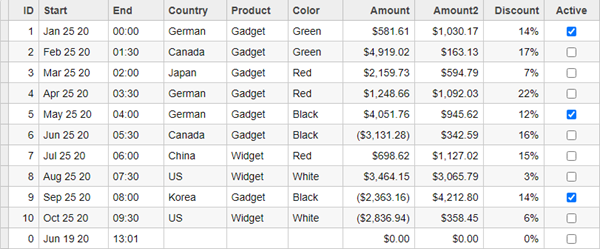
**Sale.cs**
```csharp
public class Sale
{
public Sale()
{
Start = End = DateTime.Now;
}
public int ID { get; set; }
public DateTime Start { get; set; }
public DateTime End { get; set; }
public string Country { get; set; }
public string Product { get; set; }
public string Color { get; set; }
public double Amount { get; set; }
public double Amount2 { get; set; }
public double Discount { get; set; }
public bool Active { get; set; }
public MonthData[] Trends { get; set; }
public int Rank { get; set; }
private static List COUNTRIES = new List { "US", "UK", "Canada", "Japan", "China", "France", "German", "Italy", "Korea", "Australia" };
private static List PRODUCTS = new List { "Widget", "Gadget", "Doohickey" };
///
/// Get the data.
///
///
///
public static IEnumerable GetData(int total)
{
var colors = new[] { "Black", "White", "Red", "Green", "Blue" };
var rand = new Random(0);
var dt = DateTime.Now;
var list = Enumerable.Range(0, total).Select(i =>
{
var country = COUNTRIES[rand.Next(0, COUNTRIES.Count - 1)];
var product = PRODUCTS[rand.Next(0, PRODUCTS.Count - 1)];
var color = colors[rand.Next(0, colors.Length - 1)];
var startDate = new DateTime(dt.Year, i % 12 + 1, 25);
var endDate = new DateTime(dt.Year, i % 12 + 1, 25, i % 24, (i % 2) * 30, 0);
return new Sale
{
ID = i + 1,
Start = startDate,
End = endDate,
Country = country,
Product = product,
Color = color,
Amount = Math.Round(rand.NextDouble() * 10000 - 5000, 2),
Amount2 = Math.Round(rand.NextDouble() * 5000, 2),
Discount = Math.Round(rand.NextDouble() / 4, 2),
Active = (i % 4 == 0),
Trends = Enumerable.Range(0, 12).Select(x => new MonthData { Month = x + 1, Data = rand.Next(0, 100) }).ToArray(),
Rank = rand.Next(1, 6)
};
});
return list;
}
}
public class MonthData
{
public int Month { get; set; }
public double Data { get; set; }
}
```
**Controller Code**
```csharp
private C1NWindEntities db = new C1NWindEntities();
//Sorting
public ActionResult Index(FormCollection data)
{
var model = Sale.GetData(10).ToList();
var nullObj = new Sale { };
model.Add(nullObj);
return View(model);
}
```
**View Code**
```razor
@using C1.Web.Mvc.Grid
@using CVSorting_MVC.Models
@model IEnumerable
@(Html.C1().CollectionViewService()
.Id("CVService")
.Bind(Model)
.SortNulls(CollectionViewSortNulls.First)
)
@(Html.C1().FlexGrid()
.Id("FlexGridCV")
.ItemsSourceId("CVService")
.AutoGenerateColumns(false)
.Columns(bl =>
{
bl.Add(cb => cb.Binding("ID"));
bl.Add(cb => cb.Binding("Start").Format("MMM d yy"));
bl.Add(cb => cb.Binding("End").Format("HH:mm"));
bl.Add(cb => cb.Binding("Country"));
bl.Add(cb => cb.Binding("Product"));
bl.Add(cb => cb.Binding("Color"));
bl.Add(cb => cb.Binding("Amount").Format("c"));
bl.Add(cb => cb.Binding("Amount2").Format("c"));
bl.Add(cb => cb.Binding("Discount").Format("p0"));
bl.Add(cb => cb.Binding("Active"));
})
.Height(500)
)
```