# Grouping

CollectionView supports grouping fields in data-bound controls. Learn more grouping fields using ComponentOne CollectionView in MVC documentation.

## Content


The **CollectionView** class supports grouping through the **ICollectionView** interface, similar to the one in .NET. To enable grouping, add one or more **GroupDescription** objects to the **CollectionView.GroupDescriptions** property, and ensure that the grid's [ShowGroups](/componentone/api/mvc/online-mvc/dotnet-framework-api/C1.Web.Mvc/C1.Web.Mvc.FlexGridBase-1.ShowGroups.html) property is set to true when creating the grid instance(the default value is false.).

**GroupDescription** objects are flexible, allowing you to group data based on value or on grouping functions.

The example below groups the collection by the field which you select from the list. The grid shows not only the items content but also the group information: the group name and the average value of amount in the group.


> type=note
> Make sure that the **DisableServerRead** property of [ItemSource](/componentone/api/mvc/online-mvc/dotnet-framework-api/C1.Web.Mvc/C1.Web.Mvc.IItemsSource-1.html) is set to **True** if filtering, paging, sorting is to be performed on data available at client side only.

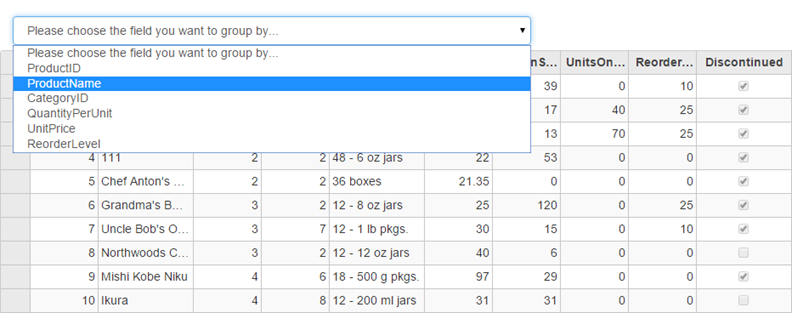
The example uses C1NWind data source, which was configured in the application in the [Quick Start](/componentone/docs/mvc/online-mvc/workwithcontrols/CollectionView/CollectionViewQuickStart). The image below shows how the FlexGrid appears after grouping is applied on it:<br />

![Showing how the FlexGrid appears after grouping is applied on it](https://cdn.mescius.io/document-site-files/images/2b3ac322-100e-4637-958d-fb40dcda3f44/images/collectionviewgroupingone.png)

<br />

You can choose the field that you want the FlexGrid to be grouped by from the drop-down.
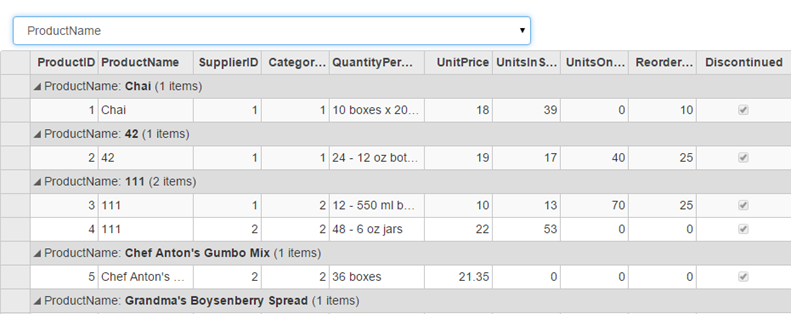
![Grouping grid data based on product name](https://cdn.mescius.io/document-site-files/images/2b3ac322-100e-4637-958d-fb40dcda3f44/images/collectionviewgroupingtwo.png)

The following code example demonstrates how to apply grouping in FlexGrid through CollectionView.

**GroupingController.cs**

```csharp
private C1NWindEntities db = new C1NWindEntities();
public ActionResult Index()
{
    return View(db);
}
```

**Grouping.cshtml**

### ASP.NET

```razor
<div class="col-md-6">
    <select id="groupingFieldNameList" class="form-control"></select>
</div>
    @(Html.C1().FlexGrid().Id("groupingGrid").IsReadOnly(true).AllowSorting(true)
    .AutoGenerateColumns(true).PageSize(10).Height(500)
    .Bind(b => b.DisableServerRead(true).Bind(Model.Products))
    )
```

### JS

```javascript
<script>  
       function getGroupNames() {
           return ['ProductID', 'ProductName', 'CategoryID', 'QuantityPerUnit', 'UnitPrice', 'ReorderLevel'];
       };
       $(document).ready(function () {
           //Grouping

           groupingGrid = wijmo.Control.getControl('#groupingGrid');
           cvGrouping = groupingGrid.itemsSource;
           groupingFieldNameList = document.getElementById('groupingFieldNameList');
           groupingFieldNameList.addEventListener('change', groupGrid);
           // Initialize the list and listen to the list's change.
           groupingFieldNameList.innerHTML += '<option value="" selected="selected">Please choose the field you want to group by...</option>';
           for (var i = 0; i < groupingNames.length; i++) {
               groupingFieldNameList.innerHTML += '<option value="' + groupingNames[i] + '">' + groupingNames[i] + '</option>';
           }
       });
       // Grouping in FlexGrid
       // create collectionview, grid, the select element and the names list.
       var cvGrouping = null,
           groupingGrid = null,
           groupingFieldNameList = null,
           groupingNames = getGroupNames();
       // update the group settings.
       function groupGrid() {
           var gd,
               fieldName = groupingFieldNameList.value;
           gd = cvGrouping.groupDescriptions;
           if (!fieldName) {
               // clear all the group settings.
               gd.splice(0, gd.length);
               return;
           }
           if (findGroup(fieldName) >= 0) {
               return;
           }
           if (fieldName === 'UnitPrice') {
               // when grouping by amount, use ranges instead of specific values
               gd.push(new wijmo.collections.PropertyGroupDescription(fieldName, function (item, propName) {
                   var value = item[propName]; // UnitPrice
                   if (value > 100) return 'Large Amounts';
                   if (value > 50) return 'Medium Amounts';
                   if (value > 0) return 'Small Amounts';
                   return 'Negative Amounts';
               }));
           }
           else {
               // group by specific property values
               gd.push(new wijmo.collections.PropertyGroupDescription(fieldName));
           }
       };
       // check whether the group with the specified property name already exists.
       function findGroup(propName) {
           var gd = cvGrouping.groupDescriptions;
           for (var i = 0; i < gd.length; i++) {
               if (gd[i].propertyName === propName) {
                   return i;
               }
           }
           return -1;
       };
   </script>
```