# Quick Start
## Content
The quick start guides you through the steps of adding a Sunburst chart to your MVC web application and add data to it.
Follow the steps given below to get started:
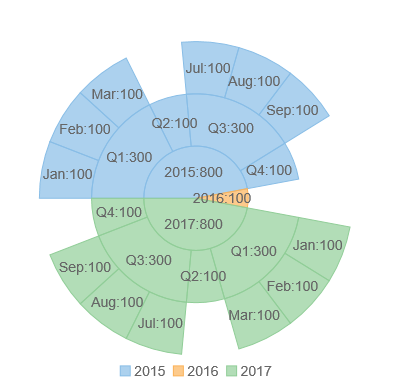
### Create an MVC Application
Create a new MVC application using the ComponentOne or VisualStudio templates. For more information about creating an MVC application, see [Configuring your MVC Application](/componentone/docs/mvc/online-mvc-core/Configuring-your-MVC-Application) topic.
### Create a Datasource for Sunburst
1. Add a new class to the folder **Models** (for example: `HierarchicalData.cs`). See [Adding controls](/componentone/docs/mvc/online-mvc-core/Adding-Controls) to know how to add a new model.
2. Add the following code to the new model to define the classes.
**csharp**
```csharp
public class HierarchicalData
{
public int ID {get; set;}
public int Year {get; set;}
public string Quarter {get; set;}
public string Month {get; set;}
public int Value {get; set;}
public HierarchicalData(int year, string quarter, string month, int value)
{
Year = year;
Quarter = quarter;
Month = month;
Value = value;
}
public HierarchicalData() {}
public static List GetData()
{
var data = new List ();
var times = new string[4, 3] {
{"Jan","Feb","Mar"},
{"Apr","May","June"},
{"Jul","Aug","Sep"},
{"Oct","Nov","Dec"}
};
var years = new int[] {2015,2016,2017};
for (int i = 0; i < years.Length; i++)
{
if (i % 2 == 0)
{
for (int j = 0; j < 4; j++)
{
string quar = "Q" + (j + 1);
if (j % 2 == 0)
{
for (int k = 0; k < 3; k++)
{
data.Add(new HierarchicalData(years[i], quar, times[j, k], 100));
}
} else
{
data.Add(new HierarchicalData(years[i], quar, null, 100));
}
}
} else
{
data.Add(new HierarchicalData(years[i], null, null, 100));
}
}
return data;
}
}
```
### Add a Sunburst chart
Complete the following steps to initialize a Sunburst chart.
**Add a new Controller**
1. In the **Solution Explorer**, right click the folder **Controllers.**
2. From the context menu, select **Add | Controller**. The **Add Scaffold** dialog appears.
3. Complete the following steps in the **Add Scaffold** dialog:
1. Select **Empty MVC Controller** template.
2. Set name of the controller (for example: `SunburstController`).
3. Click **Add**.
4. Include the MVC references as shown below.
```csharp
using C1.Web.Mvc;
using C1.Web.Mvc.Serializition;
using C1.Web.Mvc.Chart;
```
5. Replace the method Index() with the following method. **csharp**
```csharp
public ActionResult Index()
{
return View(Models.HierarchicalData.GetData());
}
```
**Add a View for the Controller**
1. From the **Solution Explorer**, expand the folder **Controllers** and double click the `SunburstController.`
2. Place the cursor inside the method `Index()`.
3. Right click and select **Add View**. The **Add View** dialog appears.
4. In the **Add View** dialog, verify that the view name is **Index** and View engine is **Razor (CSHTML).**
5. Click **Add** to add a view is for the controller. Copy the following code and paste it inside **Index.cshtml**.
```razor
```
### Build and Run the Project
1. Click **Build | Build Solution** to build the project.
2. Press **F5** to run the project.
> type=note
> Append the folder name and view name to the generated URL (for example: http://localhost:1234/**Sunburst/Index**) in the address bar of the browser to see the view.