# Using C1 MVC PdfViewer
## Content
This topic describes how to view a Pdf file in your MVC application using **C1 PdfViewer** template. The C1 PdfViewer template provides two different options to preview PDF file on the web browser. Users can preview the Pdf files that are stored on local system using the **Pdf in current project** option or can view the Pdf files that hosted on WebApi service URL using **Pdf in other Pdf service** option.
1. From the **Solution Explorer**, right click the folder **Views** and select **Add \| New Folder**.
2. Name the new folder. Provide the same name as the name of your controller, minus the suffix Controller (in our example: PDFViewer).
3. Right-click the **PDFViewer** folder, and then select **Add \| New Item\.\.\.** to open the Add New Item dialog.
4. Under **Installed \| Templates**, select **\.NET Core \| C1 PdfViewer View Page \(ASP\.NET Core\)** to open the C1 MVC PdfViewer dialog.
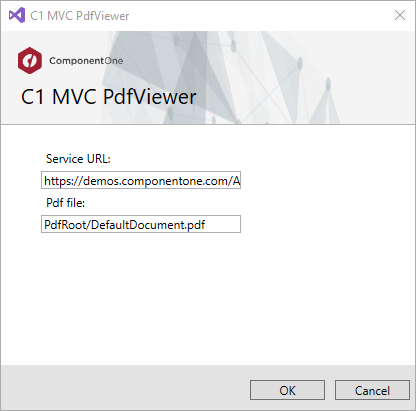
5. In the **Service URL**, enter the Web API Service URL to access the Pdf file. For example, `https://demos.componentone.com/ASPNET/c1webapi/4.0.20171.91/api/pdf`
6. In the Pdf file field, enter the name of the Pdf file that you want to access from the service URL.
7. Click **OK** to create **Index.cshtml** view page.
```razor
C1 MVC PdfViewer
```