# Full Text Search

## Content

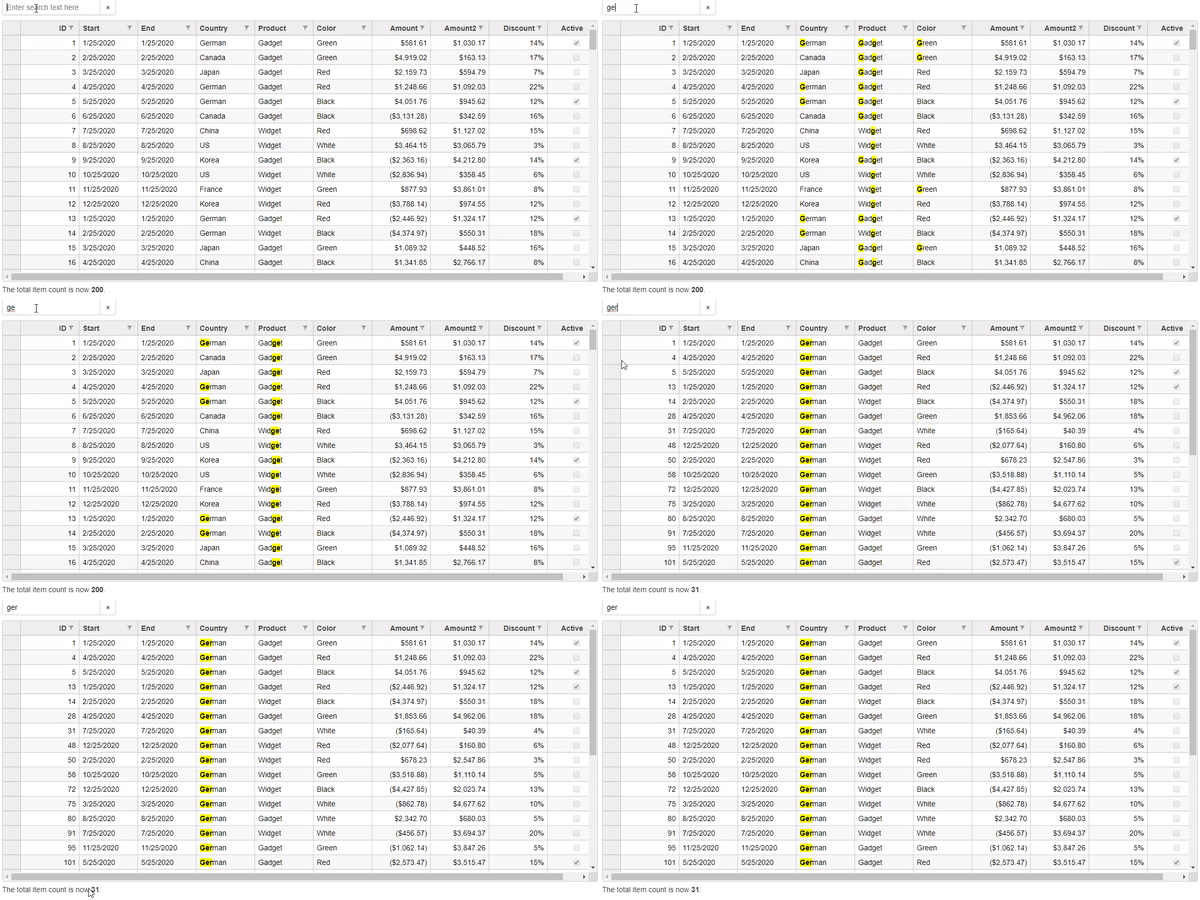
Searching a grid with huge data source can be a tedious task even in a grid that supports column filtering and sorting. To make this task easier, FlexGrid supports searching the entire data source connected to the grid through full-text search. To support full-text search in FlexGrid, you need to use the **FlexGridSearch** control which is represented by the [FlexGridSearch](/componentone/api/mvc/online-mvc-core/dotnet-api/C1.AspNetCore.Mvc/C1.Web.Mvc.FlexGridSearch.html) class. This control appears similar to a search box that allows users to quickly search the items displayed in a FlexGrid.
![](https://cdn.mescius.io/document-site-files/images/9b6a6cfe-b8e8-42e9-8a04-da6cb7762977/images/flexgridsearch.gif)
The following example shows the use of FlexGridSearch control to search the items in FlexGrid. The example uses **Sale.cs** model added in the [QuickStart](/componentone/docs/mvc/online-mvc-core/WorkingwithControls/FlexGrid/FlexGridQuickStart). The grid updates dynamically as you enter text and highlights any full or partial matches according to the text you enter.
**Controller Code**

```csharp
public ActionResult Index(FormCollection data)
{
        return View(Sale.GetData(200));
}
```

**View Code**

```razor
<p id="theSearch"></p>
<c1-flex-grid id="theFlexGrid" class="grid" auto-generate-columns="false" is-read-only="true">
    <c1-flex-grid-column binding="ID"></c1-flex-grid-column>
    <c1-flex-grid-column binding="Start"></c1-flex-grid-column>
    <c1-flex-grid-column binding="End"></c1-flex-grid-column>
    <c1-flex-grid-column binding="Country"></c1-flex-grid-column>
    <c1-flex-grid-column binding="Product"></c1-flex-grid-column>
    <c1-flex-grid-column binding="Color"></c1-flex-grid-column>
    <c1-flex-grid-column binding="Amount" format="c"></c1-flex-grid-column>
    <c1-flex-grid-column binding="Amount2" format="c"></c1-flex-grid-column>
    <c1-flex-grid-column binding="Discount" format="p0"></c1-flex-grid-column>
    <c1-flex-grid-column binding="Active"></c1-flex-grid-column>
    <c1-items-source source-collection="@Model"></c1-items-source>
    <c1-flex-grid-filter default-filter-type="Both"></c1-flex-grid-filter>
</c1-flex-grid>
<c1-flex-grid-search id="theSearch" grid="theFlexGrid" placeholder="Enter search text here"></c1-flex-grid-search>
<p>
    The total item count is now <b><span id="searchCount"></span></b>.
</p>
@section Scripts{
    <script>
        function saveValue(key, value) {
            if (sessionStorage) {
                sessionStorage.setItem(key, value);
            } else {
                $.cookies.set(key, value);
            }
        }
        function getValue(key) {
            if (sessionStorage) {
                return sessionStorage.getItem(key);
            } else {
                return $.cookies.get(key);
            }
        }
        function updateSearchCount(theGrid) {
            let cnt = theGrid.collectionView.items.length;
            document.getElementById('searchCount').textContent = cnt;
        }
        window.onbeforeunload = function () {
            let theSearch = wijmo.Control.getControl("#theSearch");
            saveValue("SearchValue", theSearch.text || "");
        }
        c1.documentReady(function () {
            let theSearch = wijmo.Control.getControl("#theSearch");
            theSearch.text = getValue("SearchValue") || "";
            let theGrid = wijmo.Control.getControl("#theFlexGrid");
            theGrid.collectionView.collectionChanged.addHandler(() => {
                updateSearchCount(theGrid);
            });
        });
    </script>
}
```

## Search Options

| Property | Type | Values | Description |
| -------- | ---- | ------ | ----------- |
| is-submit-on-change | Boolean | true / false | true: Search only triggers after pressing Enter. <br>false: Search updates as user types. |

## **Exact Match**

By default, FlexGrid converts each row into a space-separated string when performing search operations. As a result, searches may return unexpected matches when cell values contain spaces. To perform exact matching against individual cell values, set the `exactMatch` property to `true`.
This sample demonstrates how to enable `exactMatch`.

### Controller

```auto
public IActionResult Index()
{
    return View(Sale.GetData(15));
}
```

### View

```auto
@model IEnumerable<Sale>
<style type="text/css">
    .grid {
        height: 500px;
        border: 2px solid #e0e0e0;
        font-family: Cambria;
        font-weight: bold;
    }
</style>
<div>
<p id="theSearch"></p>
 </div>
<c1-flex-grid id="fgrid" auto-generate-columns="false" width="700px" class="grid"
              allow-add-new="true" allow-sorting="true" selection-mode="Cell"
              auto-search="true" case-sensitive-search="true">
    <c1-items-source source-collection="@Model"></c1-items-source>
    <c1-flex-grid-column binding="ID"></c1-flex-grid-column>
    <c1-flex-grid-column binding="Start"></c1-flex-grid-column>
    <c1-flex-grid-column binding="Product"></c1-flex-grid-coflumn>
    <c1-flex-grid-column binding="Amount" format="c"></c1-flex-grid-column>
    <c1-flex-grid-column binding="Discount" format="p0"></c1-flex-grid-column>
    <c1-flex-grid-column binding="Active"></c1-flex-grid-column>
    <c1-flex-grid-filter default-filter-type="Both"></c1-flex-grid-filter>
</c1-flex-grid>
<c1-flex-grid-search 
  id="theSearch" grid="fgrid" 
  placeholder="Enter Text to Search"
  exact-match="true">
</c1-flex-grid-search>
```