# Using ComponentOne Template
## Content
Using ComponentOne Project template, you can design four different types of projects as listed in the table below. These templates allow you to create ASP.NET MVC 5 Web Application pre-configured with C1 ASP.NET MVC controls.
| **Project Types** | **Description** |
| --- | --- |
| Standard | Creates a standard C1 MVC Application. |
| Ajax Binding | Creates a responsive application with AJAX binding. The application includes a sample data and a view code to explain the implementation of AJAX binding in the FlexGrid control. |
| Model Binding | Creates an application with model binding. The application includes a sample data and a view code to explain the implementation of Model binding in the FlexGrid control. |
| Spreadsheet | Creates a business application with the FlexSheet control. The application includes Font.cs and Sale.cs data class and view code with all the necessary references to add data to FlexSheet. |
You can create a new MVC Application using one of the above ComponentOne Project template, say Standard template, by following the given steps:
1. Open Visual Studio and Select **Create a new project**.
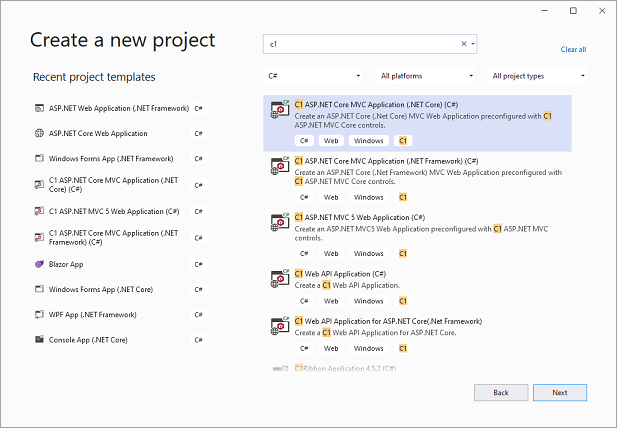
2. In the **Create a new project** window, type c1 in the search bar to get the list of all the installed c1 templates, select **C1 ASP.NET Core MVC Application (.NET Core) (C#)** and click **Next**.
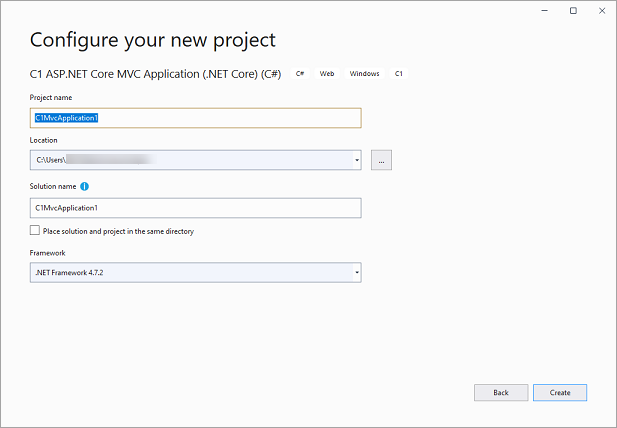
3. In the **Configure your new project** window, write your project name, choose location to save your project and click **Create**.
4. In the **ComponentOne ASP.NET MVC Application Wizard**, select a project type. In our case, we selected **Standard**.
5. Select the **ASP.NET Core framework** version for your application. In our case, we selected ASP.NET Core 3.0 framework.
6. Select the **Enable Client Intellisense** checkbox to enable intellisense.
7. (Optional) Select a **Theme** and the document libraries to reference, if required.
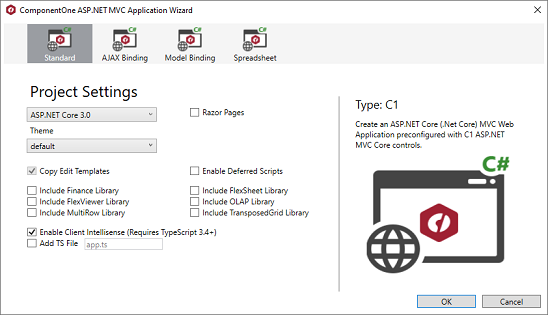
8. Click **OK**. A new project configured to work with ASP.NET MVC Edition is created and **MESCIUS License Manager** pops up for you to generate your application license.
To get the detailed steps on how to generate the license for applications created in Visual Studio using the **MESCIUS License Manager** Extension (also available under **Tools** menu in Visual Studio), see [Licensing](/componentone/docs/mvc/online-mvc-core/GettingStarted/Licensing).