# Client API IntelliSense
## Content
ComponentOne MVC Edition supports IntelliSense for the client-side API of MVC controls. The Client API IntelliSense support for all the MVC controls allows you to write the client side code in JavaScript or TypeScript.
### Enabling Client API IntelliSense with C1 Template
To enable the Client API IntelliSense in your MVC application, using C1 template, select the **Enable Client IntelliSense** check box from the **ComponentOne ASP.NET MVC Application Wizard**. Once you check the **Enable Client IntelliSense** option, it automatically adds **c1.mvc.basic.lib.d.ts** to the **Scripts\\Typings** folder.
To start using IntelliSense in the client side code in JavaScript or TypeScript, you need to add a reference to the **c1.mvc.basic.lib.d.ts** file in a JavaScript and/or TypeScript file. Once you add the reference in a JavaScript or TypeScript file, IntelliSense becomes accessible for all the other JavaScript or TypeScript file. Similarly, you need to add a reference to the **c1.mvc.basic.lib.d.ts** file in the \ tag of CSHTML file if you want to use JavaScript in the CSHTML file itself.
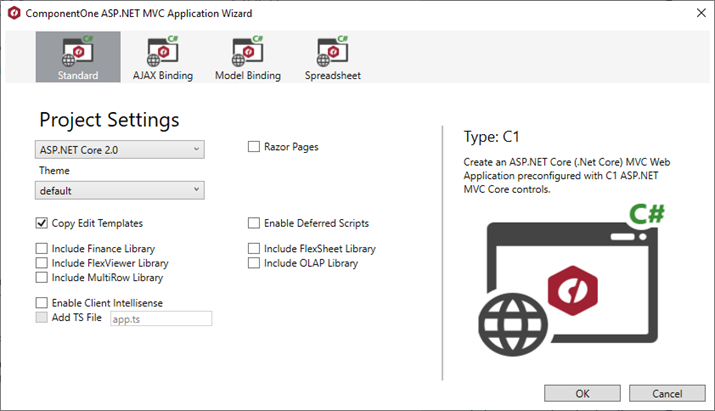
Similarly, when you select the Finance, FlexSheet, FlexViewer, MultiRow or OLAP Library from the **ComponentOne ASP.NET MVC Application Wizard**, the respective TS files, namely **c1.mvc.finance.lib.d.ts,** **c1.mvc.flexsheet.lib.d.ts,****c1.mvc.flexviewer.lib.d.ts, c1.mvc.multirow.lib.d.ts** or **c1.mvc.olap.lib.d.ts,** get automatically added to the **Scripts\\Typings** folder.
In case, you want to work only with the client side code in TypeScript, select the **Enable Client IntelliSense** and **Add TS file** check boxes from the **ComponentOne ASP.NET MVC Application Wizard**.
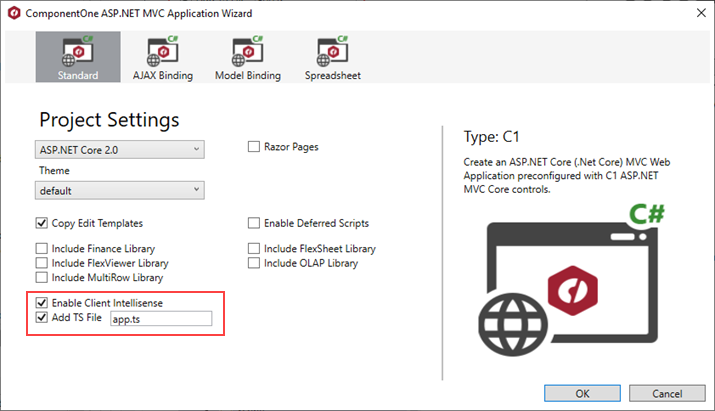
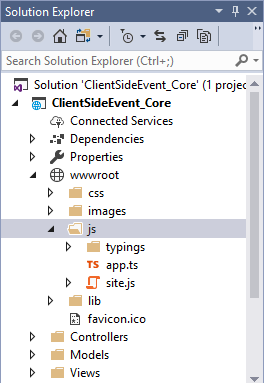
The **Add TS File** option in the project settings window, helps you to use C1 MVC IntelliSense while working with TypeScript files. When you select the Add TS File option, it adds a TS file to the Scripts folder which refers to the related **.d.ts** file and gets the IntelliSense working in TypeScript file.
### Enabling Client API IntelliSense with Visual Studio Template
To enable Client IntelliSense in VisualStudio, you need to add **c1.mvc.basic.lib.d.ts** file manually in your MVC application. To add the TS file to your application, follow these steps:
1. From the **Solution Explorer**, right-click the **Scripts** folder, and then select **Add | Existing Item**.
2. In the **Add Existing Item** dialog, add **c1.mvc.basic.lib.d.ts** file. You can find the TS file at the following location on your system: **C:\\Program Files (x86)\\ComponentOne\\ASP.NET MVC Edition\\TsTypings** location.
Similarly, if you want to use Client API IntelliSense in an existing MVC applications, you can add the necessary TS file to your application to use it.
### Using IntelliSense
Once IntelliSense is enabled, it can be used in a JavaScript,TypeScript or CSHTML file using the following code:
**In TypeScript file**
* Using Type Conversion:
```
var grid=wijmo.Control.getControl("#fg");
```
* Using Cast method:
```
var grid= wijmo.grid.FlexGrid.cast("#fg");
```
**In JavaScript or CSHTML file**
* Using Cast method
```
var grid= wijmo.grid.FlexGrid.cast("#fg");
```