# Search Bar
## Content
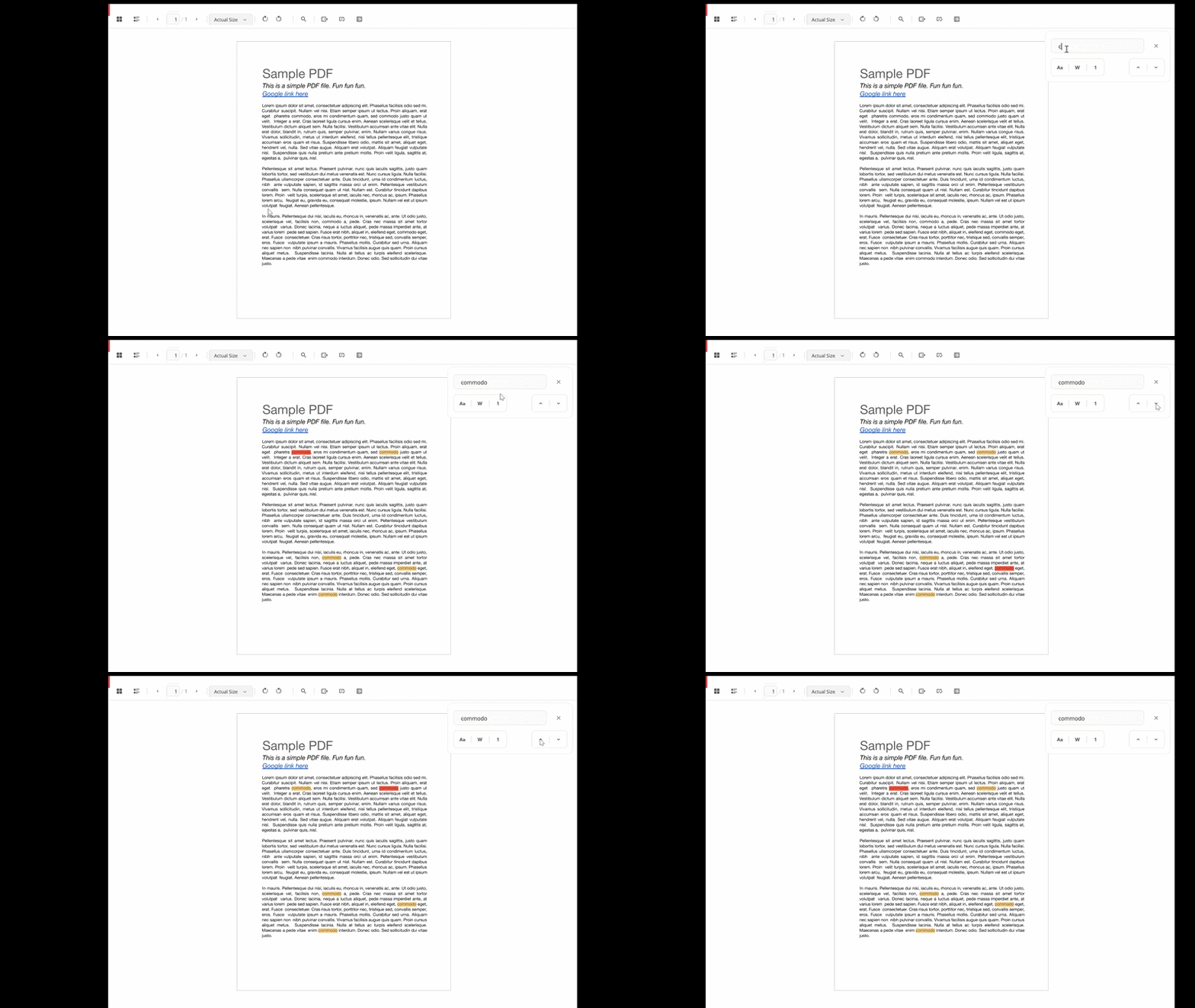
FlexViewer provides a search bar for finding text in the displayed document. It supports search filters, match highlighting, and navigation between search results.
The following gif shows the search bar in FlexViewer.
## Search Text
Enter the required text in the search box. FlexViewer locates the matching text, scrolls to its position, and highlights the match in the document.
## Refine Search
The search bar provides the following options to refine search results:
| **Search option** | **Description** |
| ------------- | ----------- |
| Match Case | Searches for text that matches the capitalization of the entered text. |
| Whole Word | Searches only for complete words that match the entered text. |
| Current Page | Limits the search to the current page. |
## Navigate Search Results
Use the **Previous** and **Next** buttons to navigate between matching results.
* **Previous** moves to the previous match.
* **Next** moves to the next match.
FlexViewer scrolls to each match and highlights it in the document.
To close the search bar, click the **Close** button.
>type=note
> **Note:** Search supports **Match Case**, **Whole Word**, and **Current Page** filters. Regular expression and fuzzy searches are not supported. Search performance may vary depending on the document type and size.