# Quick Start
## Content
The following quick start guide is intended to get you up and running with the FlexGrid control. In this quick start, you'll start by creating a new MAUI application, add the FlexGrid control to it, and bind it with a data source.
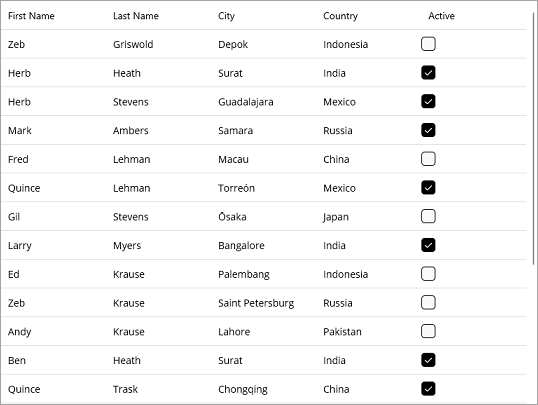
The following image displays the FlexGrid control showing the customer details, such as First Name, Last Name, Address, City etc.
## Setup the App
1. In Visual Studio, create a new .NET MAUI App. For detailed steps, see [Configure MAUI Application](/componentone/docs/maui/online-maui/configuring-maui-app).
2. In the **Solution Explorer**, right click **Dependencies** and select **Manage NuGet Packages**.
3. In **NuGet Package Manager**, select **nuget.org** as the **Package source**.
4. Search and select the following package and click **Install**.
* **C1.Maui.Grid**
5. Register the FlexGrid control by adding the following line of code to the **CreateMauiApp** method in **MauiProgram.cs** file.
```csharp
.RegisterFlexGridControls()
```
## Configure the References and the FlexGrid control
1. Declare the required namespaces using the following code in XAML:
```xml
xmlns:ios="clr-namespace:Microsoft.Maui.Controls.PlatformConfiguration.iOSSpecific;assembly=Microsoft.Maui.Controls"
xmlns:c1="http://schemas.componentone.com/winfx/2006/xaml"
```
2. Place the cursor between the \\ tags to add the FlexGrid control using the following code:
```xml
```
3. Switch from XAML to C# code view and bind the FlexGrid control to a datasource. Here, we use the [Customer ](/componentone/docs/maui/online-maui/maui-controls/flexgrid/flexgrid-quickstart/customer-class)class added to the Data folder of the application.
```csharp
var data = Customer.GetCustomerList(20);
grid.ItemsSource = data;
```
## Build and Run the Project
1. Click **Build \| Build Solution** to build the project.
2. Press **F5** to run the project.