# Quick Start

## Content


The following quick start guide is intended to get you up and running with the FlexChart control. In this quick start, you start by creating a new MAUI application, add the FlexChart control to it, and bind it with a datasource. The following image displays the FlexChart control showing the sales details of products.
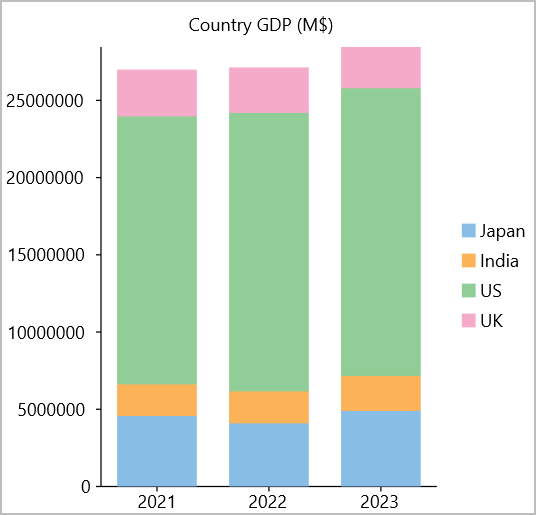
![Simple column chart](https://cdn.mescius.io/document-site-files/images/4e85e507-742e-4a29-b3fe-f23b37c29164/images/flexchart.png)

## Setup the App

1.  In Visual Studio, create a new .NET MAUI App. For detailed steps, see [Configure MAUI Application](/componentone/docs/maui/online-maui/configuring-maui-app).
2.  In the **Solution Explorer**, right click **Dependencies** and select **Manage NuGet Packages**.
3.  In **NuGet Package Manager**, select **nuget.org** as the **Package source**.
4.  Search and select the following package and click **Install**.
    *   **C1.Maui.Chart**
5.  Register the FlexChart control by adding the following line of code to the **CreateMauiApp** method in **MauiProgram.cs** file.
    
    ```csharp
    .RegisterCoreControls()
    ```
    

## Configure the References and the FlexChart control

1.  Declare the required namespaces using the following code in XAML:
    
    ```xml
    xmlns:c1="http://schemas.componentone.com/winfx/2006/xaml"
    xmlns:c1="clr-namespace:C1.Maui.Chart;assembly=C1.Maui.Chart"
    ```
    
2.  Place the cursor between the \<ContentPage>\</ContentPage> tags to add the FlexChart control using the following code:
    
    ```xml
    <c1:FlexChart x:Name="chart" ChartType="Column" ItemsSource="{Binding ListItem}"
                   BindingX="year" Stacking="Stacked" Header="Country GDP (M$)">
        <c1:Series Binding="Japan" SeriesName="Japan"/>
        <c1:Series Binding="India" SeriesName="India"/>
        <c1:Series Binding="US" SeriesName="US"/>
        <c1:Series Binding="UK" SeriesName="UK"/>
        <c1:FlexChart.AxisX>
            <c1:Axis Position="Bottom" />
        </c1:FlexChart.AxisX>
        <c1:FlexChart.AxisY>
            <c1:Axis Position="Left" />
        </c1:FlexChart.AxisY>
    </c1:FlexChart>
    ```
    
3.  Switch from XAML to C# code view and bind the FlexChart control to a datasource named GdpDataSource.
    
    ```csharp
    private List<object> _listItem;
    public List<object> ListItem
    {
        get { return _listItem; }
        set { _listItem = value; }
    }
    public QuickStart()
    {
        InitializeComponent();
        ListItem = GdpDataSource.GetCountryGdp();
        this.BindingContext = this;
    }
    public static class GdpDataSource
    {
        public static List<object> GetCountryGdp()
        {
            return new List<object> {
                new
                {
                    year = "2021",
                    US = 17348075,
                    Japan = 4602367,
                    UK = 2950039,
                    India = 2051228
                },
                new
                {
                    year = "2022",
                    US = 18036650,
                    Japan = 4124211,
                    UK = 2858482,
                    India = 2073002
                },
                new
                {
                    year = "2023",
                    US = 18624450,
                    Japan = 4936540,
                    UK = 2629190,
                    India = 2263790
                }
            };
        }
    }
    ```
    

## Build and Run the Project

1.  Click **Build | Build Solution** to build the project.
2.  Press **F5** to run the project.