# Offline Activation and Deactivation
## Content
ComponentOne supports **offline license activation and deactivation** for development machines that do not have direct internet access.
Offline licensing is performed using the **MESCIUS License Manager** in combination with the ComponentOne licensing portal, which is accessed from a separate internet-connected device.
## When to Use Offline Activation
Use offline activation if:
* The development machine does not have internet access
* Network restrictions prevent direct communication with the licensing service
An internet-connected device is still required to complete the activation or deactivation process.
## Offline Activation
Offline activation is a two-step process:
1. Generate an offline activation request on the offline machine.
2. Complete activation on an internet-connected device and import the response.
### Step 1: Generate an Offline Activation Request
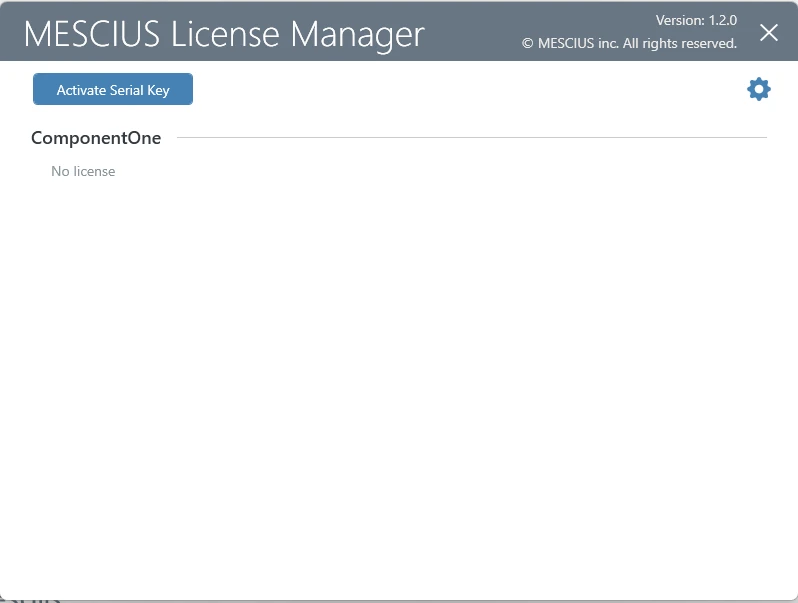
1. Open **MESCIUS License Manager**.
2. Click the gear icon to open **Settings**.
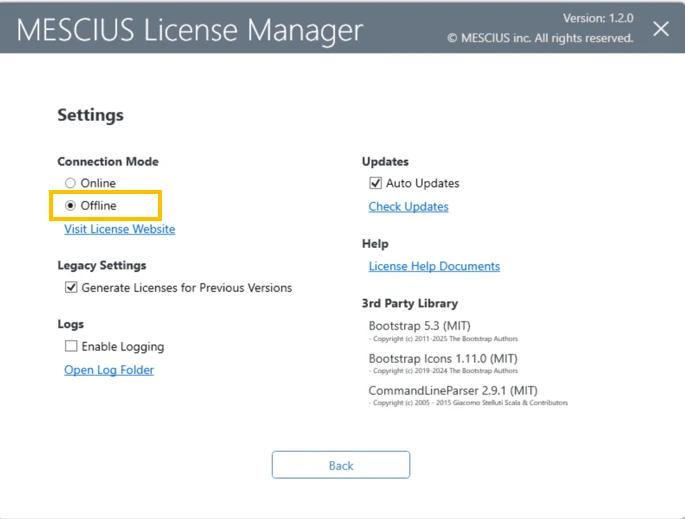
3. Under **Connection Mode**, select **Offline**, and then click **Back** to close the Settings page.
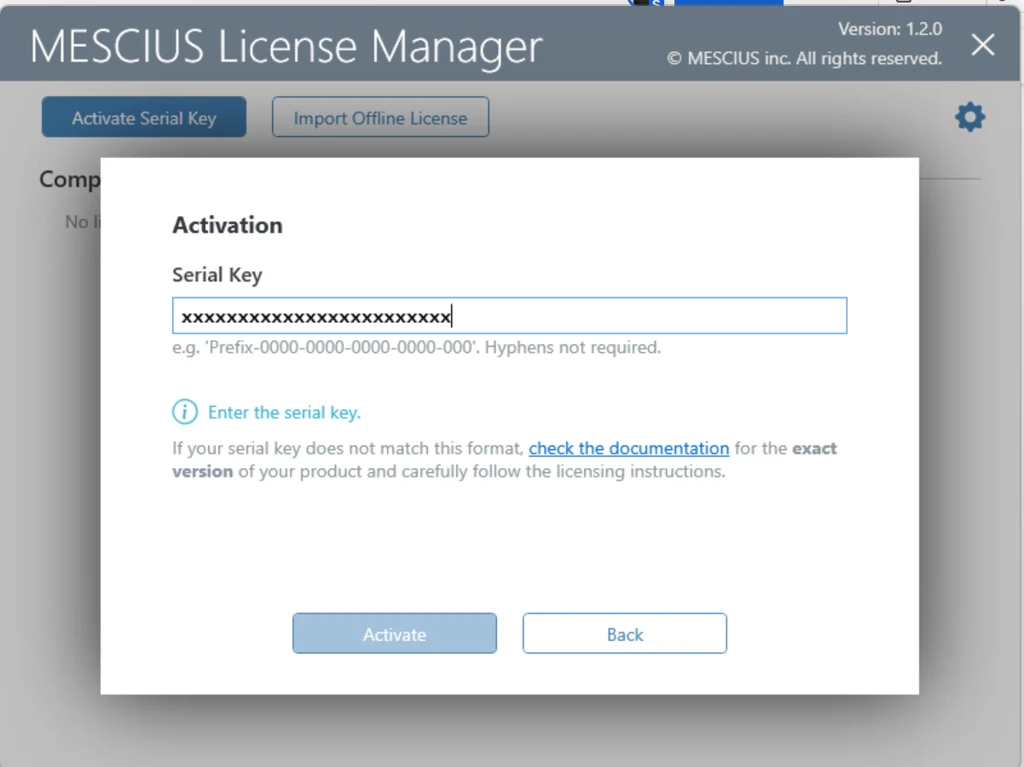
4. Select **Activate Serial Key**.
5. Enter a valid serial key and select **Activate**.
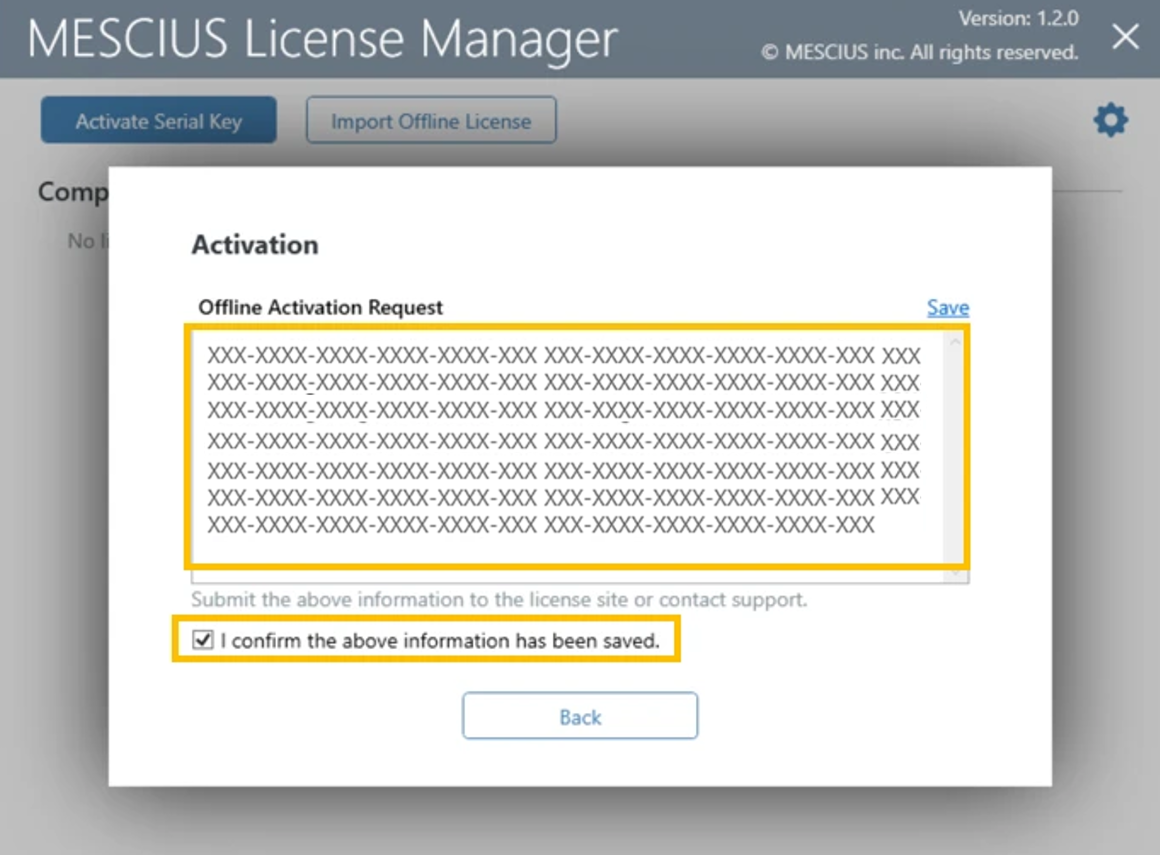
6. When the **Offline Activation Request** is generated:
* Save the generated text.
* Confirm the checkbox.
7. Select **Back** to close the activation window.
### Step 2: Complete Activation on an Internet-Connected Device
1. On a device with internet access, open the **ComponentOne licensing portal** [[Home - SA3 License](https://sa3.mescius.com/) ]
2. Select **Activate**.
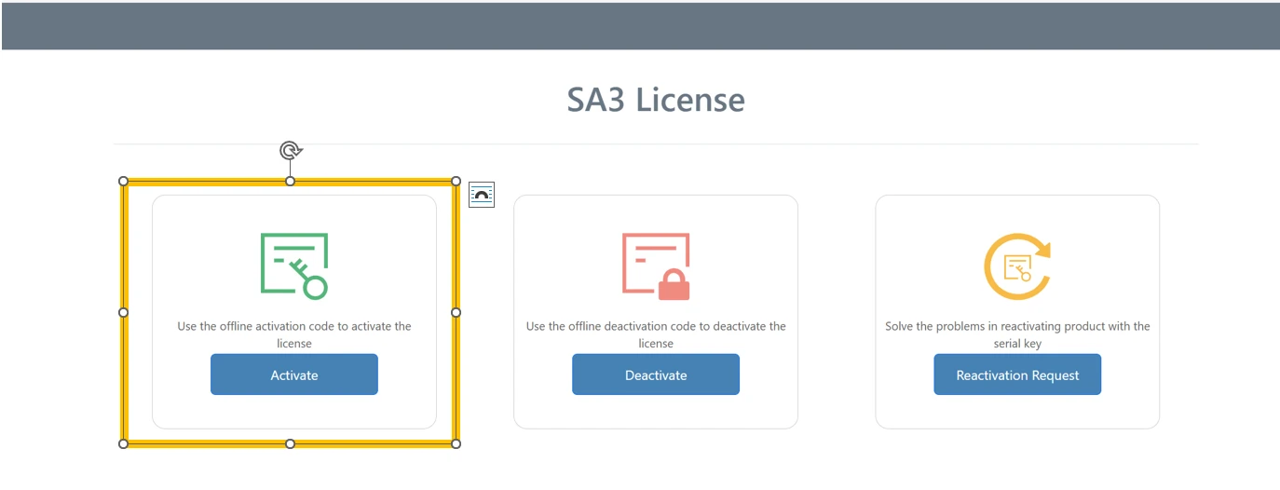
3. Paste the activation request text generated by the License Manager.
4. Select **Activate**.
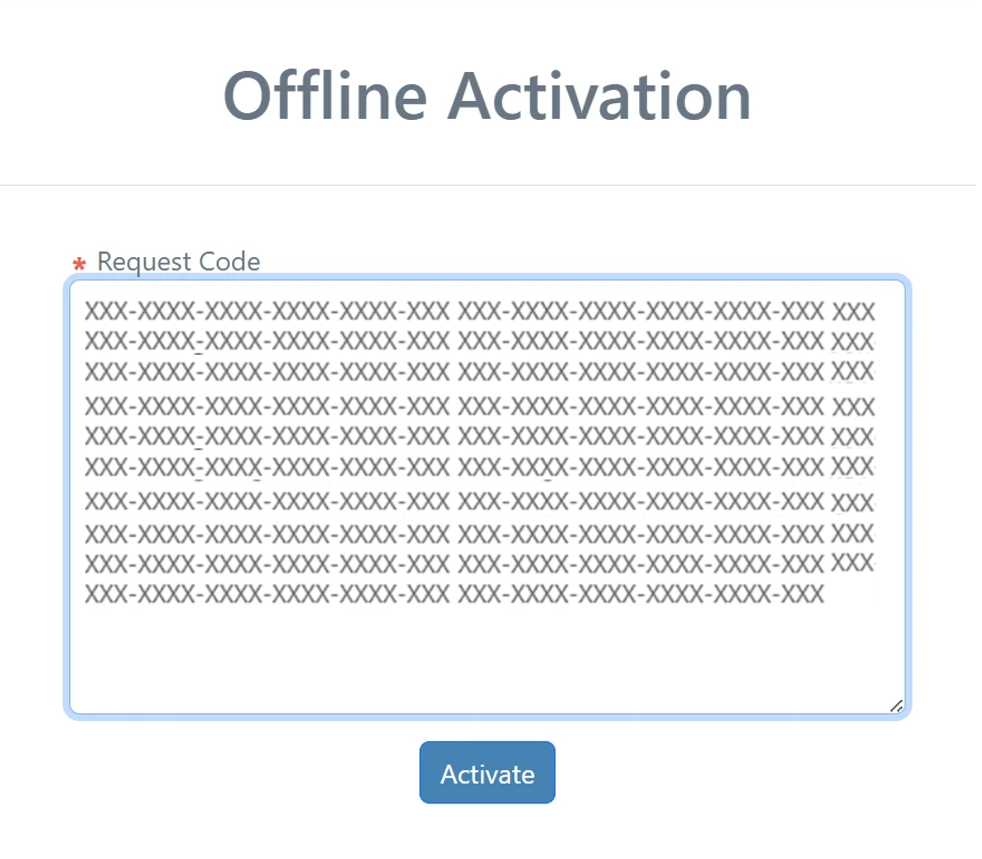
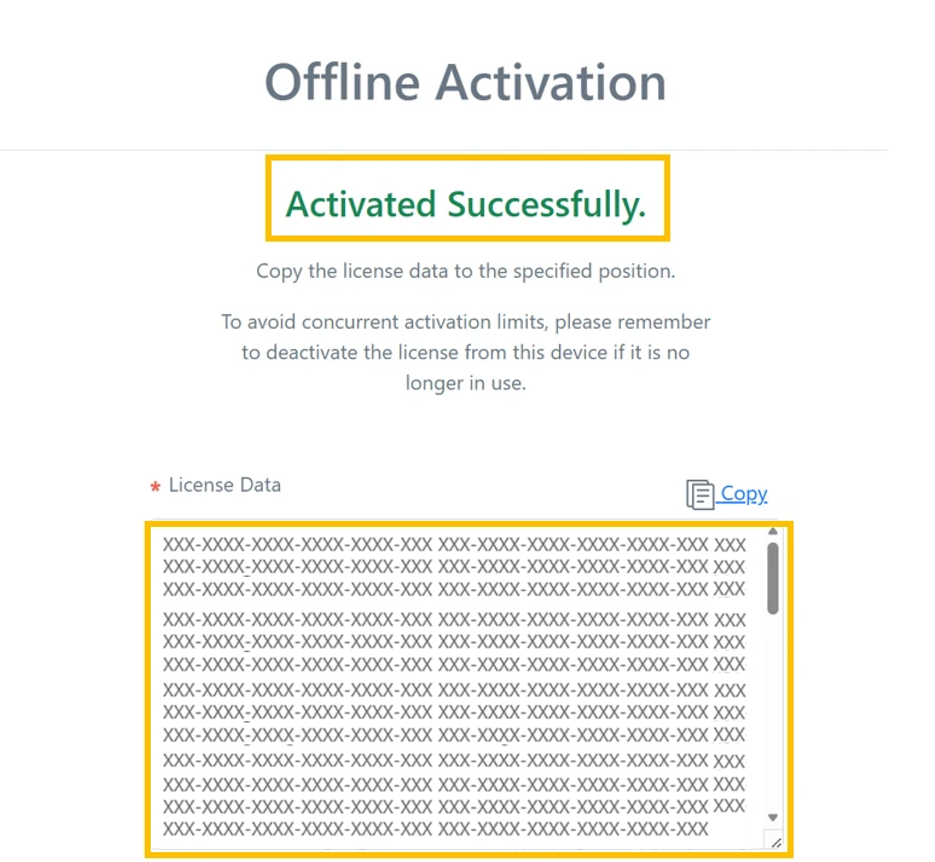
5. After activation completes, save the response text generated by the portal.
### Step 3: Import the Offline License
1. Return to the offline machine.
2. Open **MESCIUS License Manager**.
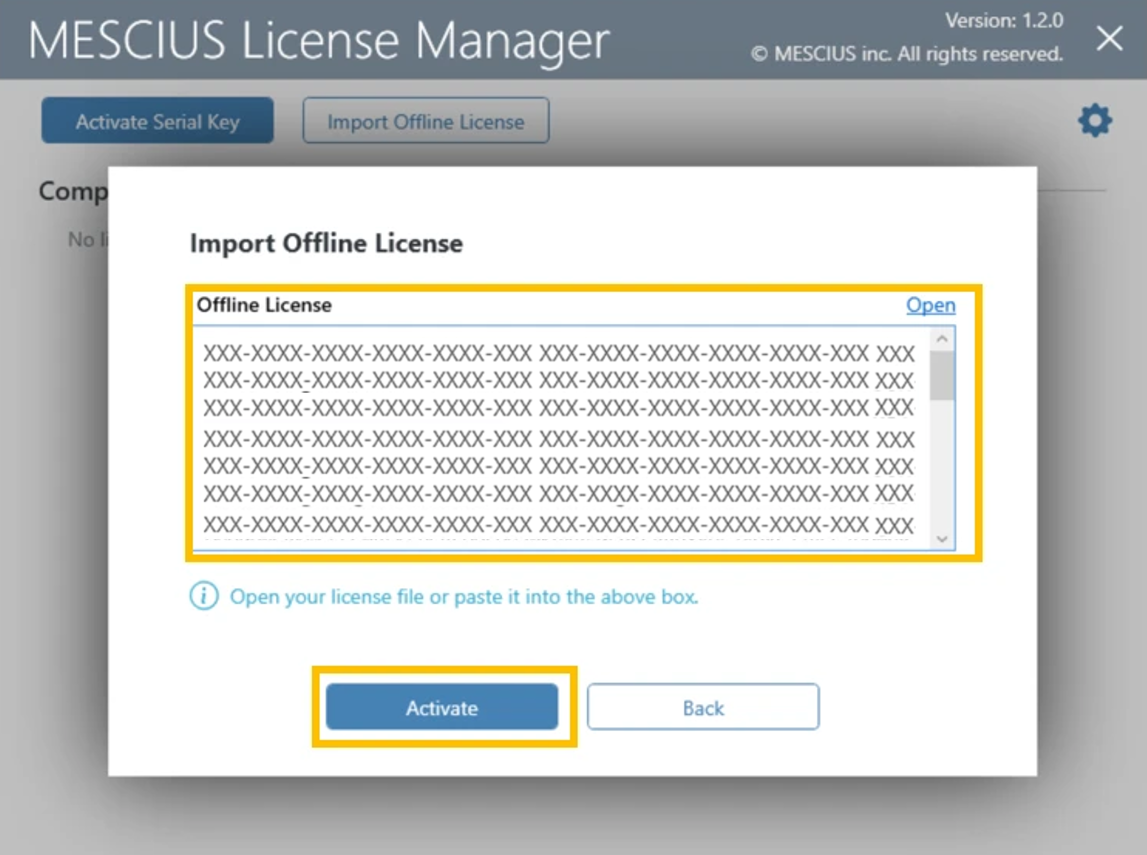
3. Select **Import Offline License**.
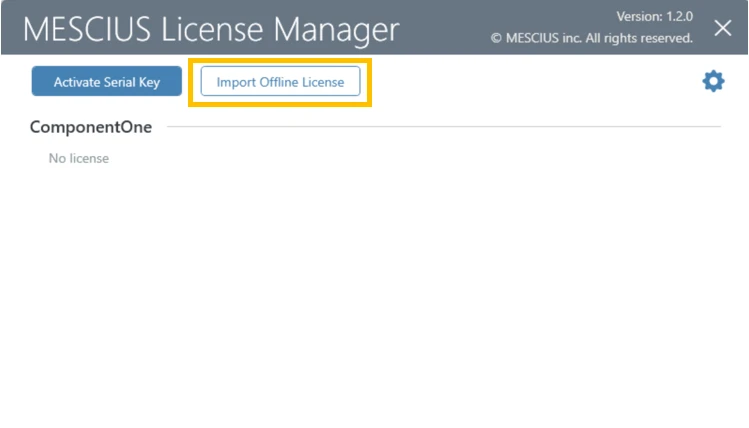
4. Paste the response text generated by the licensing portal.
5. Select **Activate**.
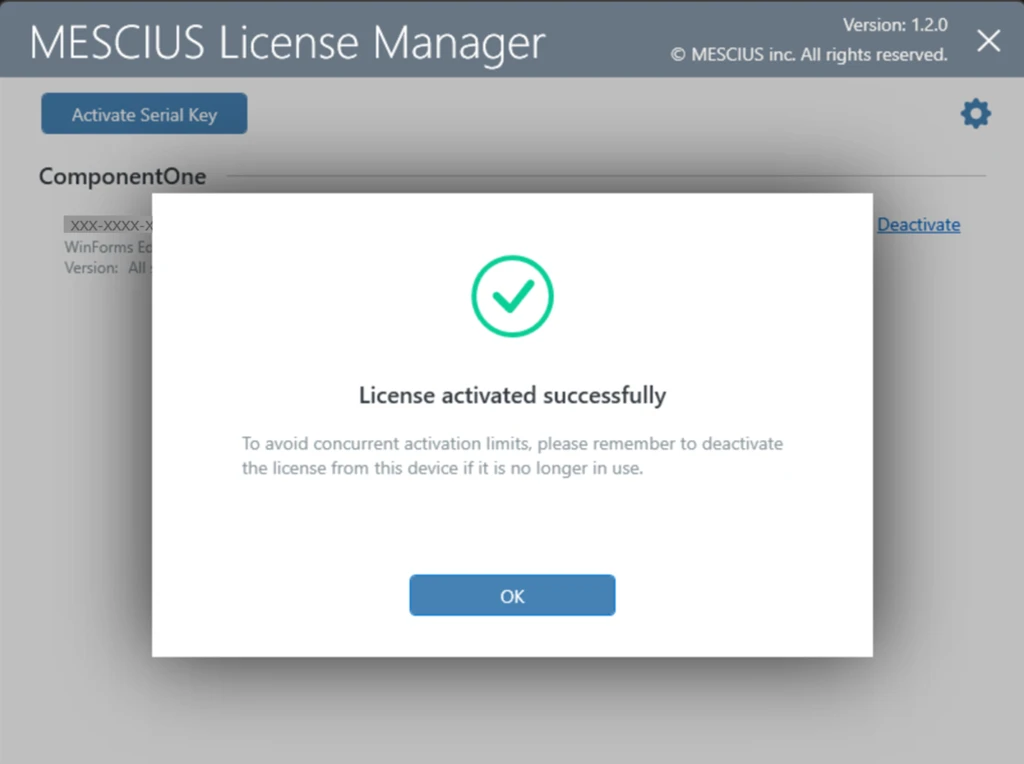
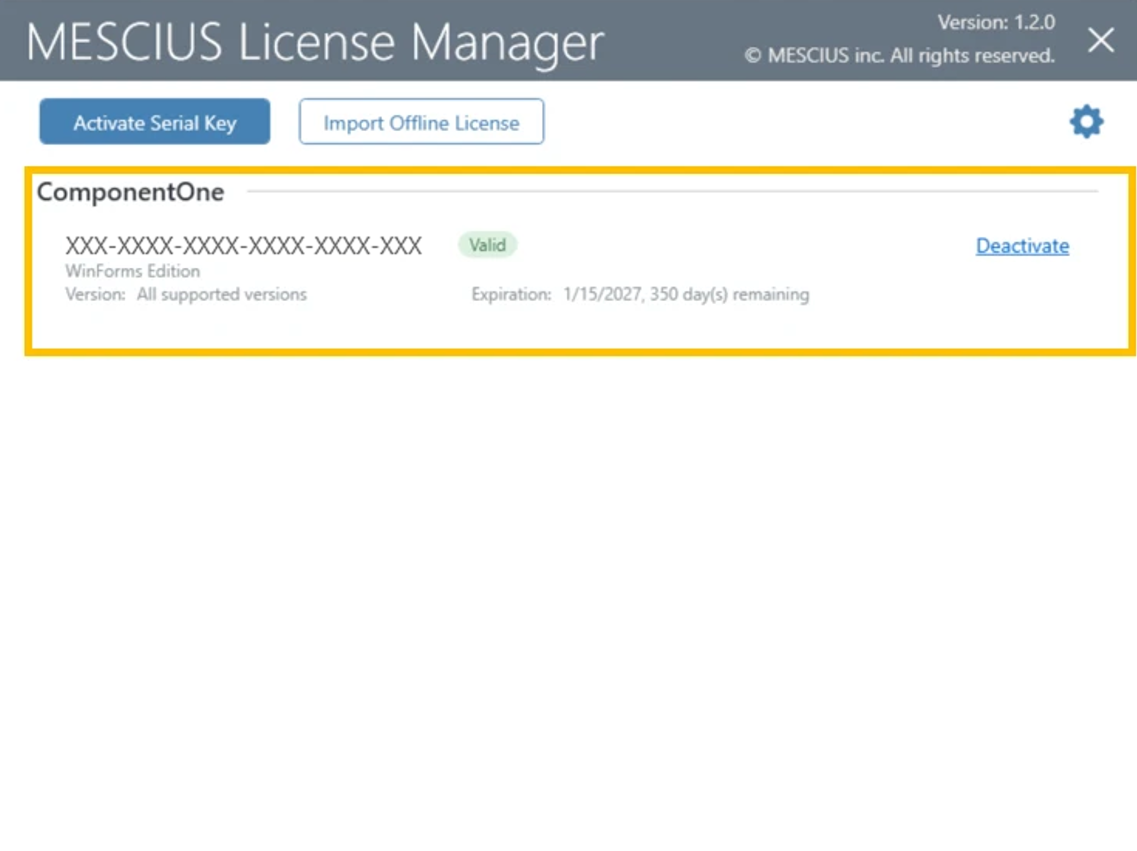
If the import is successful, a confirmation message is displayed and the activated serial key appears in the license list.
## Offline Deactivation
Offline deactivation allows you to remove an activated license from a machine that does not have internet access.
As with activation, this process requires both the offline machine and an internet-connected device.
### Step 1: Generate an Offline Deactivation Request
1. Open **MESCIUS License Manager**.
2. Open **Settings**.
3. Under **Connection Mode**, select **Offline**, and then close the Settings page.
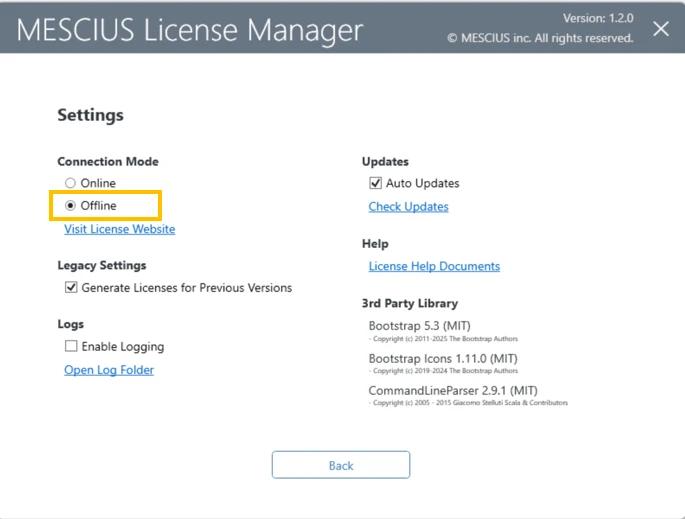
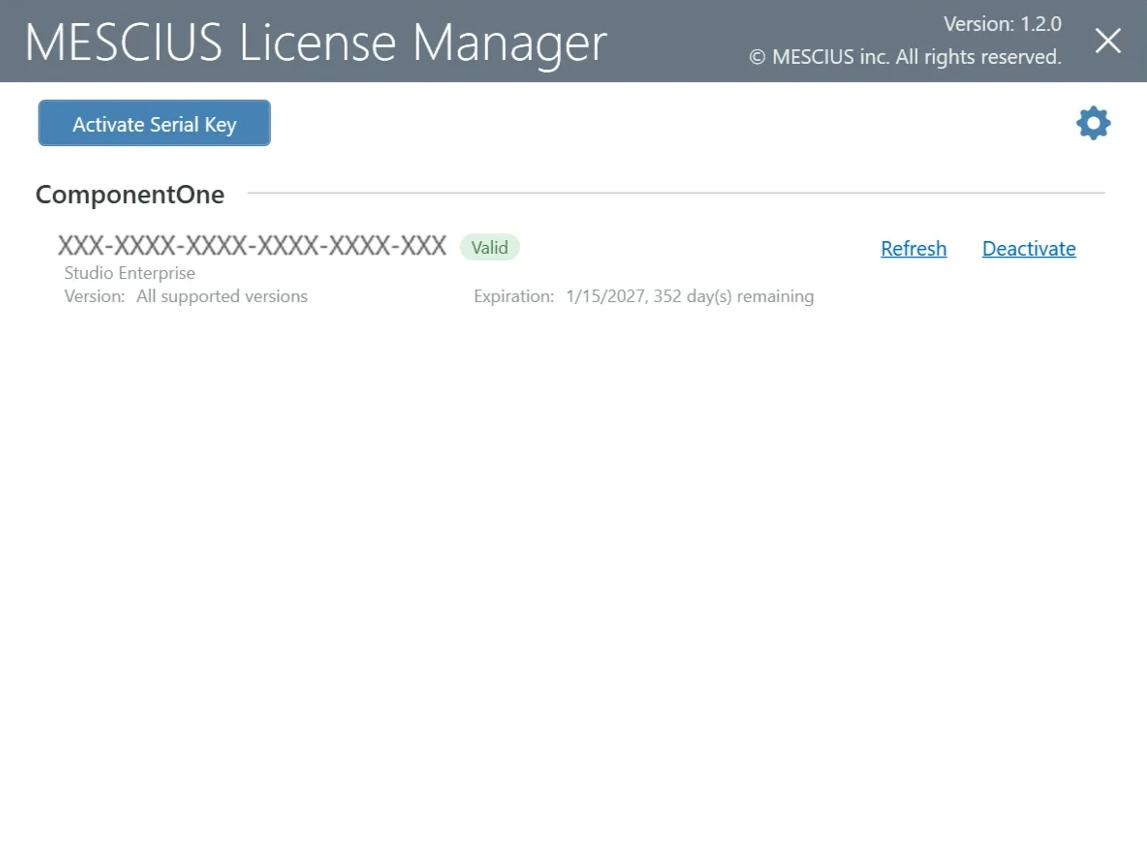
4. In the license list, select **Deactivate** next to the license you want to remove.
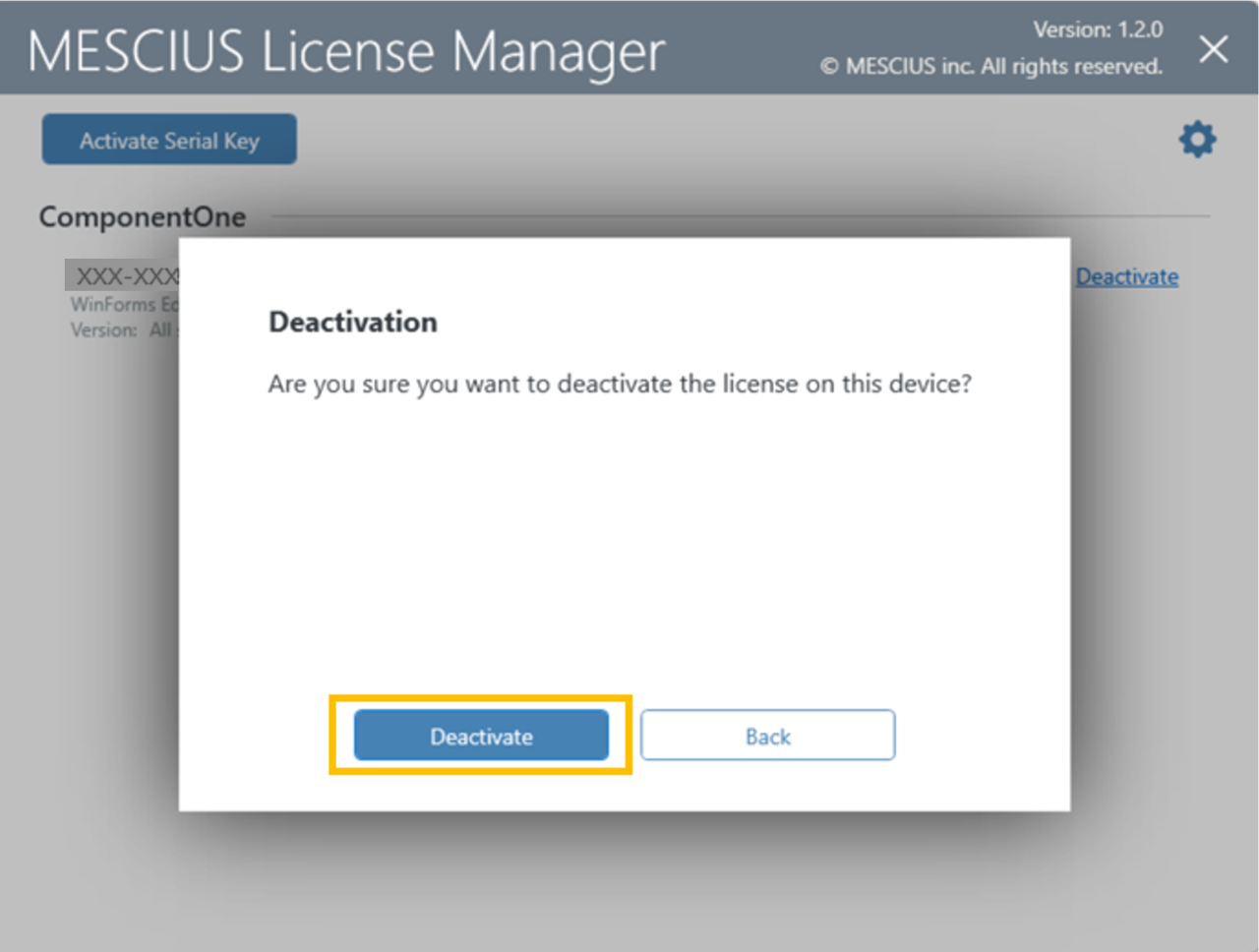
5. Save the text generated in the **Offline Deactivation Request** box.
6. Confirm the checkbox and select **Back**.
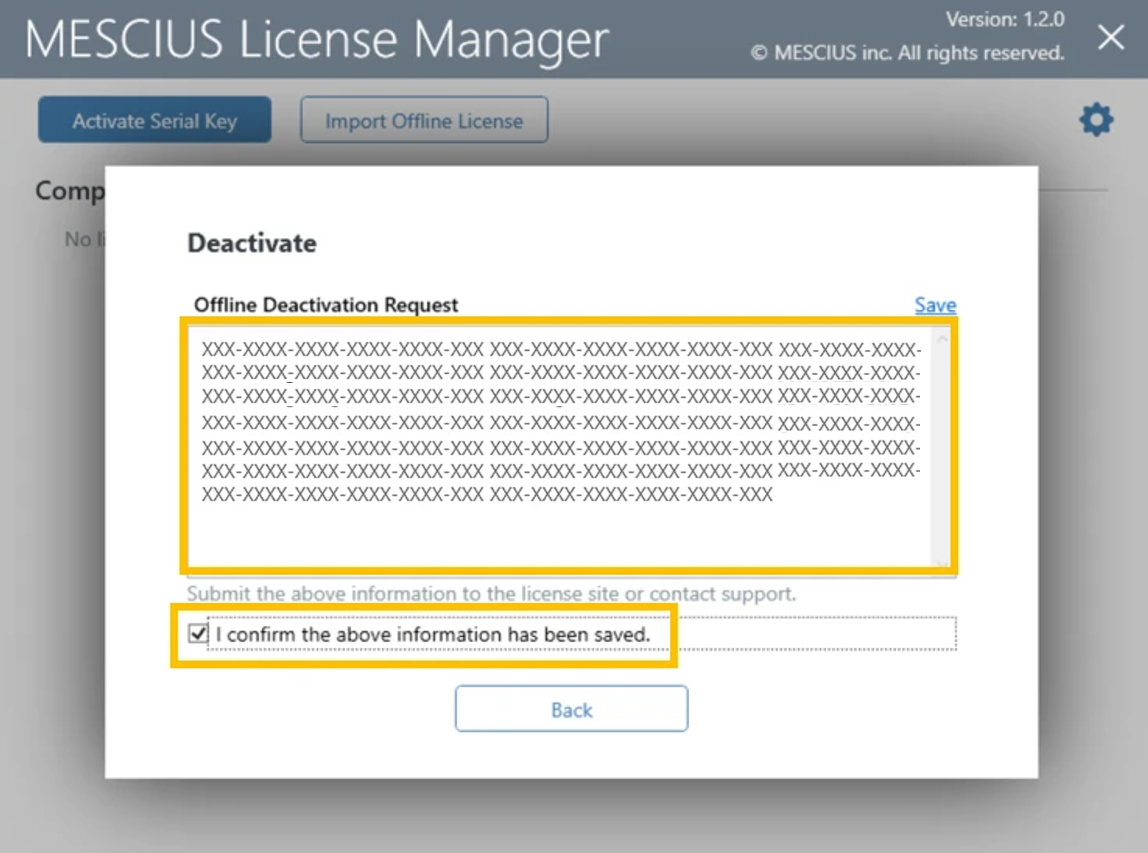
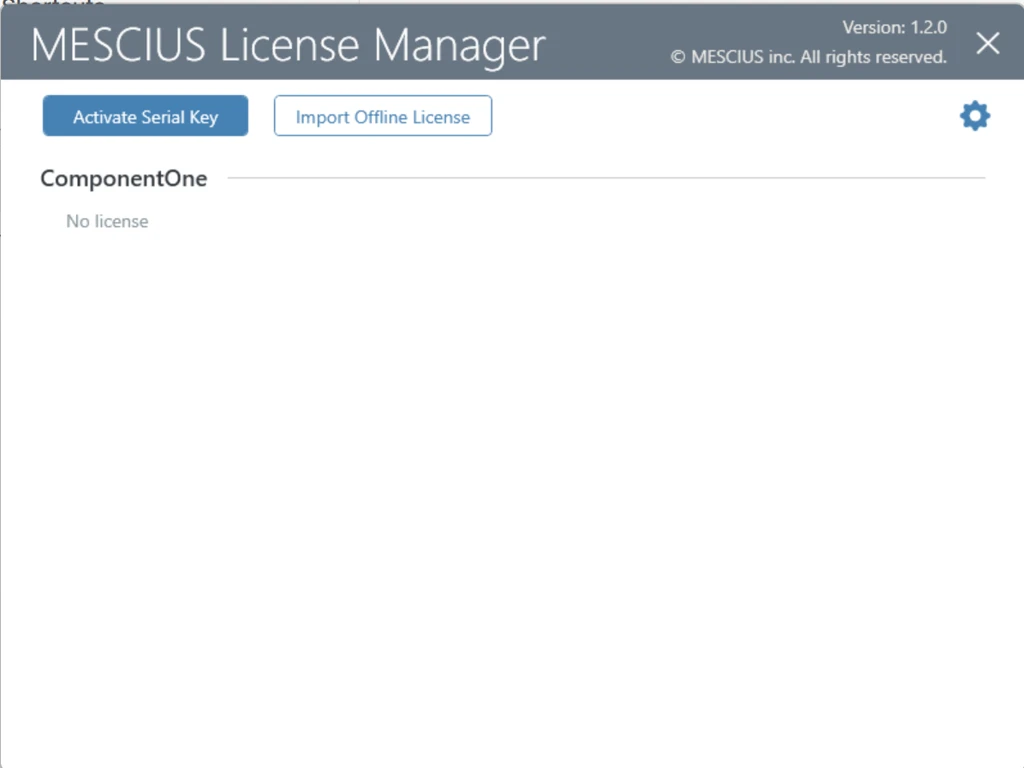
The license is removed from the local list after the request is generated.
### Step 2: Complete Deactivation on an Internet-Connected Device
1. On a device with internet access, open the **ComponentOne licensing portal** [[Home - SA3 License](https://sa3.mescius.com/)]
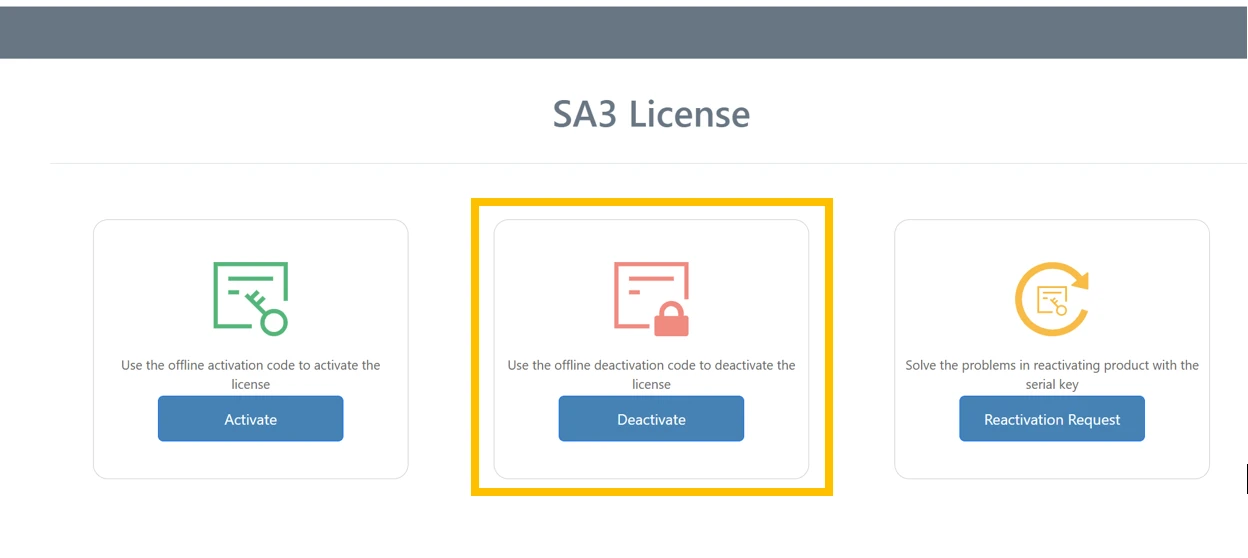
2. Select **Deactivate**.
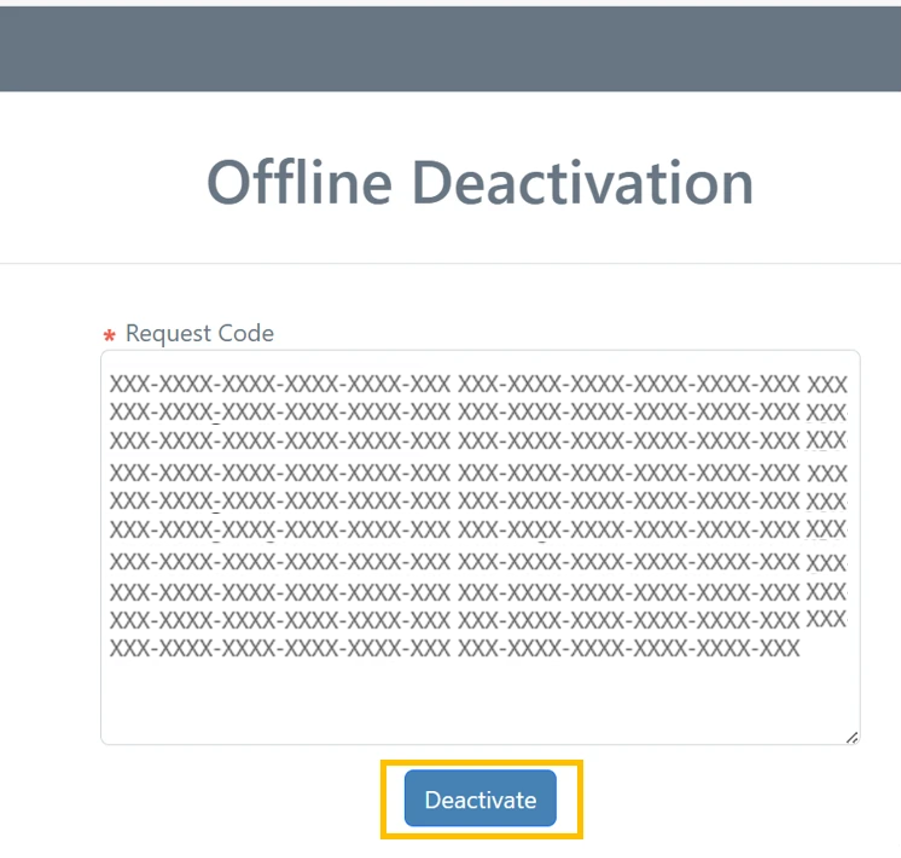
3. Paste the deactivation request text generated by the License Manager.
4. Select **Deactivate**.
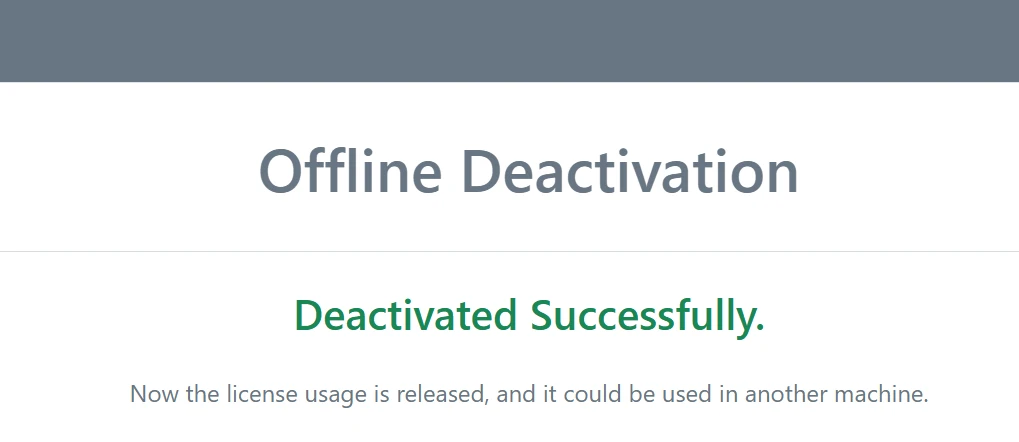
If deactivation is successful, a confirmation message is displayed.
### Notes and Considerations
* Offline activation and deactivation require manual transfer of activation data between machines.
* Each activation and deactivation counts toward applicable license activation limits.
* Ensure the correct serial key is selected before generating activation or deactivation requests.
For more information about activation limits and licensing behavior, see [Licensing Process](/componentone/docs/license/online-license/c1-licensing-process).
## Offline Activation Using the Legacy License Manager
If your development or build machine using Grape City Licensing Manager has no internet connection follow these steps to activate your license:
1. Install the ComponentOne product on the offline machine. You may gain access to an offline installer download for the version purchased from your online account under My Licenses & downloads. The offline installer may only be installed on a machine that does not have the web installer (C1ControlPanel) already installed.
2. Launch the MESCIUS License Manager tool (C:\\ProgramData\\GrapeCity\\gclm\\gclm.exe) and proceed to activate a key as follows.
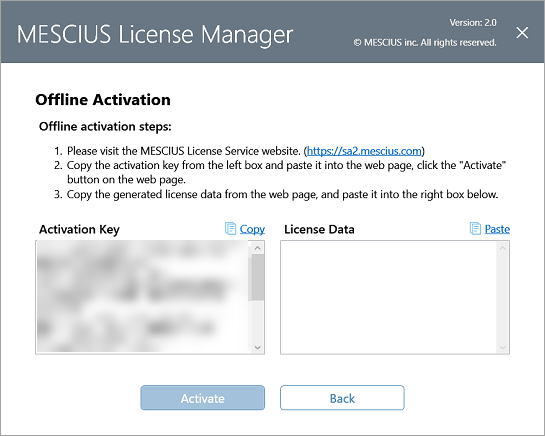
When the MESCIUS License Manager fails to activate a serial key due to network issues, you can activate your serial key offline by clicking the **Offline Activate** button.
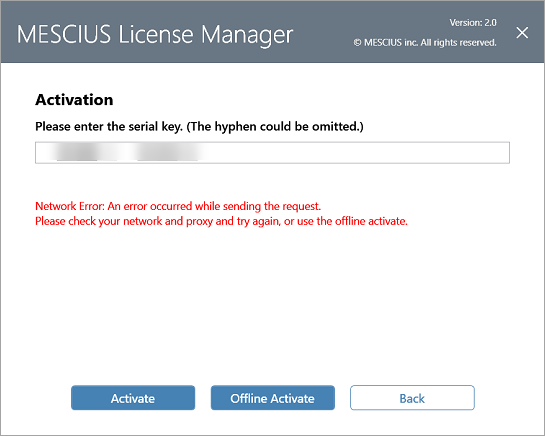
Clicking the **Offline Activation** button opens the **Offline Activate** window with instructions. You can follow the instructions and activate your serial key offline by clicking the **Activate** button.
## Offline Activation by Command Line
Offline activation is a manual process that can be tedious to do for many developers. Instead, you may implement a process to perform the offline activation by command. This process is somewhat automatic, but also requires a manual step in the middle that can be performed at once for all machines or for a single machine. The steps below detail this process:
Before offline activation by command line, see the topic [Activation by Command Line](/componentone/docs/license/online-license/activation/licensing-by-command-line#activationcl), to install the MESCIUS License Manager tool (gclm).
1. Write a bat file or program that runs on each offline machine that executes:
1. Windows: C:\\ProgramData\\GrapeCity\\gclm\\gclm.exe "product id" -g "key" "activation file name"
2. Linux/MacOS: gclm "product id" -g "key" "activation file name"
>type=note
>
> Notes:
> \> \* This creates an "activation file name" \(\.lic\) which includes the name of the machine \(computer environment variable\)\. This could be put on a network location such as \[file:/%3Cnetwork\-location%3E%computername%\-gcactivation\.lic\]\\\\\%computername%\-gcactivation\.lic\.
> \> \* The "product id" can be obtained from the topic [Activation by Command Line](/componentone/docs/license/online-license/activation/licensing-by-command-line#activationcl).
> \> \* Replace "key" with your serial key\.
> \> \* Studio Enterprise Example: C:\\ProgramData\\GrapeCity\\gclm\\gclm\.exe "331cf6cd\-b73c\-429f\-ba79\-fa2f85eebd68" \-g "key" \[file:/%3Cnetwork\-location%3E%computername%\-gcactivation\.lic\]\\\\\%computername%\-gcactivation\.lic
2. From an online machine, go to the [https://sa2.mescius.com/activate](https://sa2.mescius.com/activate) website and manually generate the KeyFile for each machine using the activation file.
3. Run a second bat file or command on each offline machine with:
1. Windows: C:\\ProgramData\\GrapeCity\\gclm\\gclm.exe "product id" -i "keyfile"
2. Linux/MacOS: gclm "product id" -i "keyfile"
>type=note
>
> Notes:
> \> \* You should name the KeyFile so that it identifies the machine the activation file came from\.
> \> \* All the KeyFiles will be different and tied to a specific machine\.
## Offline Deactivation Using the Legacy License Manager
Sometimes, the developer using the MESCIUS license might need to switch to a new machine. In this case, if the new machine does not have the active internet connection then the following steps can be followed to deactivate the license:
Launch the MESCIUS License Manager tool (C:\\ProgramData\\GrapeCity\\gclm\\gclm.exe) and proceed to deactivate a key as follows.
When the MESCIUS License Manager fails to deactivate a serial key due to network issues, you can deactivate your serial key offline by clicking the **Offline Deactivate** button.
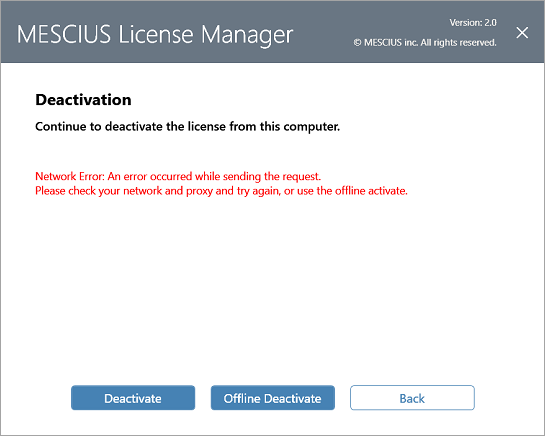
The Offline Deactivation window appears with instructions as shown in the following image. You can deactivate your serial key offline by following the steps.
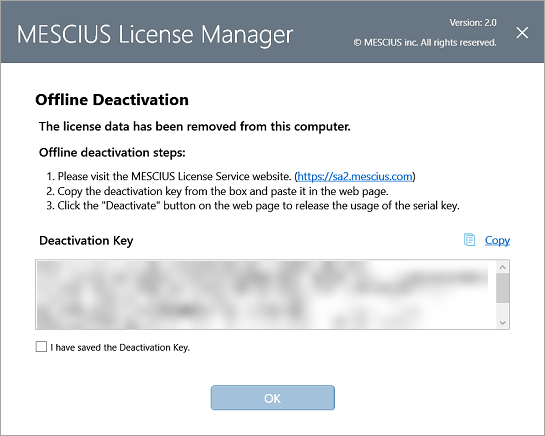
The following steps are also demonstrated below in detail.
1. On a machine with an active internet connection, go to [https://sa2.mescius.com/](https://sa2.mescius.com/).
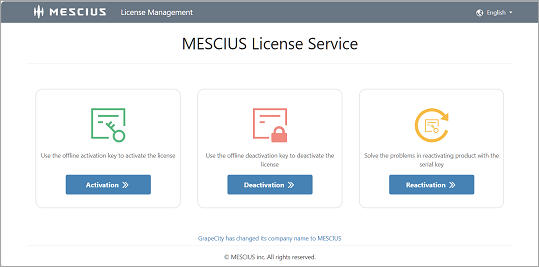
2. Copy the Deactivation key from the offline machine and send it via file transfer to another internet-connected system.
3. On the sa2 website, click the Deactivation option to see a Deactivation window. Copy the deactivation key from step 2 and paste it into the Deactivation box.
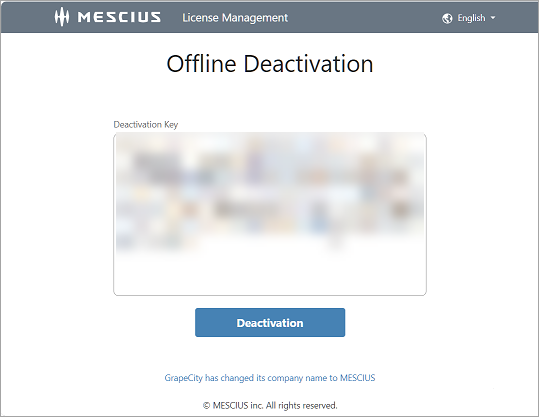
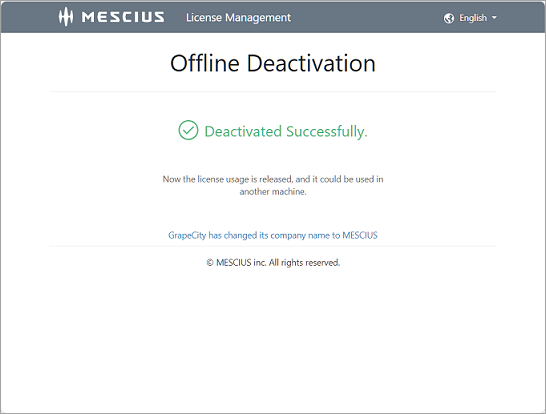
On successful deactivation, "Deactivated Successfully" message appears as shown below.
>type=note
> **Note**: You will lose your activation if you do not follow the above steps after deactivating the key from the offline machine.