# Quick Start
This quick start guides you through the steps of adding the ListView control in your Blazor application, adding data to it and displaying the data in the control.
## Content
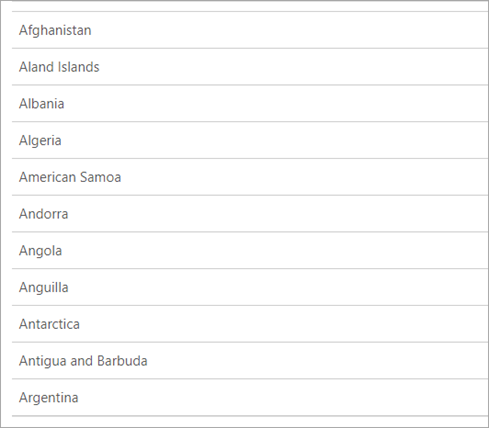
This quick start guides you through the steps of adding the ListView control in your Blazor application, adding data to it and displaying the data in the control. In this example, we create a data source for ListView by creating a list of countries and bind the list to the ListView control to display the names of countries in the control.
## Create a Blazor App
1. In Visual Studio, select **Create a new project** from the **Get started** pane.
2. In the **Create a new project** dialog, select **Blazor WebAssembly App**, and click **Next**. Alternatively, you can also create a Blazor Server App.
> type=note
> **Note**: **Blazor Server App** or server-side app can be created using the Blazor Server App template. For more details, see [Blazor Server](/componentone/docs/blazor/online-blazor/blazortypes/blazorserver) topic under Blazor Project Types.
3. In the **Configure your new project** dialog, provide name of the project you want to create in the **Project name** field and location for the project in the **Location** field. Click **Next**.
4. In the **Additional information** dialog, select the target framework from the **Framework** dropdown, if required and click **Create**. By default, the selected framework is **.NET 8.0**. A new client-side Blazor app is created.
## Configure References
1. In the **Solution Explorer**, right click **Dependencies** and select **Manage NuGet Packages**.
2. In **NuGet Package Manager**, select **nuget.org** as the **Package source**.
3. Search for **C1.Blazor.ListView** package and click **Install**.
4. Navigate to the **wwwroot**, open **index.html** file.
5. Register the client resources by adding the following lines of code to the **\** tag.
```EXAMPLE
```
6. Add the following code to the **\** tag.
```html
```
7. Right click on **Pages** folder, click **Add |** **Razor Component** to add a new Razor page and then provide a name, say _ListViewQuickStart._
8. Add the required directives to initialize and use the ListView control in the new Razor page.
```razor
@using C1.Blazor.ListView
```
## Configure the Data Source
In the **Data** folder, add a class, say Country, and add the following code.
```csharp
public class Country
{
public override string ToString()
{
return Name;
}
public string Code { get; set; }
public string Name { get; set; }
public static List GetCountries()
{
var assembly = typeof(Country).GetTypeInfo().Assembly;
var stream = assembly.GetManifestResourceStream("ListView_List.Data.countries.json");
var json = new System.IO.StreamReader(stream).ReadToEnd();
var countries = JsonSerializer.Deserialize>(json);
var listContries = new List();
foreach (var item in countries)
{
listContries.Add(new Country() { Code = item.Key, Name = item.Value.ToString() });
}
return listContries.OrderBy(c => c.Name).ToList();
}
}
}
```
## Bind ListView to Data
To bind ListView to data, set the [ItemsSource](/componentone/api/blazor/online-blazor/dotnet-api/C1.Blazor.ListView/C1.Blazor.ListView.C1ListView-1.ItemsSource.html) property and type of the type parameter **T** for C1ListView component. Here, the **ItemsSource** property accepts the collection of items for the ListView control.
Replace the existing code in the **Pages\\Index.razor** page with the following code.
```razor
@code{
IEnumerable countries;
protected override void OnInitialized()
{
countries = Country.GetCountries();
}
}
```
## Build and Run the Project
1. Click **Build | Build Solution** to build the project.
2. Press **F5** to run the project.