# QuickStart

Blazor Edition provides a set of native UI controls built for Blazor such as FlexGrid, Chart, ListView, and input controls including AutoComplete and ComboBox.

## Content


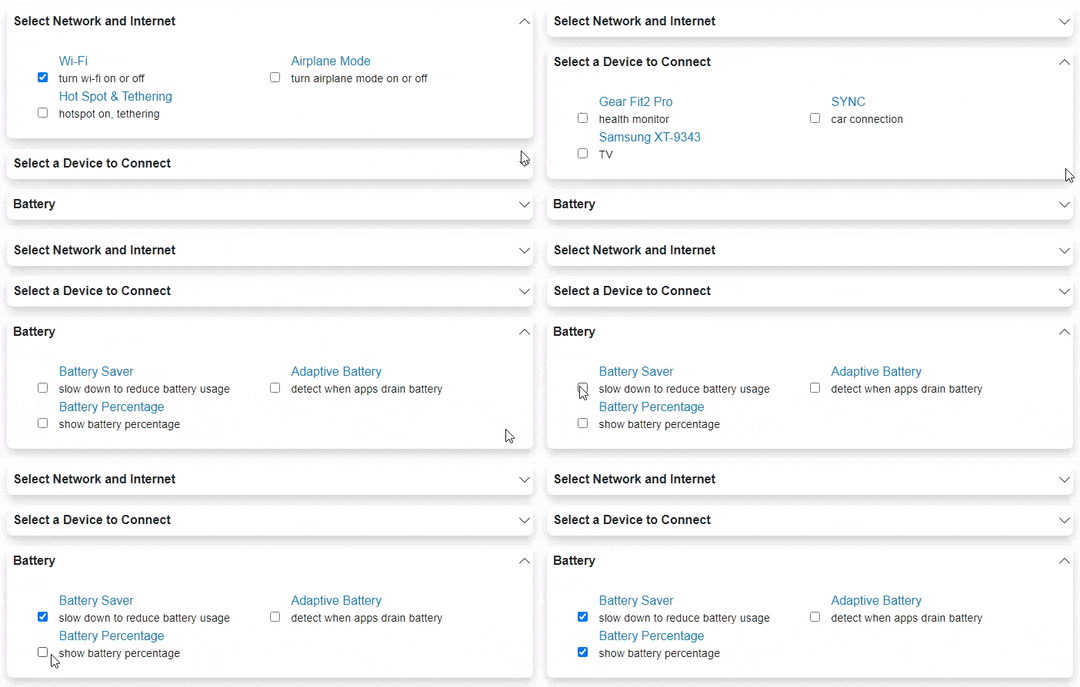
The following quick start guides you how to create a simple application using Accordion. In this quick start, you'll create a new project in Visual Studio, add the Accordion control to your application, AccoedionItem, and then add content to content area of the Accordion control.

|   ![Blazor Accordion with items](https://cdn.mescius.io/document-site-files/images/f5b600ba-f1a7-4f89-a20c-aa6c0c35880d/images/accordionwithitems.gif)   |
| --- |

## Create a Blazor App

1.  In Visual Studio, select **Create a new project** from the **Get started** pane.
2.  In the **Create a new project** dialog, select **Blazor WebAssembly App**, and click **Next**. Alternatively, you can also create a Blazor Server App. 
	> type=note
	> **Note**: **Blazor Server App** or server-side app can be created using the Blazor Server App template. For more details, see [Blazor Server](/componentone/docs/blazor/online-blazor/blazortypes/blazorserver) topic under Blazor Project Types.
3.  In the **Configure your new project** dialog, provide name of the project you want to create in the **Project name** field and location for the project in the **Location** field. Click **Next**.
4.  In the **Additional information** dialog, select the target framework from the **Framework** dropdown, if required and click **Create**. By default, the selected framework is **.NET 8.0**.<br />A new client-side Blazor app is created.

## Configure References

1.  In the **Solution Explorer**, right click **Dependencies** and select **Manage NuGet Packages**.
2.  In **NuGet Package Manager**, select **nuget.org** as the **Package source**.
3.  Search for the following NuGet packages and install them by clicking **Install**.
    *   **C1.Blazor.Accordion**
    *   **C1.Blazor.Core**
    *   **C1.Blazor.Input**
4.  Navigate to the **wwwroot**, open **index.html** file.
5.  Register the client resources by adding the following lines of code to the **\<head>** tag.<br />
    
    ```html
    <link rel="stylesheet" href="/_content/C1.Blazor.Core/styles.css" />
    <link rel="stylesheet" href="/_content/C1.Blazor.Accordion/styles.css" />
    <link rel="stylesheet" href="/_content/C1.Blazor.Input/styles.css" />
    ```
    
6.  Add the following code to the **\<body>** tag.
    
    ```html
    <script src="/_content/C1.Blazor.Core/scripts.js"></script>
    <script src="/_content/C1.Blazor.Accordion/scripts.js"></script>
    <script src="/_content/C1.Blazor.Input/scripts.js"></script>
    ```
    
7.  Right click on **Pages** folder, click **Add |** **Razor Component** to add a new Razor page and then provide a name, say _AccordionQuickStart._
8.  Add the required directives to initialize and use the Accordion control in the new Razor page.<br />
    
    ```razor
    @using C1.Blazor.Core
    @using C1.Blazor.Accordion
    @using C1.Blazor.Input
    ```
    

## Configure the Accordion control

Display Accordion using the following code wherein **AccordionItem** is used to add the items in the Accordion. In the following example, there are three accordion items with multiple check boxes in each AccordionItem and the header of each AccordionItem is set using **Header** property of the **AccordionItem** class.

```razor
<C1Accordion>
    <AccordionItem Header="Select Network and Internet">
        <div class="accordion-item-content">
                    <div class="item-input">
                        <input id="wifi" type="checkbox" checked />
                        <label for="wifi">
                            Wi-Fi <span>turn wi-fi on or off</span>
                        </label>
                    </div>
                    <div class="item-input">
                        <input id="apmode" type="checkbox" />
                        <label for="apmode">
                            Airplane Mode <span>turn airplane mode on or off</span>
                        </label>
                    </div>
                    <div class="item-input">
                        <input id="hotspot" type="checkbox" />
                        <label for="hotspot">
                            Hot Spot &amp; Tethering <span>hotspot on, tethering</span>
                        </label>
                    </div>
        </div>
    </AccordionItem>
    <AccordionItem Header="Select a Device to Connect">
        <div class="accordion-item-content"> 
                    <div class="item-input">
                        <input id="dev1" type="checkbox" />
                        <label for="dev1">
                            Gear Fit2 Pro <span>health monitor</span>
                        </label>
                    </div>
                    <div class="item-input">
                        <input id="dev2" type="checkbox" />
                        <label for="dev2">
                            SYNC <span>car connection</span>
                        </label>
                    </div>
                    <div class="item-input">
                        <input id="dev3" type="checkbox" />
                        <label for="dev3">
                            Samsung XT-9343 <span>TV</span>
                        </label>
                    </div>
                </div>
    </AccordionItem>
    <AccordionItem Header="Battery">
        <div class="accordion-item-content">
                    <div class="item-input">
                        <input id="bat-sav" type="checkbox" />
                        <label for="bat-sav">
                            Battery Saver <span>slow down to reduce battery usage</span>
                        </label>
                    </div>
                    <div class="item-input">
                        <input id="bat-adapt" type="checkbox" />
                        <label for="bat-adapt">
                            Adaptive Battery <span>detect when apps drain battery</span>
                        </label>
                    </div>
                    <div class="item-input">
                        <input id="bat-pct" type="checkbox" />
                        <label for="bat-pct">
                            Battery Percentage <span>show battery percentage</span>
                        </label>
                    </div>
                </div>
    </AccordionItem>
</C1Accordion>
<style>
    .accordion-item-content {
    margin: 20px;
    grid:auto-flow;
    }
    .item-input{
      width:40%;
      box-sizing:border-box;
      position:relative;
      display:inline-block;
      max-width:100%;
      margin: 0 20px;
    }
    .item-input input[type=checkbox]+label{
      padding-left:10px;
      color:#0085c7;
    }
    .item-input > label > span{
      display:block;
      font-weight: normal;
      font-size:90%;
      opacity:.90;
      color:black;
    }
    .app-item input[type=checkbox]{
      margin-left: 20px;
    }
</style>
```

## Build and Run the Project

1.  Click **Build | Build Solution** to build the project.
2.  Press **F5** to run the project.