# Drag Drop
Blazor Edition provides a set of native UI controls built for Blazor such as FlexGrid, Chart, ListView, and input controls including AutoComplete and ComboBox.
## Content
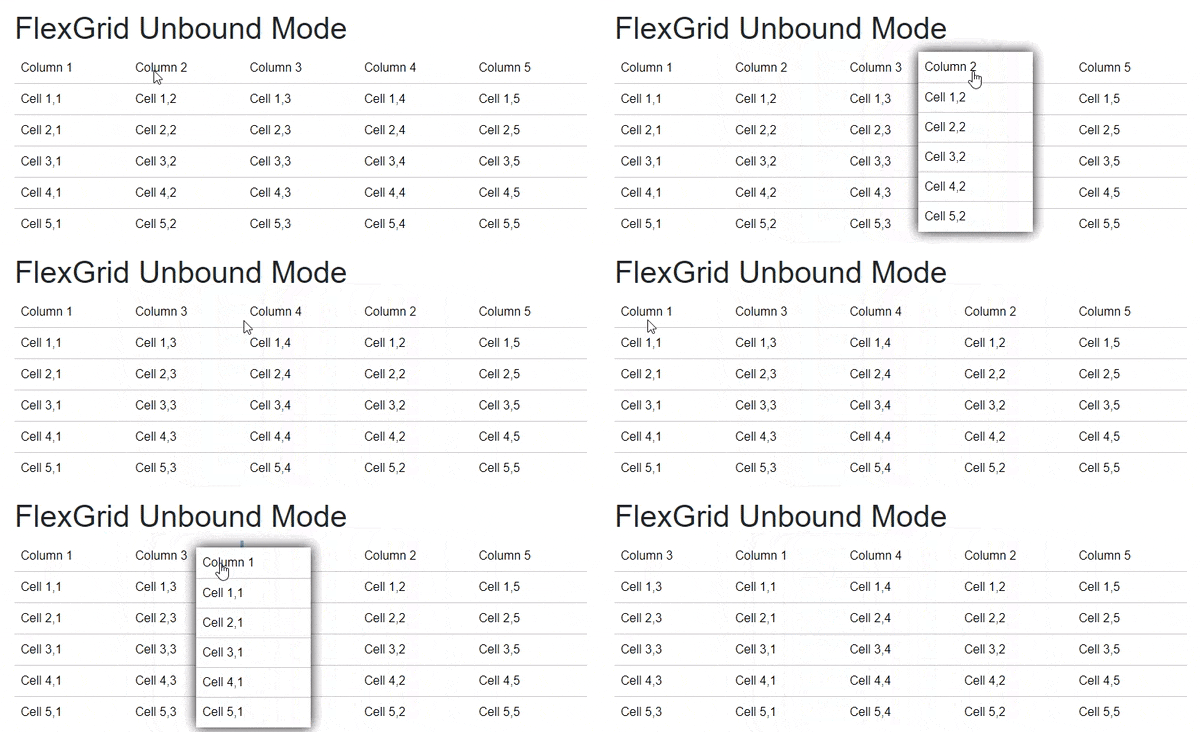
FlexGrid supports column and row drag and drop. It allows you to enable movement of columns, rows or both using the **AllowDragging** property. This property allows you to specify which grid element should be moved to a new position using the [GridAllowDragging](/componentone/api/blazor/online-blazor/dotnet-api/C1.Blazor.Grid/C1.Blazor.Grid.GridAllowDragging.html) enumeration.
The following GIF shows column reordering by dragging columns from one position and dropping to another.
|  |
| --- |
The following code demonstrates how you can set the AllowDragging property programmatically.
```razor
@using C1.Blazor.Grid
FlexGrid Unbound Mode
@for (int i = 0; i < 5; i++)
{
}
@for (int i = 0; i < 5; i++)
{
}
@code {
FlexGrid grid;
protected override void OnAfterRender(bool firstRender)
{
if (firstRender)
{
for (int i = 0; i < grid.Rows.Count; i++)
{
for (int j = 0; j < grid.Columns.Count; j++)
{
grid[i, j] = string.Format("Cell {0},{1}", i + 1, j + 1);
}
}
}
}
}
```