# Appearance and Styling

FlexChart provides various options to customize the appearance of chart and chart elements individually, so that you can generate charts as per your requirement and look and feel of the application you are creating.

## Content


FlexChart provides various options to customize the appearance of chart and chart elements individually, so that you can generate charts as per your requirement and look and feel of the application you are creating. This topic discusses all the appearance related options available with the FlexChart.

## Chart Palettes

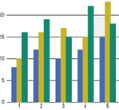
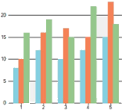
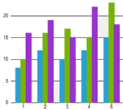
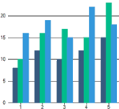
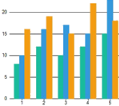
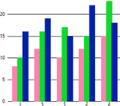
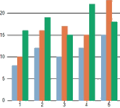
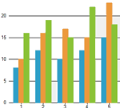
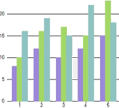
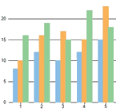
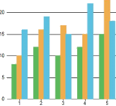
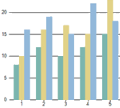
FlexChart provides 16 pre-defined color palettes, so that you can generate the charts with desired appearance with a single line of code. You can apply these palettes to FlexChart using the [Palette](/componentone/api/blazor/online-blazor/dotnet-api/C1.Blazor.Chart/C1.Blazor.Chart.FlexChartBase.Palette.html) property which accepts the values from **Palette** enumeration of **C1.Chart** namespace. By default, this property is set to **Standard**. You can also create a custom palette using the existing color palettes.

|   **Cerulan**   |   **Cocoa**   |   **Coral**   |   **Cyborg**   |
| --- | --- | --- | --- |
|   ![cerulan color](https://cdn.mescius.io/document-site-files/images/f5b600ba-f1a7-4f89-a20c-aa6c0c35880d/images/palette/cerulan.png)   |   ![cocoa palette](https://cdn.mescius.io/document-site-files/images/f5b600ba-f1a7-4f89-a20c-aa6c0c35880d/images/palette/cocoa.png)   |   ![coral palette](https://cdn.mescius.io/document-site-files/images/f5b600ba-f1a7-4f89-a20c-aa6c0c35880d/images/palette/coral.png)   |   ![cyborg palette](https://cdn.mescius.io/document-site-files/images/f5b600ba-f1a7-4f89-a20c-aa6c0c35880d/images/palette/cyborg.png)   |
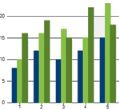
|   **Dark**   |   **Darkly**   |   **Flatly**   |   **HighContrast**   |
|   ![dark color](https://cdn.mescius.io/document-site-files/images/f5b600ba-f1a7-4f89-a20c-aa6c0c35880d/images/palette/dark.png)   |   ![darkly color](https://cdn.mescius.io/document-site-files/images/f5b600ba-f1a7-4f89-a20c-aa6c0c35880d/images/palette/darkly.png)   |   ![flatly palette](https://cdn.mescius.io/document-site-files/images/f5b600ba-f1a7-4f89-a20c-aa6c0c35880d/images/palette/flatly.png)   |   ![HighContrast palette](https://cdn.mescius.io/document-site-files/images/f5b600ba-f1a7-4f89-a20c-aa6c0c35880d/images/palette/highcontrast.png)   |
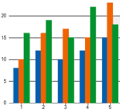
|   **Light**   |   **Midnight**   |   **Modern**   |   **Organic**   |
|   ![Light palette](https://cdn.mescius.io/document-site-files/images/f5b600ba-f1a7-4f89-a20c-aa6c0c35880d/images/palette/light.png)   |   ![Midnight palette](https://cdn.mescius.io/document-site-files/images/f5b600ba-f1a7-4f89-a20c-aa6c0c35880d/images/palette/midnight.png)   |   ![Modern Palette](https://cdn.mescius.io/document-site-files/images/f5b600ba-f1a7-4f89-a20c-aa6c0c35880d/images/palette/modern.png)   |   ![Organic Palette](https://cdn.mescius.io/document-site-files/images/f5b600ba-f1a7-4f89-a20c-aa6c0c35880d/images/palette/organic.png)   |
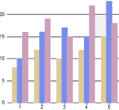
|   **Slate**   |   **Standard**   |   **Superhero**   |   **Zen**   |
|   ![Slate Palette](https://cdn.mescius.io/document-site-files/images/f5b600ba-f1a7-4f89-a20c-aa6c0c35880d/images/palette/slate.png)   |   ![Standard Palette](https://cdn.mescius.io/document-site-files/images/f5b600ba-f1a7-4f89-a20c-aa6c0c35880d/images/palette/standard.png)   |   ![Superhero Palette](https://cdn.mescius.io/document-site-files/images/f5b600ba-f1a7-4f89-a20c-aa6c0c35880d/images/palette/superhero.png)   |   ![Zen Palette](https://cdn.mescius.io/document-site-files/images/f5b600ba-f1a7-4f89-a20c-aa6c0c35880d/images/palette/zen.png)   |
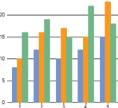
### Customizing Series Style

To customize the series style opacity/fill-opacity, you can use **Style** property and opaque colors in fill and specify color as **rgba()** as shown in the below code.

```razor
<Series Name="Revenue" Binding="Sales" Style="fill:red"/>
<Series Name="Expenses" Binding="Expenses"  Style="fill:rgba(255,0,0,0.25)"/>
```

You can also use custom Palette by specifying both **CustomPalette** and **Palette** properties as shown in the below code. A list of selected colors is available.

```razor
<FlexChart Palette="Palette.Custom" CustomPalette="customPalette">
List<object> customPalette = new List<object>
{ System.Drawing.Color.DarkGray, System.Drawing.Color.LightGray };
```