# Quick Start
Calendar for Blazor is natively implemented and supports Blazer Server and WebAssembly apps. Learn how to create Blazor Apps using C1Calendar in Blazor documentation.
## Content
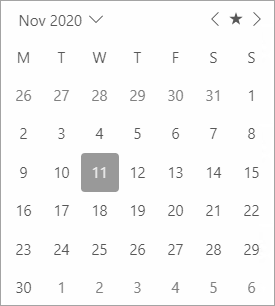
The following quick start guide is intended to get you up and running with the Calendar control. In this quick start, you'll start with creating a new application, add the **Calendar** control to it, customize it and display the calendar.
****
## Create a Blazor App
1. In Visual Studio, select **Create a new project** from the **Get started** pane.
2. In the **Create a new project** dialog, select **Blazor WebAssembly App**, and click **Next**. Alternatively, you can also create a Blazor Server App.
> type=note
> **Note**: **Blazor Server App** or server-side app can be created using the Blazor Server App template. For more details, see [Blazor Server](/componentone/docs/blazor/online-blazor/blazortypes/blazorserver) topic under Blazor Project Types.
3. In the **Configure your new project** dialog, provide name of the project you want to create in the **Project name** field and location for the project in the **Location** field. Click **Next**.
4. In the **Additional information** dialog, select the target framework from the **Framework** dropdown, if required and click **Create**. By default, the selected framework is **.NET 8.0**. A new client-side Blazor app is created.
## Configure References
1. In the **Solution Explorer**, right click **Dependencies** and select **Manage NuGet Packages**.
2. In **NuGet Package Manager**, select **nuget.org** as the **Package source**.
3. Search and select the following packages and click **Install**.
* **C1.Blazor.Calendar**
* **C1.Blazor.Core**
4. Navigate to the **wwwroot**, open **index.html** file.
5. Register the client resources by adding the following lines of code to the **\** tag.
```html
```
6. Add the following code to the **\** tag.
```html
```
## Configure the Calendar control
Display the Calendar control with first day of the week set as "Monday" by simply using the [FirstDayOfWeek](/componentone/api/blazor/online-blazor/dotnet-api/C1.Blazor.Calendar/C1.Blazor.Calendar.C1Calendar.FirstDayOfWeek.html) property of the [C1Calendar](/componentone/api/blazor/online-blazor/dotnet-api/C1.Blazor.Calendar/C1.Blazor.Calendar.C1Calendar.html) class as shown in the following code:
```csharp
@page "/Calendar/Index"
@using C1.Blazor.Calendar
@using C1.Blazor.Core
```
## Build and Run the Project
1. Click **Build | Build Solution** to build the project.
2. Press **F5** to run the project.