# WebDesigner Blazor Custom
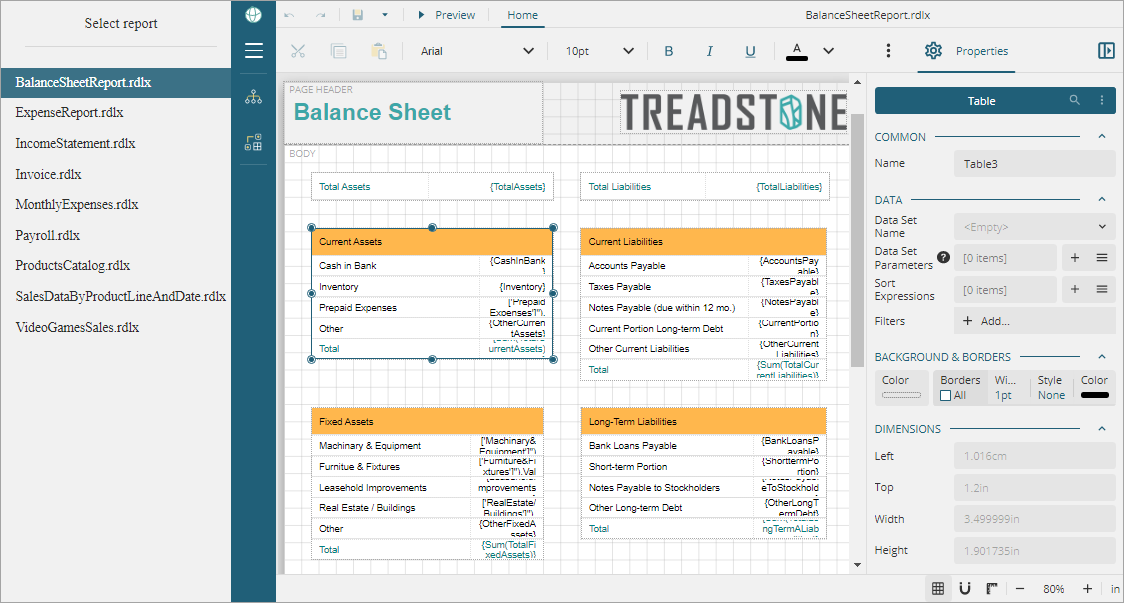
This topic describes the sample on the UI customization of WebDesigner wrapped in Blazor.
## Content
This sample shows how to use the [Blazor WebDesigner API](/activereportsnet/docs/v20.1/developers/create-applications/blazor-web-designer-application/web-designer-api-blazor) to create a customized UI for ActiveReports WebDesigner in Blazor.
### Sample Location
**C#**
[https://github.com/activereports/WebSamples20/tree/main/WebDesigner_Blazor_Custom](https://github.com/activereports/WebSamples19/tree/main/WebDesigner_Blazor_Custom)
### Details
This sample utilizes the [WebDesigner API](/activereportsnet/docs/v20.1/developers/create-applications/web-designer-application/web-designer-api) to create a customized UI for the WebDesigner. Some of the customizations demonstrated in the sample are shown below. You can check the **Index.razor** page of the sample for complete implementation.
* Use a **custom logo** (white labeling)
```auto
_menuSettings = new MenuSettings()
{
Logo = new Logo() { Custom = new MenuIcon() { Type = "css", Class = "example-icon" } }
};
```
* Hide **About** button
```auto
_appBarSettings = new AppBarSettings
{
AboutButton = new AboutButton() { Visible = false }
};
```
* Hide **File** menu
```auto
_documentsSettings = new DocumentsSettings()
{
FileView = new FileView() { Visible = false }
};
```
* **Lock the report layout**, that is, disable the operations that modify the report layout structure
```auto
```
* Hide **ToolBox**
```auto
_menuSettings = new MenuSettings()
{
ToolBox = new ToolBox() { Visible = false }
};
```
* Hide **Parameters tab**, the design area for designing a custom parameter pane
```auto
_appBarSettings = new AppBarSettings
{
ParametersTab = new ParametersTab() { Visible = false }
};
```
* Hide **Data tab**
```auto
_dataSettings = new DataSettings() { DataTab = new DataTab() { Visible = false } };
```
Hiding **Data tab** hides the options such as data sources, data sets, parameters, and common values.
* Hide **Properties Mode** button that helps switch between the Advanced and Basic properties of the report elements
```auto
_statusBarSettings = new StatusBarSettings()
{
PropertiesModeButton = new PropertiesModeButton() { Visible = false }
};
```
* Limit font list to limited font families
```auto
_fonts = new object[]
{
new FontHeader() { Header = "Questionable Choice" },
new Font() { Label = "Pretty Font", Value = "Comic Sans MS" },
new FontHeader() { Header = "" },
"Arial",
"Courier New",
"Times New Roman"
};
```
* Property grid uses the **Basic** mode to show the properties of report elements
```auto
_propertyGridSettings = new PropertyGridSettings() { Mode = Mode.Basic };
```