# Custom Tile Provider
This topic demonstrates how to create and configure a custom tile provider placed on an RDLX report in ActiveReports.
## Content
The CustomTileProvider sample demonstrates how to create a custom tile provider using [IMapTileProvider](/activereportsnet/api/v20.1/MESCIUS.ActiveReports.Core.Rendering/GrapeCity.ActiveReports.Extensibility.Rendering.Components.Map.IMapTileProvider.html) and [IMapTile](/activereportsnet/api/v20.1/MESCIUS.ActiveReports.Core.Rendering/GrapeCity.ActiveReports.Extensibility.Rendering.Components.Map.IMapTile.html) interfaces and configure it in a Map Control which is placed on a RDLX report. This sample uses two projects - CustomTileProviders and TileProviderEndUserDesigner in a single Visual Studio solution. The CustomTileProviders project contains the tile server configurations for the tile providers, whereas the TileProviderEndUserDesigner project references the created CustomTileProviders project assemblies.
>type=note
> **Note**: CustomTileProvider is for use with the Professional Edition license only. An evaluation message is rendered when used with the Standard Edition license.
### Sample Location
**Visual Basic.NET**
[https://github.com/activereports/Samples20/tree/main/Advanced/PageAndRDLX/CustomTileProvider/VB.NET](https://github.com/activereports/Samples20/tree/main/Advanced/PageAndRDLX/CustomTileProvider/VB.NET)
**C#**
[https://github.com/activereports/Samples20/tree/main/Advanced/PageAndRDLX/CustomTileProvider/C#](https://github.com/activereports/Samples20/tree/main/Advanced/PageAndRDLX/CustomTileProvider/C%23)
### Details
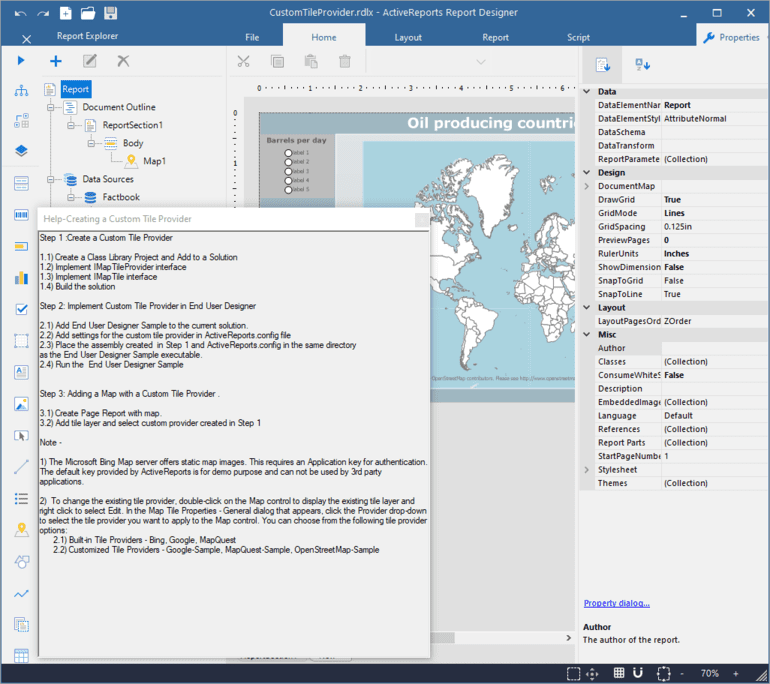
When you run this sample, the ActiveReports End User Designer appears with an overlaying **Help-Creating a Custom Tile Provider** dialog. This dialog gives you step-by-step instructions to create a new tile provider for a Map control with custom settings.
The End User Designer displays a RDLX report containing a Map control with MapQuest set as the default tile provider. To change the existing tile provider, double-click on the Map control to display the existing tile layer and right click to select **Edit**. In the **Map Tile Properties - General** dialog that appears, click the **Provider** drop-down to select the tile provider you want to apply to the Map control. Go to the Preview tab to view the data in the selected tile provider. You can choose from the following tile provider options:
* Google-Sample
* MapQuest-Sample
* OpenStreetMap-Sample
>type=note
> **Note**: The Microsoft **Bing Map** server offers static map images. This requires an Application key for authentication. The default key provided by ActiveReports is for demo purpose and can not be used by 3rd party applications. In order to obtain a Bing Map Key, see [HowTo - Create a Bing Map Account](https://learn.microsoft.com/en-us/bingmaps/getting-started/bing-maps-dev-center-help/creating-a-bing-maps-account?redirectedfrom=MSDN) and [HowTo - Get a Bing Map Key](https://learn.microsoft.com/en-us/bingmaps/getting-started/bing-maps-dev-center-help/getting-a-bing-maps-key?redirectedfrom=MSDN).
The sample consists of two projects:
**CustomTileProviders**: It contains following classes:
* GoogleMapsTileProvider: This class implements the [IMapTileProvider](/activereportsnet/api/v20.1/MESCIUS.ActiveReports.Core.Rendering/GrapeCity.ActiveReports.Extensibility.Rendering.Components.Map.IMapTileProvider.html) interface and contains the settings for the map tile images provided from [https://www.google.com/maps](https://www.google.com/maps).
* MapQuestTileProvider: This class implements the **IMapTileProvider** interface and contains the settings for the map tile images provided from [https://www.mapquest.com/](https://www.mapquest.com/).
* MapTile: This class represents a single map tile, implementing the [IMapTile](/activereportsnet/api/v20.1/MESCIUS.ActiveReports.Core.Rendering/GrapeCity.ActiveReports.Extensibility.Rendering.Components.Map.IMapTile.html) interface.
* OpenStreetMapTileProvider: This class implements the **IMapTileProvider** interface and contains the settings for the map tile images provided from [https://www.openstreetmap.org](https://www.openstreetmap.org/#map=4/21.84/82.79).
* WebRequestHelper: This class picks the raw data from the tile providers and loads them into the System.IO.MemoryStream class.
**TileProviderEndUserDesigner**: It contains following files:
* CustomTileProvider.rdlx: This report contains the Map control that visualizes the oil production in different parts of the world on a virtual earth background. The map control uses the color rule set on a polygon layer to differentiate parts of world as per their oil production capacity. These colors are defined using a color rule which is described in the legend at run time. The report gets the data from **Factbook.rdsx** shared data source.
* DesignerForm.cs: This is the main form that gets displayed when you run the sample. This form uses multiple controls like the ToolStripPanel, ToolStripContainerPanel, SplitContainer, Designer, Toolbox, ReportExplorer and PropertyGrid controls to create a customized End User Designer. It also contains code to load CustomTileProvider.rdlx report into the Designer.
* ActiveReports.config: This configuration file contains the settings for the various tile providers, and is located in the same folder as the EndUserDesigner.exe file for the tile provider settings to work.
* HelperForm.cs: This form uses the HelperForm class to display a screen containing step-by-step instructions for the user to create a custom tile provider.
## See Also
#### Developers
[Map Tile Provider Customization](/activereportsnet/docs/v20.1/developers/extensibility-in-activereports/add-a-custom-tile-provider)