# Add a Legend to the Map
This topic provides steps on how to add and set a legend on a map control.
## Content
A legend on a map provides valuable information to users for interpreting the map data visualization rules such as color, size, and marker type differences for map elements on a layer. By default, a single Legend item already exists in the legends collection which can be used by all layers to display items. You can also create additional legends to use them individually with layers that have associated rules to display items in the legend. Use these steps to learn adding and setting a legend on a map:
1. On the design surface, select the [Map](/activereportsnet/docs/v20.1/report-authors/report-controls/report-controls-page-rdl-report/map) control.
2. In the Properties window, click the **Legends (Collection)** property and then click the ellipsis (...) button that appears.
3. In the **LegendDesigner Collection Editor** that appears, click **Add** under the Members list of legends. **Legend1** with the default legend settings appears in the Members list.
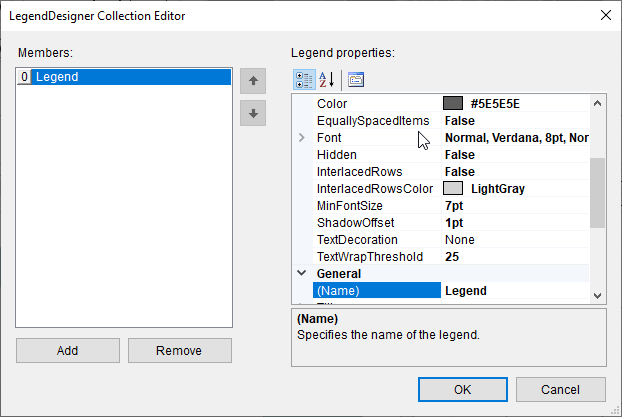
4. With **Legend1** selected in the Members list of legends, you can make modifications to its font, border and background color settings.
5. Click **OK** to close the dialog.
> type=note
> **Note**: You can associate the newly added legend to a layer by specifying its name in the **Legend Name** field that appears in the Legend tab on a specific rule page of a Layer dialog. See [Use Color Rule, Marker Rule, and Size Rule](/activereportsnet/docs/v20.1/report-authors/report-controls/report-controls-page-rdl-report/map/use-color-rule-marker-rule-size-rule#rule-results-legend) for more information.