# Cascading Parameter
This topic provides steps on creating cascading parameters in a Page/RDLX report.
## Content
When a parameter’s value list depends on the value of another parameter, the report collects the required parameter value and uses it to create the value list for the second parameter. This cascade of parameter values is sometimes also called dependent or hierarchical parameters.
You can create cascading parameters in a Page or an RDLX report using the following steps.
> type=note
> **Note**: This topic uses the Reels database. The Reels.db file can be downloaded from [GitHub](https://github.com/activereports/Samples19/tree/main/Data/).
1. In the Report Explorer, right-click the Data Source (DataSource1 by default) node and select **Add Data Set** to create a dataset named **Regions**.
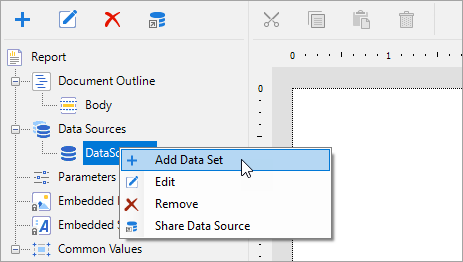
2. On the Query page of the **DataSet Dialog**, use the following SQL Query to fetch data from the Regions table.
SELECT RegionID, Region FROM Regions
3. Click **OK** to close the dialog.
4. Follow the step 1 to create another dataset named **Districts** and on the **Parameters** page of the **DataSet** Dialog, click the **Add(+)** icon to add a parameter named **Region** with the value set to:
=Parameters!Region.Value
This parameter is added to the Report Parameters collection later.
5. In the **Districts** dataset dialog, on the **Query** page, add the following SQL query to fetch data from the Districts table. This query depends on the Region parameter.
SELECT DistrictID, District FROM Districts WHERE Region = ?
6. Click **OK** to close the Districts DataSet dialog.
7. Follow the step 1 and create another dataset named **StoreNames** and on the **Parameters** page of the DataSet Dialog, click the **Add(+)** icon to add a parameter named **DistrictID** with the value set to:
=Parameters!DistrictID.Value
This parameter is added to the Report Parameters collection later.
8. In the **StoreNames** dataset, on the **Query** page, add the following SQL query to retrieve data for the selected region from the selected district. This query depends on the DistrictID parameter.
SELECT StoreID, StoreName, OpenDate FROM Store WHERE NOT StoreID = 0 AND DistrictID = ?
9. Click **OK** to close the StoreNames DataSet dialog.
10. In the Report Explorer, right-click the **Parameters** node and select **Add Parameter**
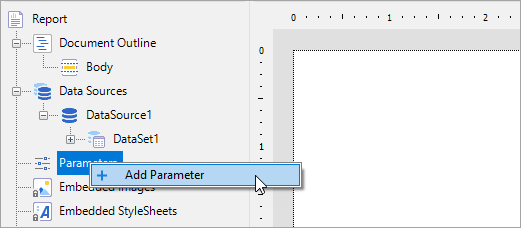
11. In the **Report - Parameters** dialog that appears, add a parameter named **Region** with an Integer data type. On the **Available Values** tab, select **From query** and set the **Dataset** to Regions, the **Value** field to RegionID, and the **Label** field to Region.
12. Click **OK** to close the Report - Parameters dialog.
13. Follow the same process as steps 10 and 11 to add a second parameter named **DistrictID** with an Integer data type. On the **Available Values** tab, select **From query** and set the **Dataset** to Districts, DistrictID for the **Value** field, and District for the **Label** field.
14. Drag and drop a Table data region (or any other data region) onto the design surface, and drag the **StoreID**, **StoreName** and **OpenDate** fields onto the Details row.
15. Preview the report to view the result.
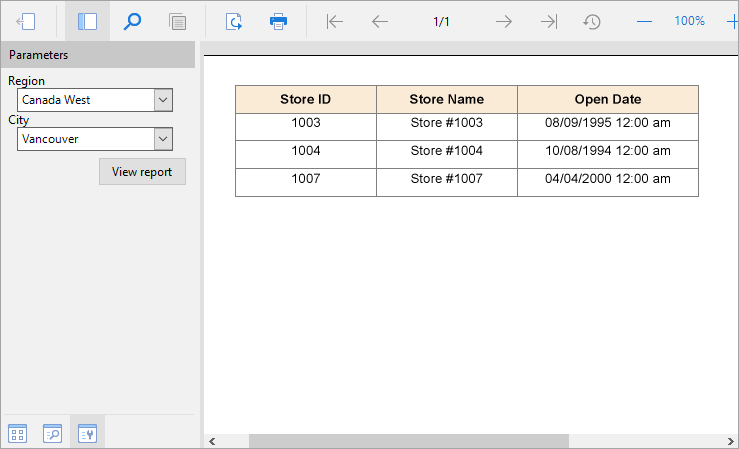
Notice that the two drop down lists, for regions and districts appear in the Parameters sidebar while the second drop down list remains disabled until a region is selected. Click the **View Report** button to see the StoreID, StoreName and OpenDate values returned for the selected region and district.
> type=note
> **Note**: In a Page report, when you have multiple datasets in the report, you need to set the **DataSet** property on the **General** tab of the FixedPage dialog in order to specify which dataset is used to display data in the report.