# Work with Local Shared Data Sources
Learn the essential steps to establish a shared data source with a data connection, allowing multiple reports to access a unified data source effectively.
## Content
In ActiveReports, a shared data source refers to a file in RDSX format that contains data connection information. RDSX (Report Data Source XML) is a proprietary file format that functions as a data source for a single report or multiple reports.
You can use this data source in the Page report and the RDLX report.
> type=note
> **Note**: The WebDesigner and Blazor WebDesigner components uses the 'shared data source' approach to encapsulate the data connection on the server-side. See [Configure and Use Shared Data Sources in WebDesigner](/activereportsnet/docs/v20.1/developers/create-applications/web-designer-application/use-shared-data-sources-in-web-designer) and [Configure and Use Shared Data Sources in Blazor Designer](/activereportsnet/docs/v20.1/developers/create-applications/blazor-web-designer-application/use-shared-data-sources-in-blazor-designer) for more information.
### Advantages of a shared data source
* It is a reusable data connection that you can use in a single report or multiple reports.
* It is a separate file in RDSX format that you can access from any report, move to different folders, and rename.
* It sets the data connection in a report, so you need only add a SQL query to create a data set.
* It lets you update the connection string in one place for all reports referencing the Shared Data Source.
* You can use it with any data connection type.
> type=note
> **Note**: An RDSX file contains the connection string, but you cannot define a data set in it. See [Add a Dataset](/activereportsnet/docs/v20.1/report-authors/data-binding/data-binding-page-rdl-reports/add-dataset) for information on creating a data set.
You can save a data connection type such as an OleDb connection, Json connection, or an XML connection as a Shared Data Source (RDSX). This topic provides the steps to create a shared data source with a data connection. Using shared data source, multiple reports can connect to a same data source. See [Connect to a Data Source](/activereportsnet/docs/v20.1/report-authors/data-binding/data-binding-page-rdl-reports/connect-to-a-data-source) on how to connect a report to a data source.
### Create a shared data source
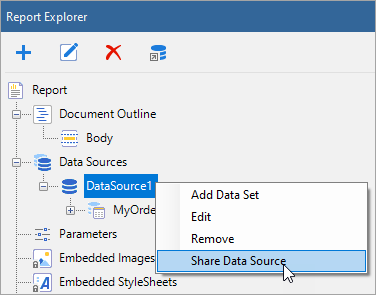
1. Right-click the data source in the Report Explorer and select **Share Data Source** option.
2. In the **Save Shared Data Source File** dialog that appears, enter the file name and click the **Save** button to save the file in RDSX format.
Notice that the data source icon changes to show sharing.
| Data Source Icon | Shared Data Source Icon |
| --- | --- |
|  |  |
### Connect to a shared data source
In ActiveReports, you can connect to most data sources using the steps in the [Connect to a Data Source](/activereportsnet/docs/v20.1/report-authors/data-binding/data-binding-page-rdl-reports/connect-to-a-data-source). However, you need to follow the below steps to connect to a Shared Data Source.
1. In the **Report Explorer**, right-click the Data Sources node and select the **Add Data Source** option or select **Data Source** from the **Add** button.
2. In the **Report Data Source** dialog that appears, select the **General** page and enter the name of the data source. This name appears as a child node to the Data Sources node in the Report Explorer.
3. Select **Shared Reference** as the **Type**.
4. Under **Reference**, from the drop-down list, select **From File...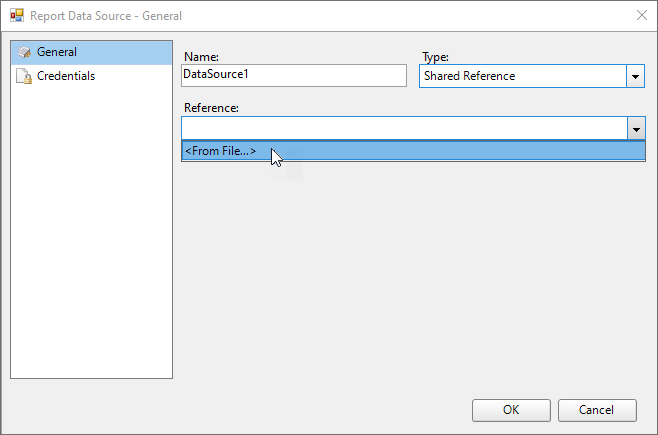**
5. In the **Shared Data Source File** dialog that appears, select the file and click Open on the lower right corner to close the dialog.
A shared data source node appears in the Report Explorer.
### Edit a shared data source
These steps assume that you have already connected your report to a shared data source.
1. Open the Report Data Source dialog using any of the following ways:
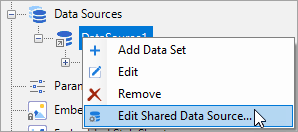
* In the **Report Explorer**, right-click a shared data source node and from the context menu, select **Edit Shared Data Source**.
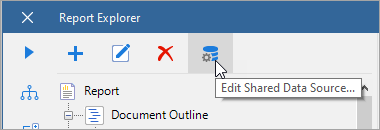
* In the **Report Explorer**, select the shared data source node, go to the **Report Explorer** toolbar and click the **Edit Shared Data Source** button.
2. In the **Report Data Source** dialog that appears, edit the data connection information.
3. Click **OK** to save the edits.