# MySQL
This article explains connecting a Page or an RDLX report to a MySQL data source. It also gives an overview of MySQL Data Provider configuration settings.
## Content
This article explains connecting a Page or an RDLX report to the MySQL data source. You can connect to this data source while creating a new report (via report wizard) or using report explorer (via report data source dialog).
> type=warning
> You need to install [MySqlConnector](https://www.nuget.org/packages/MySqlConnector) NuGet package to be able to connect to MySQL. Without this NuGet package, the following exception appears.
>
> _GrapeCity.ActiveReports.ReportException: Specified data provider was not found: MYSQL ---> GrapeCity.ActiveReports.Rendering.DataProcessingException: Specified data provider was not found: MYSQL._
## Connect to MySQL Data Source using Report Wizard
The steps to connect to the MySQL data source are:
1. Create a New Report.
2. In the **New Report** dialog, choose the Report Type as RDLX, RDLX Dashboard, or Page and click **Next**.
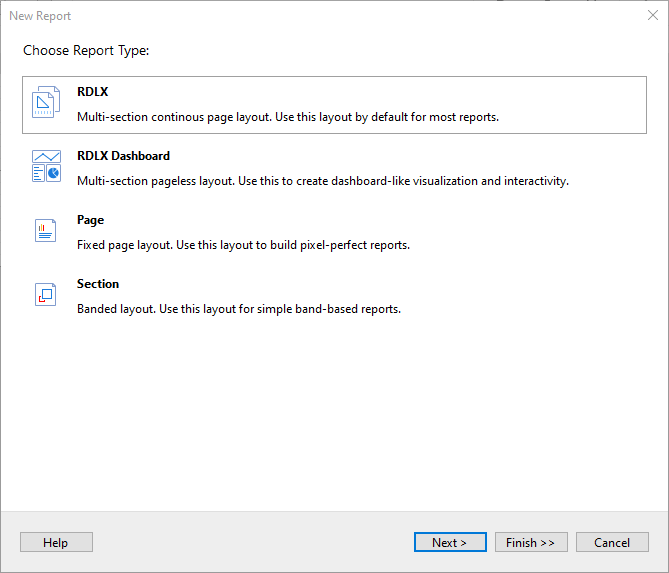
3. Configure page settings if you need to customize the report page settings and click **Next >**.
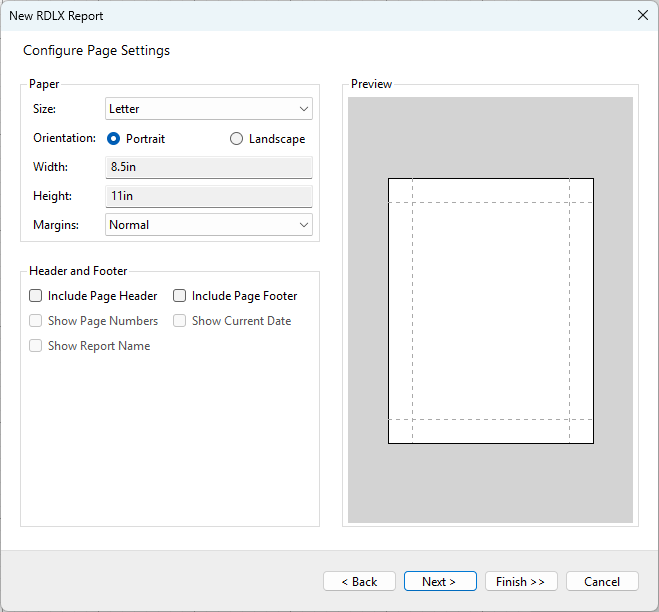
4. Select the Data Source Type as **MySQL** and click **Next**.
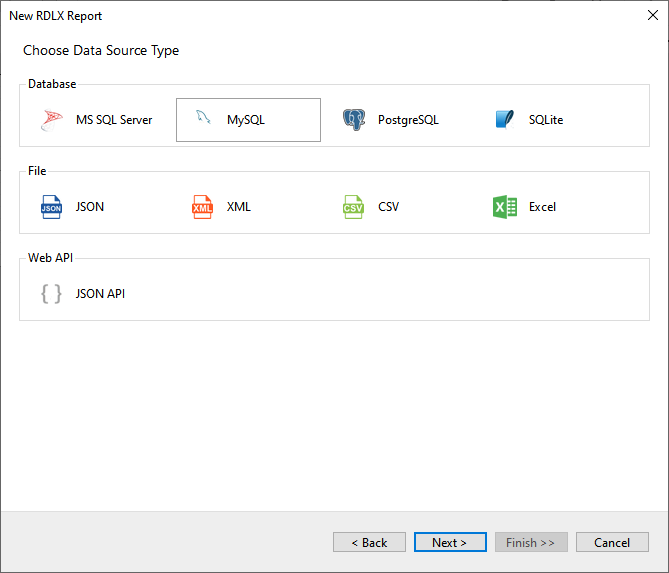
5. Enter the server connection details, including **Server name, Database, Port, User name**, and **Password**.
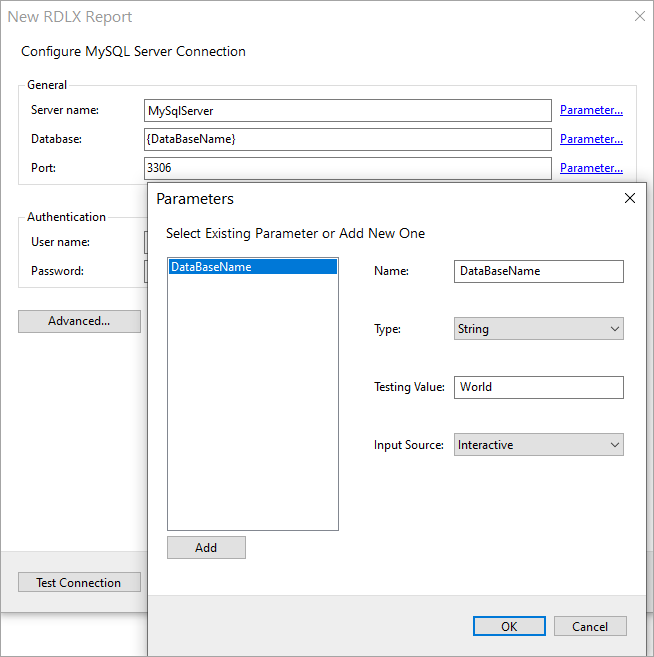
6. To specify the runtime connection values, let us add a parameter for the Database, as follows:
1. 1. Click on the **Parameter** link to open the **Parameters** dialog, and then click the **Add** button to add a new parameter.
2. Specify the below details:
* **Name**: Specify the name of the parameter.
* **Type**: Select the value type (string by default) from the drop-down list.
* **Testing Value**: Specify the runtime value for the connection properties.
* **Input Source**: Select **Interactive** for non-hidden parameters and **Programmatic** for hidden parameters from the drop-down list.
3. Click **OK** to finish adding the parameter.
7. For additional configuration, for example, setting UI timeout option to allow entering key-value pairs, select **Advanced** properties.
8. Click **Test Connection** to test the connection.
9. Click the **Next** option and configure the dataset to retrieve the fields.
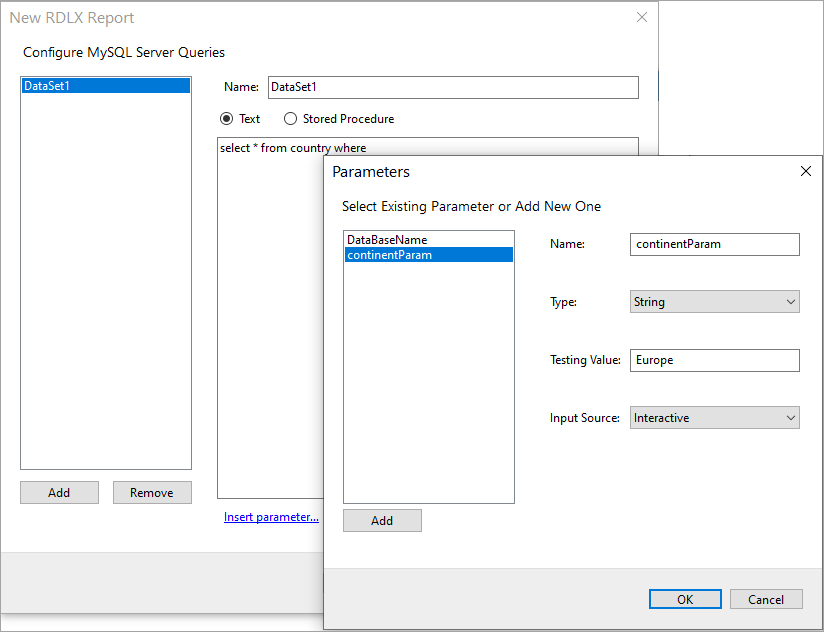
10. Click **Insert parameter** to specify the interactive parameter 'continentParam', to set the value of 'Continent' field of type 'String', to 'Europe'.
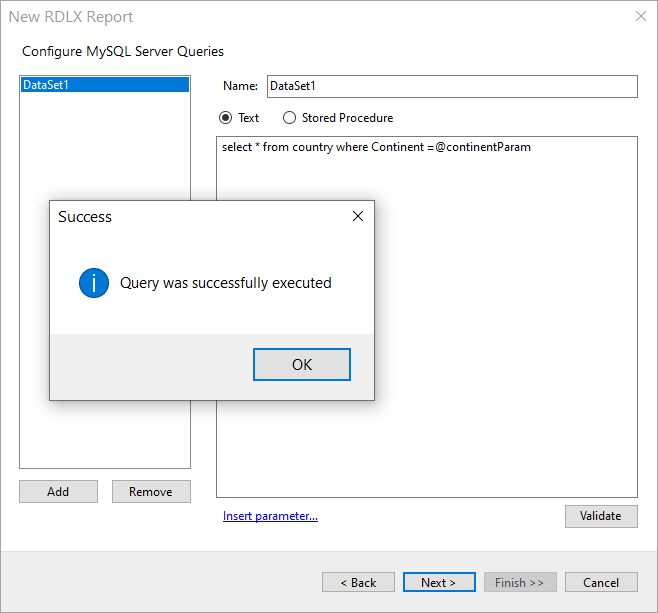
11. You should add a valid query that utilizes the parameter added. Validate the query and click **Next**.
12. On the final screen of the Report Wizard, review the summary of the report and click **Finish** to successfully add the report with the MySQL data source.
## Connect to a MySQL Data Source using Report Data Source dialog
1. In the **Report Explorer**, right-click the **Data Sources** node and select the **Add Data Source** option or click the **Add** button and select the **Data Source** option.
2. In the **Report Data Source** dialog that appears, select the **General** page and enter the data source name in the **Name** field. By default, the data source name is set to DataSource1. This name appears as a child node to the Data Sources node in the Report Explorer.
3. Under the **Type** field, select **MySql Provider**.
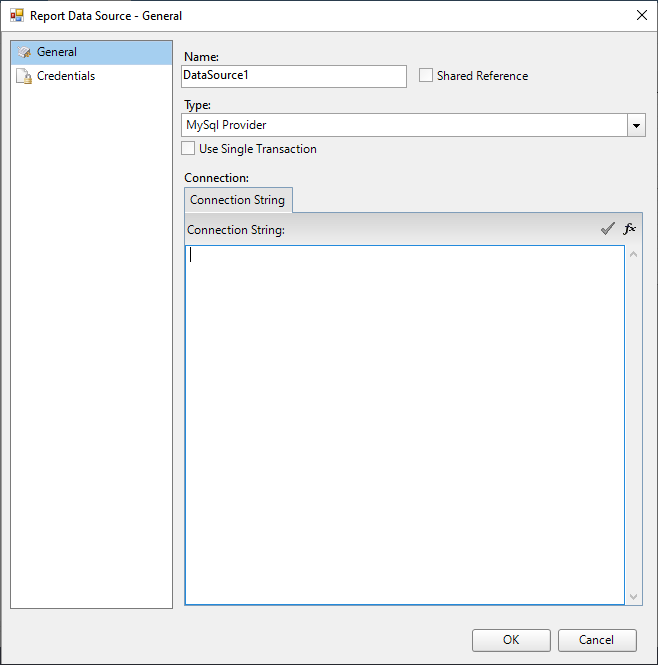
4. On the same page under the **Connection** section, enter the connection string to connect to the **MySql** data source. For example:
`host=10.64.1.240;port=3306;database=mysql;username=root;password=******;`
5. Verify the generated connection string by clicking the **Validate DataSource** icon.
6. Click **OK** to save the changes and close the **Report Data Source** dialog box.