# MS SQL Server
Learn to connect your Page or RDLX report to an MS SQL data source. This article provides insights into MS SQL Data Provider configuration settings.
## Content
This article explains connecting a Page or an RDLX report to a MS SQL Server/ Microsoft SQL Client data source. You can connect to this data source while creating a new report (via report wizard) or using report explorer (via report data source dialog).
## Connect to MS SQL Server Data Source using Report Wizard
The steps to connect to the MS SQL Server data source are:
1. Create a New Report.
2. In the **New Report** dialog, choose the Report Type as RDLX, RDLX Dashboard, or Page and click **Next**.
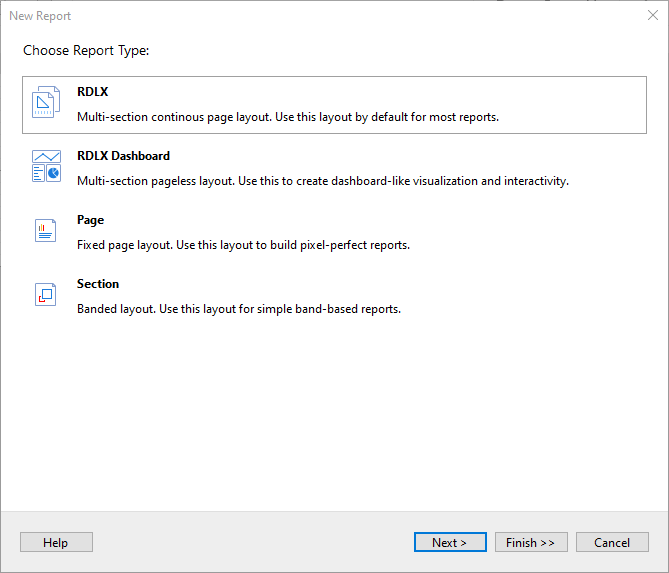
3. Configure page settings if you need to customize the report page settings and click **Next >**.
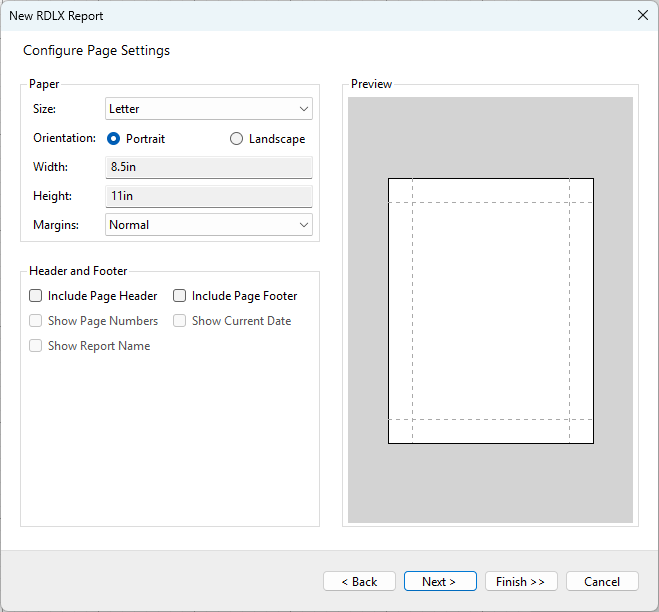
4. Select the Data Source Type as **MS SQL Server** and click **Next >**.
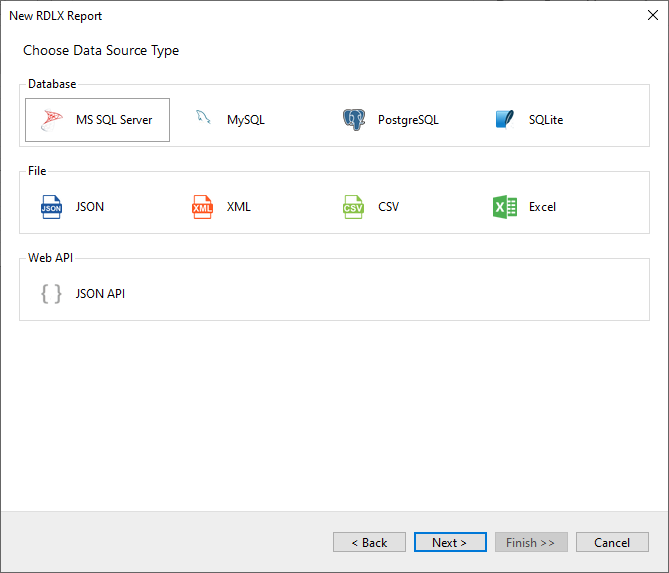
5. Enter the **Server name** and **Database** you want to connect.
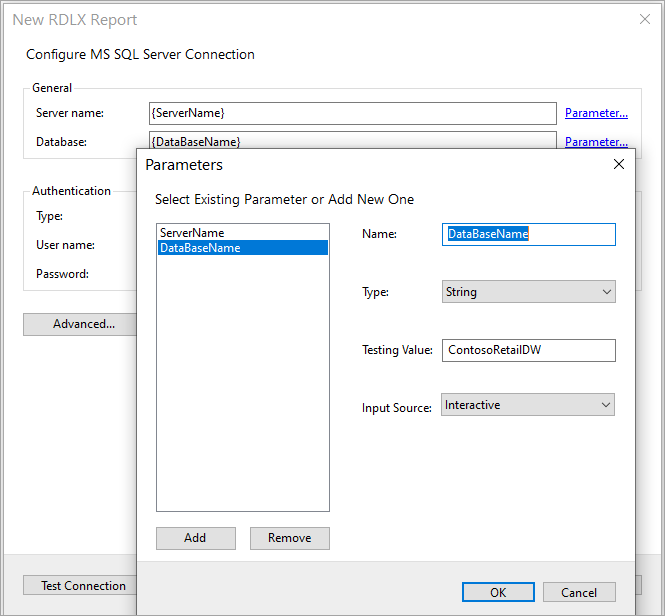
6. To specify the runtime connection values, let us add two parameters: for the Server name and for the Database, as follows:
1. Click on the **Parameter** link to open the **Parameters** dialog, and then click the **Add** button to add a new parameter.
2. Specify the below details:
* **Name**: Specify the name of the parameter.
* **Type**: Select the value type (string by default) from the drop-down list.
* **Testing Value**: Specify the runtime value for the connection properties.
* **Input Source**: Select **Interactive** for non-hidden parameters and **Programmatic** for hidden parameters from the drop-down list.
3. Click **OK** to finish adding the parameter.
7. To specify the authentication method for the data source connection, choose the authentication Type as **SQL Server** or **Windows**.
If you choose the **SQL Server** authentication option, enter the **User name** and **Password** in the respective fields.
> type=note
> **Note**: The **User name** and **Password** fields are disabled in case of **Windows** authentication.
8. You can select **Advanced** properties for additional configuration, for example, setting UI timeout option to allow entering key-value pairs.
9. Click **Test Connection** to test the connection.
10. Click **Next** and configure the dataset to retrieve the fields.
11. Click **Insert parameter** to specify the interactive parameter 'channelKeyParam', to set the value of 'ChannelKey' field of type 'Integer', to '4'.
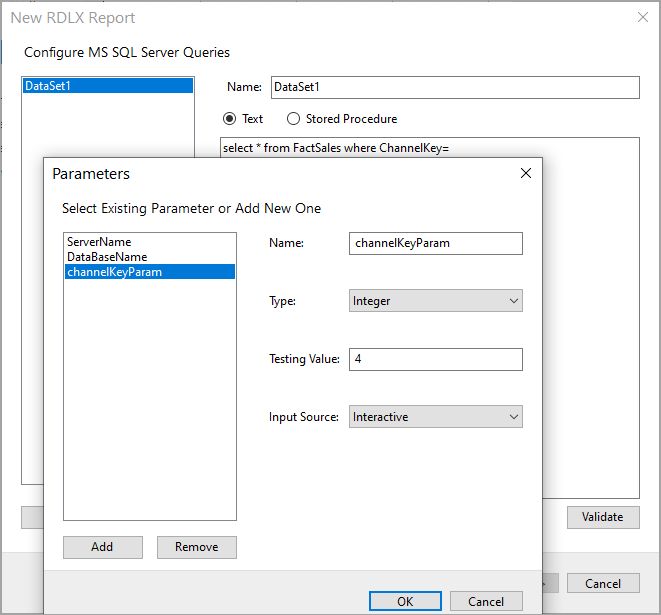
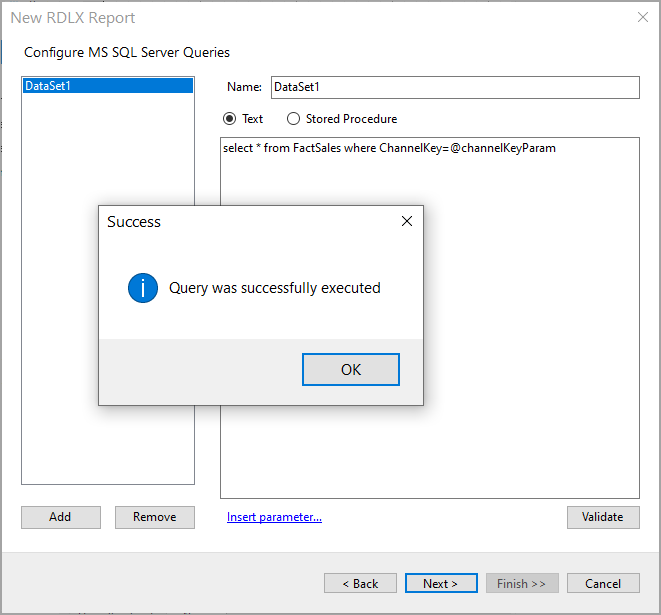
12. You should add a valid query that utilizes the parameter added. Validate the query and click **Next**.
13. On the final screen of the Report Wizard, review the summary of the report and click **Finish** to successfully create the report with the MS SQL Server data source.
## Connect to a Microsoft SQL Client Data Source using Report Data Source dialog
1. In the **Report Explorer**, right-click the **Data Sources** node and select the **Add Data Source** option or click the **Add** button and select the **Data Source** option.
2. In the **Report Data Source** dialog that appears, select the **General** page and enter the data source name in the **Name** field. By default, the data source name is set to DataSource1. This name appears as a child node to the Data Sources node in the Report Explorer.
3. Under the **Type** field, select **Microsoft Sql Client Provider**.
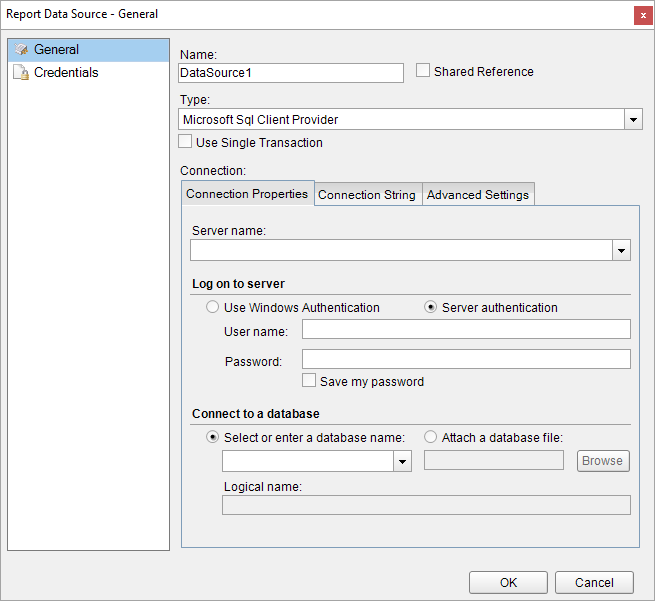
4. In the **Connection Properties** tab, enter the server name that you want to connect.
5. To specify the authentication method for the data source connection, select the **Use Windows Authentication** or **Server authentication** option.
If you choose the **Server authentication** option, enter the user name and password in the respective fields.
> type=note
> **Note**: The **User name** and **Password** fields are disabled in case of Windows authentication.
6. To connect to a Database, choose the **Select or enter a database name** or **Attach a database file** option. If you choose the **Select or enter a database name** option, enter a database name or select it from the drop-down list. In case the **Attach a database file** option is selected, click on **Browse** and navigate to the desired database file on your system. You can also give a **Logical Name** to the selected database.
> type=note
> **Note**: The **Logical Name** field is disabled in case of **Select or enter a database name** option.
The **Connection String** tab displays the generated connection string as shown below.
`data source=20.186.17.78;initial catalog=northwind;user id=qatester;password=*********;`
For more information, see the [Configuration Settings for Microsoft SQL Client Data Source](/activereportsnet/docs/v20.1/report-authors/data-binding/data-binding-page-rdl-reports/connect-to-a-data-source/ms-sql-server#conf-settings-ms-sql-client) section.
7. Verify the generated connection string by clicking the **Validate DataSource** icon .
8. Click the **OK** button to save the changes.
### Configuration Settings
The Microsoft SQL Client Data Provider provides the following configuration settings under the Connection section in the **Report Data Source** dialog. Based on the defined configuration settings, the connection string is generated in the **Connection String** tab.
The **Connection Properties** tab describes the configuration settings for the Microsoft SQL Client data provider. It includes details related to server name, type of authentication method, and database name.
| Setting | Description |
| --- | --- |
| Server name | Enter a server name |
| Log on to server | Select whether to use Windows authentication or server authentication which requires a user name and password. Below this field you can also check the **Save my password** option for future reference. |
| Connect to a database | Select whether to enter a database name or attach a database file. |
The **Advanced Settings** tab gives access to the following properties.
| Setting | Description |
| --- | --- |
| Application Name | Indicates the client application name. |
| Current Language | Indicates the SQL Server language name. It also identifies the language used for system message selection and formatting. The language must be installed on the SQL Server, otherwise opening the connection will fail. |
| Network Address | Indicates the network address of the SQL Server, specified by the Location property. |
| Network Library | Indicates the name of the network library (DLL) used to communicate with the SQL Server. The name should not contain the path or the .dll file name extension. The default name is provided by the SQL Server client configuration. |
| Packet Size | Indicates a network packet size in bytes. The Packet Size property value must be between 512 and 32767. By default, the SQLOLEDB network packet size is 4096. |
| Trusted Connection | Indicates the user authentication mode. You can set this property to Yes or No. By default, the property value is set to No. If Yes, the SQLOLEDB uses the Microsoft Windows NT Authentication Mode to authorize user access to the SQL Server database, specified by the Location and Datasource property values. If this property is set to No, then the SQLOLEDB uses the Mixed mode to authorize user access to the SQL Server database. The SQL Server login and password are specified in the User Id and Password properties. |
| Workstation ID | Denotes a string that identifies the workstation. |