# Microsoft ODBC Provider
This article explains connecting a Page or an RDLX report to an ODBC data source.
## Content
This article explains connecting a Page or an RDLX report to an ODBC data source.
> type=note
> **Note**: The ODBC model depends on the installed drivers.
## Connect to an ODBC Data Source
1. In the designer, go to the **Report Explorer**, right-click the **Data Sources** node and select the **Add Data Source** option or click the **Add** button and then select the **Data Source** option.
2. In the **Report Data Source** dialog that appears, select the **General** page and enter the name of the data source in the Name field. By default, the data source name is set to DataSource1. This name appears as a child node to the Data Sources node in the Report Explorer.
3. Under the **Type** field, select Microsoft Odbc Provider.
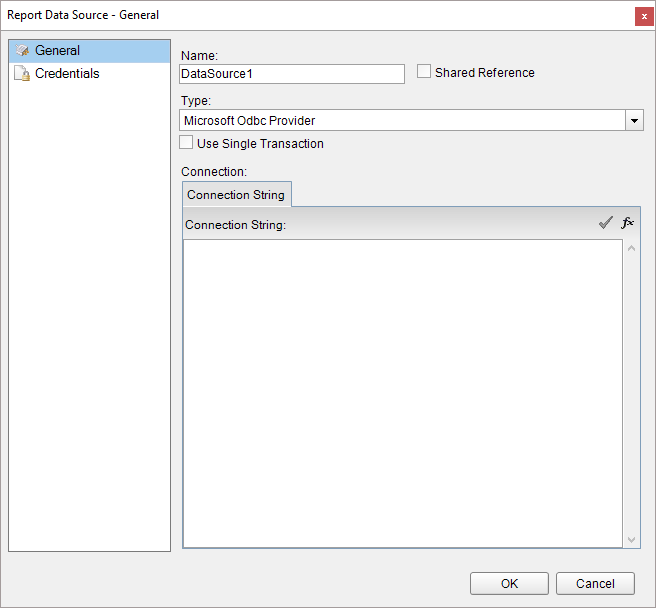
4. On the same page under the Connection section, enter the connection string to connect to an ODBC data source. The following sample connection string specifies the type of the ODBC Driver along with location of the file required for an ODBC data source connection.
For example, you can connect to the NWIND.mdb sample data source which can be downloaded from [GitHub](https://github.com/activereports/Samples19/tree/main/Data/).
`Driver=Microsoft Access Driver (*.mdb);Dbq=C:\NWIND.mdb;`
For more information about the **Credentials** page in the Report Data Source dialog, see [Connect to a Data Source](/activereportsnet/docs/v20.1/report-authors/data-binding/data-binding-page-rdl-reports/connect-to-a-data-source).
5. Click **OK** to save the changes and close the **Report Data Source** dialog box.