# Nested Datasets (JSON and XML)
Explore nested datasets that represent JSON or XML data hierarchically, perfect for bound data regions where you can utilize dataset nodes effectively.
## Content
A nested dataset represents JSON or XML data as an hierarchical structure. A nested JSON or XML dataset is most commonly used in a bound data region, where you can use the dataset nodes partially. For example, you can create a report with the Table data region, bound to the **Customers** dataset, and the nested List data region, bound directly to the nested dataset **OrderDetails**.
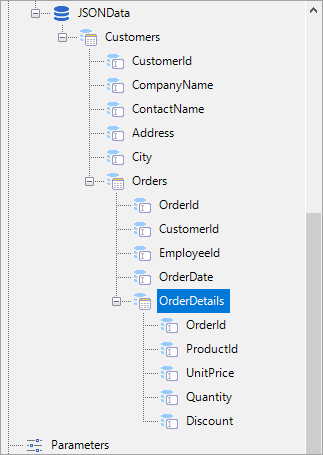
Follow these steps to create a new RDLX report with a JSON nested dataset.
1. In the ActiveReports Designer, create a new RDLX report.
2. On the **Choose Data Source Type** screen of the wizard, select **JSON** and click **Next**.
3. On the **Configure JSON Path Connection** screen, enter the following URL:
[https://demodata.mescius.io/northwind/odata/v1/Customers?$top=3&$expand=Orders($expand=OrderDetails,Shipper)](https://demodata.mescius.io/northwind/odata/v1/Customers?$top=3&$expand=Orders\($expand=OrderDetails,Shipper\))
and click **Next**.
4. On the **Configure JSON Queries** screen, enter the name of the dataset, 'Customers', and in the **Query** field, specify **$.value[\*\]**.
5. On the **Review and Confirm** screen, click **Finish**.
6. From the Toolbox, drag and drop the **Table** data region to the design area and set the data fields in the Table Details row to data values (**CustomerId**, **CompanyName**, and **City**) from the bound **Customers** dataset.
7. Right-click the Table Details and select **Insert Row Below**.
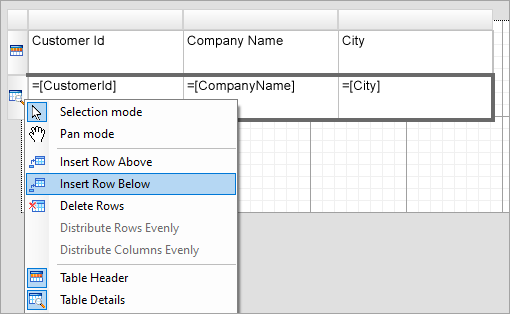
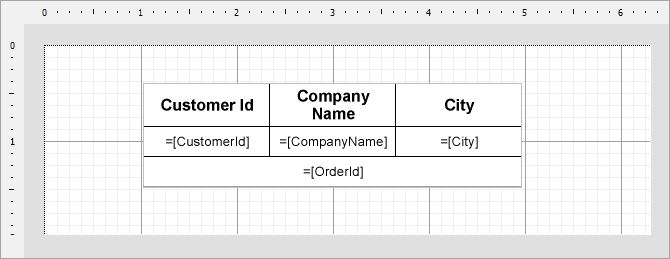
8. From the Toolbox, drag and drop the **List** data region to a Table cell in the new row.
9. Drag and drop the **Textbox** control to the List and set its Value to **OrderID** from the nested **Orders** dataset.
10. Improve the appearance of the report and preview.
## See Also
[Quick Start](/activereportsnet/docs/v20.1/report-authors/standalone-designer-app/create-multi-section-rdl)
[JSON](/activereportsnet/docs/v20.1/report-authors/data-binding/data-binding-page-rdl-reports/connect-to-a-data-source/json)
#### Developers
[Nested Datasets](/activereportsnet/docs/v20.1/developers/working-with-reports-devs/page-rdl-report-developers/bind-page-rdl-report-to-a-data-source-at-run-time/bind-page-report-to-csv-json-xml-data/nested-datasets)