# JSON Provider
This article explains connecting a Section report to a JSON data source.
## Content
This article explains connecting a Section report to a JSON data source.
## Connect to a JSON Data Source
1. In the designer, select the **Data Source** icon on the Detail section of the report or click the gray area around the design surface and select the **Edit Data Source** link in the Properties pane.
2. In the **Report Data Source** dialog that appears, select the **JSON** tab to connect to a JSON data source.
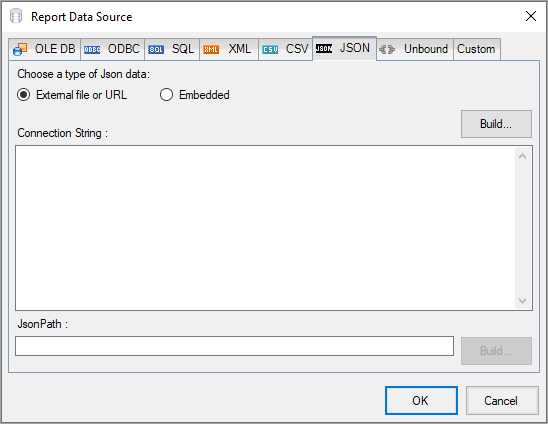
3. The **External file or URL** option is selected by default. Click the **Build** button next to the Connection String section to open the **Configure JSON Data Source** dialog box.
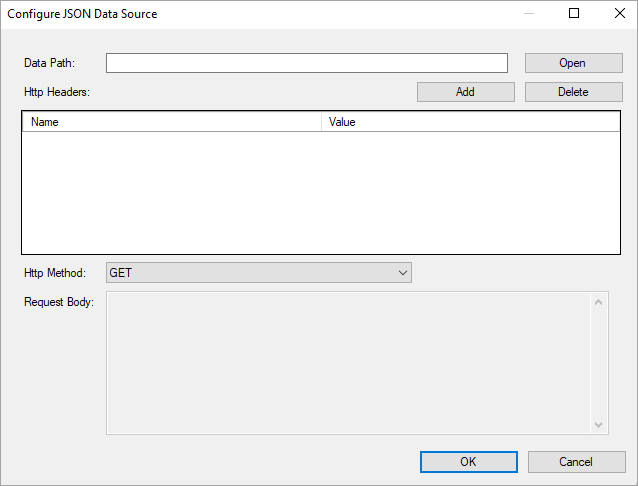
4. To specify the **Data Path** of the file, click the **Open** button and navigate to the desired folder on your system. For example, you can connect to the 'Customers.json' sample data source which can be downloaded from [GitHub](https://github.com/activereports/Samples19/tree/main/Data/).
For more information, see the [Configuration Settings for JSON Data Source](/activereportsnet/docs/v20.1/report-authors/data-binding/data-binding-in-section-reports/connect-to-a-datasource-section/json-provider-section#configuration-settings-for-json-data-source).
5. Click **OK** to save the changes and close the **Configure JSON Data Source** dialog box.
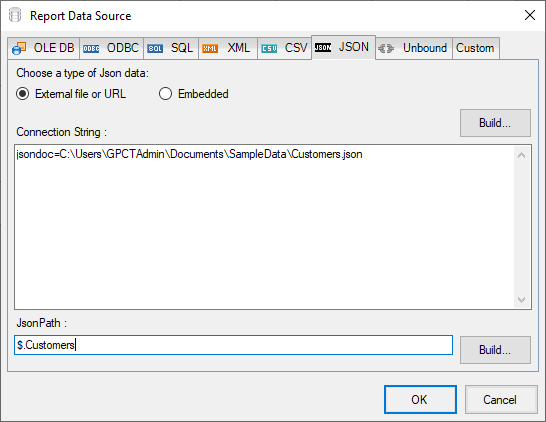
The Connection String section displays the generated connection string as shown below.
```plaintext
jsondoc=C:\Customers.json
```
6. In the **JSON Path** field, enter a valid JSON Path expression or click the **Build** button to generate the path using the JSON query designer.
```json
$.Customers
```
For more information on JSON Path expressions, please visit [this](https://goessner.net/articles/JsonPath/) article.
7. Click the **OK** button to save the changes.
## Configuration Settings for JSON Data Source
The JSON Data Provider provides the following configuration settings under the Connection section in the **Report Data Source** dialog.
* **External file or URL**: Enter the path or URL of an external JSON data file or select the file from the drop-down which displays the JSON files available in the same folder as the report. The connection string generated using this option starts with the keyword **jsondoc**.
* **Embedded**: Enter the path of the JSON data file to embed in the report. You can provide JSON data manually or select a JSON file containing the data. The connection string generated using this option starts with the keyword **jsondata**.
The JSON Data Provider provides the following configuration settings in the **Configure JSON Data Source** dialog box.
* **Data Path**: Path or URL of an external JSON data file or select the file available on the system using the **Open** button. You can also pass parameters (including report parameters) to the URL. For example, https://demodata.mescius.io/northwind/odata/v1/customers?$top=7&$orderby=Country.
The connection string generated starts with the keyword **jsondoc**.
* **HTTP Headers**: Contains information related to authorization. Here you provide the expected content type, bearer token, etc. necessary for establishing the connection. For example, providing credentials to log in to a service/URI to retrieve data.
* **HTTP Method**: The HTTP request method, it can either be set to GET (included in URL) or POST (included in Request Body). POST requests allow defining a body as an expression to obtain data.
* **Request Body**: Body for the POST request method. The text area is enabled only when the **HTTP Method** is set to POST.