# MS SSRS RDLX
Learn how ActiveReports simplifies the import of MS SSRS RDLX reports with its intuitive Import Wizard, ensuring seamless report conversion.
## Content
## Importing SSRS Reports in the ActiveReports Import Wizard
1. Run the ActiveReports Import Wizard. The wizard can be run from the start menu or by executing ActiveReports.Imports.Win.exe from **C:\\Program Files (x86)\\MESCIUS\\ActiveReports 20\\Tools** location.
2. In the ActiveReports Import Wizard that appears, click **Next**.
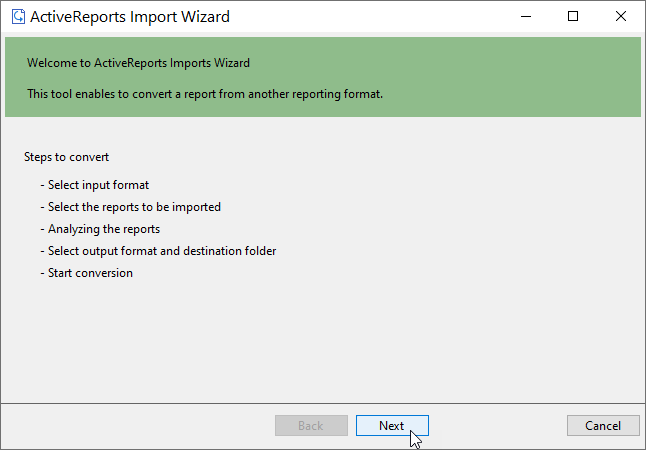
3. Choose **SQL Server Reporting Services (rdl)** as the input format and click **Next**.
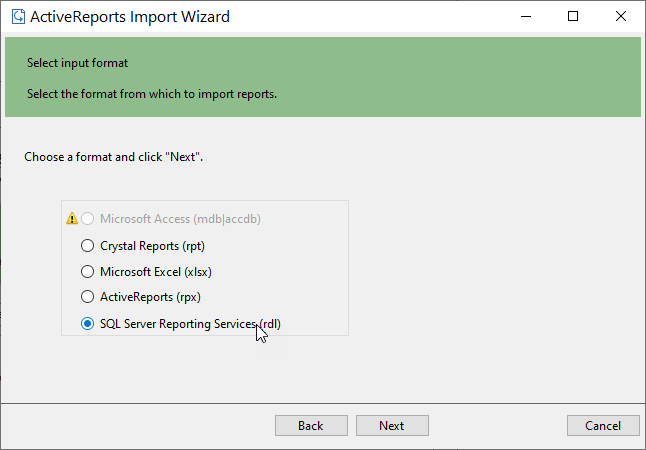
4. Click the ellipsis button to browse to the location that contains the files that you want to import. A list of files that you can import appears.
5. Select the reports to import, click **Open,** and then click **Next** to analyze them.
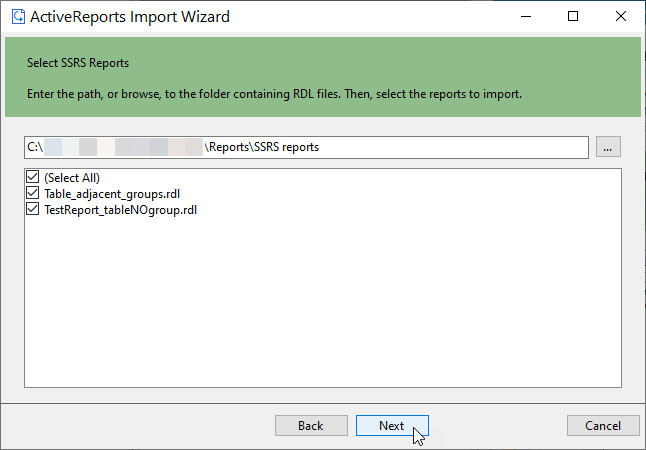
6. Use the ellipsis button to select a destination folder to store the converted reports.
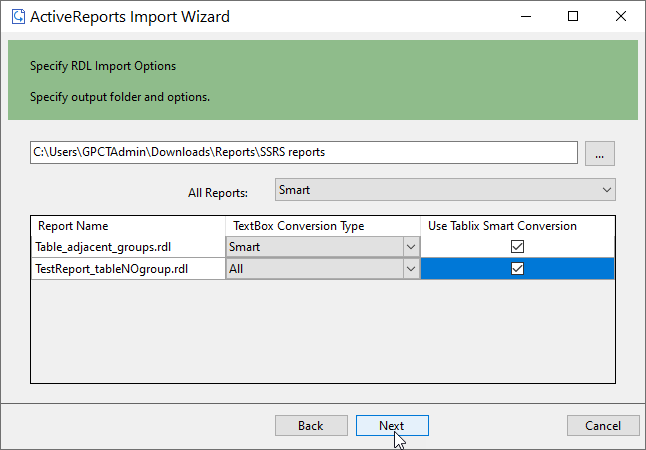
Select a **TextBox Conversion Type** for all reports in the drop-down list. The available options are as follows.
* **All** \- All textbox controls are converted to FormattedText\.
* **None** \- All textbox controls are converted to TextBox\, paragraph settings are lost\.
* **Smart** (default) - Textbox controls with more than one paragraph or TextRun is converted to FormattedText.
Select the **Use Tablix Smart Conversion** option to convert an SSRS 'Tablix' to an ActiveReports 'Table' or 'List' data region, if possible. Check the Tablix Conversion limitation below.
7. Click **Next** to start the conversion.
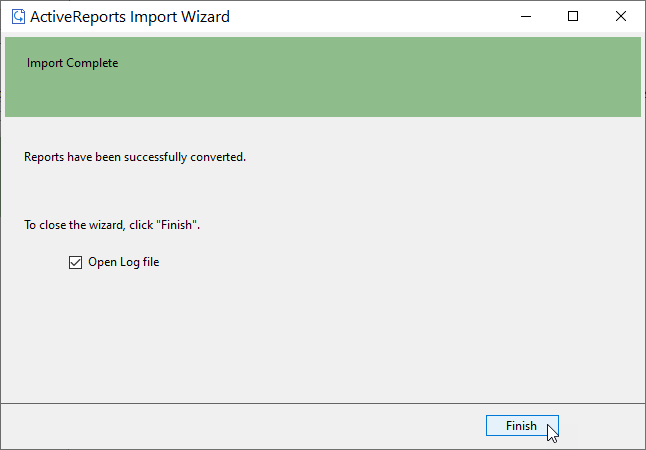
8. Once the conversion process is complete, click **Finish** to close the wizard and go the destination folder to view the converted reports. You may optionally leave the check on for the **Open Log file** checkbox to see the results log.
## Limitations
### Tablix Conversion
The ActiveReports model is different from latest SSRS model. ActiveReports does not fully support latest RDLX specification. So, even when you check the **Use Tablix Smart Conversion**, some properties may be ignored for the closest conversion.
### Chart Conversion
The ActiveReports chart model and its implementation is different from the latest RDLX specification, so you may need to manually adjust the conversion to achieve a similar behavior.
These charts are not supported and ignored at conversion to ActiveReports.
1. Sunburst
2. Treemap
3. ErrorBar
4. Range Column
5. Range Smooth
6. Range Plain
7. Gauges
#### Multi-Section Reports Conversion
SSRS reports with multiple sections are converted to RDLX Report.