# Excel
ActiveReports allows you to import Excel reports. Learn the limitations in the Excel reports conversion.
## Content
The migration from Microsoft Excel file to ActiveReports can now be accomplished by using the **ActiveReports Import Wizard**. The ActiveReports Import Wizard is particularly useful when you want to convert multiple sheets of an Excel file to ActiveReports. It saves the time and effort of a developer to manually replicate the layout of each sheet of an Excel file in ActiveReports.
You can import a single sheet or multiple sheets of an Excel file to a Page or an RDLX report with just a few clicks. A single Excel sheet is imported as a report file, and the report name is the name of the sheet. An Excel file with multiple sheets is by default imported as separate report files, and the report names are the name of the corresponding sheets in the Excel file. You can also set **Merge all sheets into a single report file** option in the ActiveReports Import Wizard to import multiple sheets of the Excel file as different pages of the report.
* [Importing Excel files in the ActiveReports Import Wizard](/activereportsnet/docs/v20.1/devops/features-devops/import-migrate/excel#importing-excel-files-in-the-activereports-import-wizard)
* [Defining Table area in an Excel file](/activereportsnet/docs/v20.1/devops/features-devops/import-migrate/excel#defining-table-area-in-an-excel-file)
* [Naming Rules for defining a Table area in Excel](/activereportsnet/docs/v20.1/devops/features-devops/import-migrate/excel#naming-rules-for-defining-a-table-area-in-excel)
* [Conversion Rules for Table area in Excel](/activereportsnet/docs/v20.1/devops/features-devops/import-migrate/excel#conversion-rules-for-table-area-in-excel)
* [Supported Objects and Properties](/activereportsnet/docs/v20.1/devops/features-devops/import-migrate/excel#supported-objects-and-properties)
* [Limitations](/activereportsnet/docs/v20.1/devops/features-devops/import-migrate/excel#limitations)
>type=note
> **Note**: The import formats that are not supported are .xls (Excel 97-2003) and .xlsm (Open XML with macro).
## Importing Excel files in the ActiveReports Import Wizard
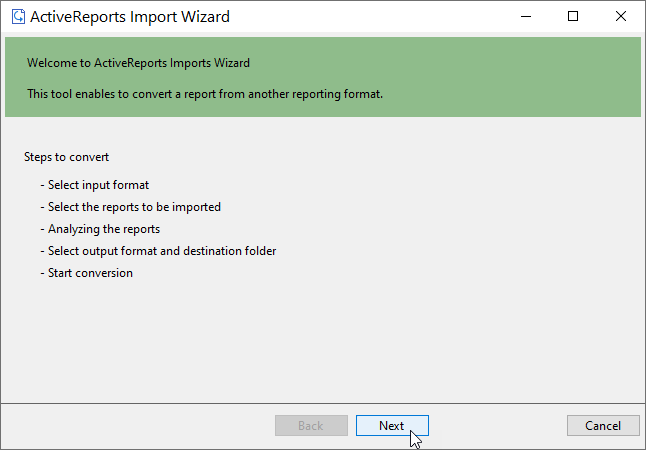
1. Run the ActiveReports Import Wizard. The wizard can be run from the start menu or by executing ActiveReports.Imports.Win.exe from **C:\\Program Files (x86)\\MESCIUS\\ActiveReports 20\\Tools** location.
2. In the ActiveReports Import Wizard that appears, click **Next**.
3. Choose **Microsoft Excel (xlsx)** as the input format and click **Next**.
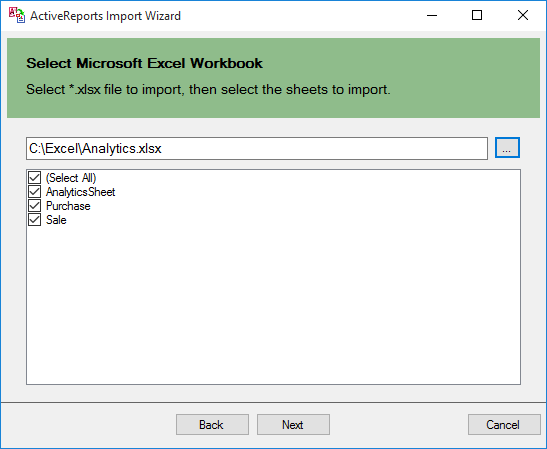
4. Click the ellipsis button to browse to the location that contains the files that you want to import. A list of files that you can import appears.
5. Select the sheets to import, click **Open,** and then click **Next** to analyze them.
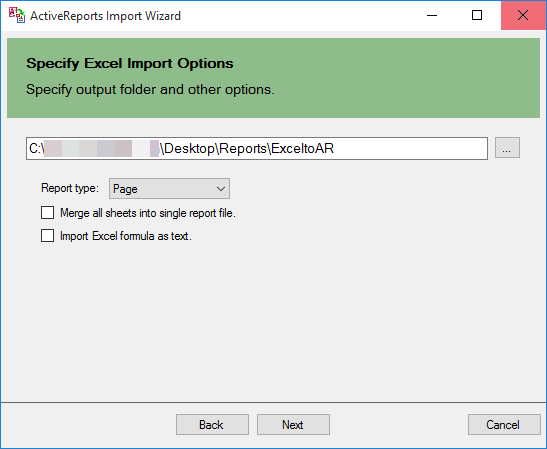
6. Use the ellipsis button to select a destination folder to store the converted reports. You can set the following options:
* **Report Type**: Choose from Page report or RDLX report formats to import the Excel file. Note that Page report does not support multiple data sources. You should select RDLX report type if you want to add multiple data sources to the report.
* **Merge all sheets into single report file**: Choose this option to import sheets of the Excel file as separate pages of a Page report. The report name is the name of the first sheet of the Excel file.
* **Import Excel formula as text**: Choose this option to import Excel formula as text. If you keep the option unchecked, the Excel formula is imported as a calculated result.
7. Click **Next** to start the conversion.
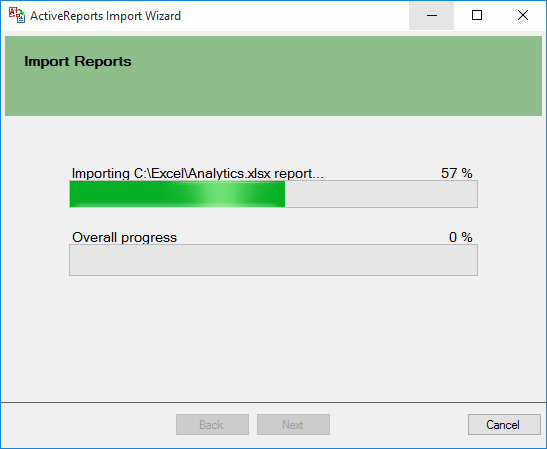
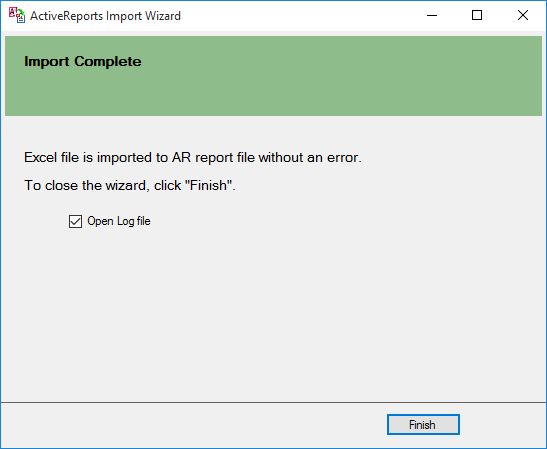
8. Once the conversion process is complete, click **Finish** to close the wizard and go the destination folder to view the converted reports. You may optionally leave the check on for the **Open Log file** checkbox to see the results log.
## Defining Table area in an Excel file
Table area in Excel is the range of cells representing a Tabular data in the Excel.
If an Excel file has the table area that you want to import into ActiveReports as the Table data region, you must define the Table area first and then run the ActiveReports Import Wizard. Otherwise, defining the table area is not required.
* Open the Excel file and select the table area.
* Right-click to view the context menu.
* Select the **Define Name** option.2. In the **New Name** dialog box, define the table area and the rows based on [Naming Rules](/activereportsnet/docs/v20.1/devops/features-devops/import-migrate/excel#naming-rules-for-defining-a-table-area-in-excel). These naming rules must be followed for defining table areas in Excel.
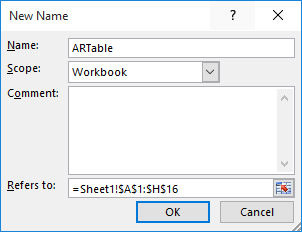
3. Click **OK**.
## Naming Rules for defining a Table area in Excel
To obtain the required table sections in ActiveReports' Table data region, you need to define the table area and its rows in the Excel file. In general, the table area is defined as **ARTable#.\*\*\*\*\*\***, where:
* **#** is used to define more than one table areas. It can be any character, except symbol or character restricted by Excel. For example, ARTable, ARTable\_1, or ARTableAbc.
* **\*\*\*\*\*\*** is the name of the row (section): Detail, TableHeader, TableFooter, GroupHeader, or GroupFooter.
In case of multiple rows (Table Header/Footer, Detail, Group Header/Footer), you need to set "#" for each row as well (for example, GroupHeader1, GroupHeader2, etc.)
**Example 1**: To define a single table area
| Action | Naming Rule |
| ------ | ----------- |
| Define whole table area | ARTable |
| Define each row | ARTable.Detail
ARTable.TableHeader
ARTable.TableFooter
ARTable.GroupHeader1
ARTable.GroupFooter1 |
**Example 2**: To define a multiple table area
| Action | Naming Rule |
| ------ | ----------- |
| Define whole table area | ARTable1 ARTable2 |
| Define each row | ARTable1.Detail
ARTable1.TableHeader
ARTable1.TableFooter
ARTable2.Detail
ARTable2.TableHeader
ARTable2.TableFooter |
## Conversion Rules for Table area in Excel
The table area of Excel is imported as a Table data region in ActiveReports based on the following conversion rules.
* If the defined table area of Excel has three or more rows, the file data is converted to Table Header, Detail, and Table Footer as:
| Excel Table | ActiveReports Table |
| ----------- | ------------------- |
| Top Row | Table Header |
| Bottom Row | Table Footer |
| Other Rows | Detail |
>type=note
> **Note**: For the Table Detail row, values for properties such as Value, Location, Size, etc. are imported from the cells of the first row.
* If the defined table area of Excel has two rows, the file data is converted as follows.
| Excel Table | ActiveReports Table |
| ----------- | ------------------- |
| First Row | Table Header |
| Second Row | Detail |
* If the defined table area of Excel has only one row, the file data is converted as follows.
| Excel Table | ActiveReports Table |
| ----------- | ------------------- |
| First Row | Detail |
## Supported Objects and Properties
| Excel | | Page/RDLX report | |
| ----- | --- | ---------------- | --- |
| Item | Property | Item | Property |
| **Page** | Page setting | **Report** | - |
| Size | PaperSize |
| Orientation: Portrait | PaperOrientation: Portrait |
| Orientation: Landscape | PaperOrientation: Landscape |
| Margins (Top, Bottom, Left, Right) | Margins (Top, Bottom, Left, Right) |
| **Cell** | Value | **TextBox** | Value |
| Location | Location (Left, Top) |
| Size | Size (Width, Height) |
| Alignment | - |
| Horizontal alignment: General | TextAlign: General |
| Horizontal alignment: Left (Indent) | TextAlign: Left |
| Horizontal alignment: Center | TextAlign: Center |
| Horizontal alignment: Right (Indent) | TextAlign: Right |
| Horizontal alignment: Justify | TextAlign: Justify |
| Horizontal alignment: Distributed (Indent) | TextJustify: DistributeAllLines |
| Vertical alignment: Top | VerticalAlign: Top |
| Vertical alignment: Center | VerticalAlign: Middle |
| Vertical alignment: Bottom | VerticalAlign: Bottom |
| Text control: Wrap text | WrapMode: WordWrap |
| Text control: Shrink to fit | ShrinkToFit: True |
| Text direction: Left-to-Right | Direction: LTR |
| Text direction: Right-to-Left | Direction: RTL |
| Font | - |
| Name | FontFamily |
| Style: Regular | FontStyle: Normal |
| Style: Italic | FontStyle: Italic |
| Style: Bold | FontWeight: Bold |
| Style: Bold Italic | FontWeight: Bold |
| Size | FontSize |
| Color | Color |
| Underline: None | TextDecoration: None |
| Underline: Single | TextDecoration: Single |
| Border | - |
| Line style (Top, Bottom, Left, Right): xlLineStyleNone | BorderStyle: None |
| Line style (Top, Bottom, Left, Right): xlContinuous | BorderStyle: Solid |
| Line style (Top, Bottom, Left, Right): xlDot | BorderStyle: Dotted |
| Line style (Top, Bottom, Left, Right): xlDash | BorderStyle: Dashed |
| Line style (Top, Bottom, Left, Right): xlDouble | BorderStyle: Double |
| Line color | BorderColor |
| Line weight: xlThin | BorderWidth: 1pt |
| Line weight: xlMedium | BorderWidth: 2pt |
| Line weight: xlThick | BorderWidth: 3pt |
| Fill | - |
| Background color | BackgroundColor |
| **Table area** | Each cell in a table area is converted to TextBox report item.
\> \!type=note
>
\> **Note**: Whole table area is imported in ActiveReports even if table data is filtered. | **Table** | Location (Left, Top)
Size (Width, Height)
FixedSize (Width, Height) |
| **Picture** | Picture object is converted to Image report item. | **Image** | Value
Source: Embedded
Sizing: FitProportional
Location (Left, Top)
Size (Width, Height) |
## Limitations
* An Excel file that contains merged cells and table areas that are partially out of bounds, is not imported.
* **Merged cell** \- If merged cell starts within the page bounds and ends outside of them\, the cell is not imported\.
* **Table area** \- If table area starts within the page bounds and ends outside of them\, the table area is not imported\.
* ActiveReports Import Wizard does not support conversion of a **password protected Excel** file.
* The layout of only the first page of an Excel, as shown in the Page Break Preview option, is imported.
* The following Excel items are not imported to ActiveReports.
1. **Page**
* Header/Footer
2. **Cell**
* Number format (all categories, like Number, Date, Currency, etc.)
* Strikethrough
* Border (diagonal)
* Fill effect
* Fill pattern
* Comment
* Hyperlink
* Table styles
* Conditional formatting
3. **Object**
* Table
* Shape
* Chart
* Pivot Table
* WordArt
* ClipArt