# Snap Lines
Snap lines in ActiveReports Designer assist in accurate positioning of elements on a report design surface. Learn the behavior of snap lines in documentation.
## Content
**Snap lines** assist in accurate positioning of elements on a report design surface while you drag report controls on it. These dynamic horizontal and vertical layout guidelines are similar to the ones found in Visual Studio. You can see snap lines on the [Visual Studio Integrated Designer](/activereportsnet/docs/v20.1/developers/working-with-reports-devs/activereports-designer) as well as the [Standalone Designer](/activereportsnet/docs/v20.1/report-authors/standalone-designer-app) application.
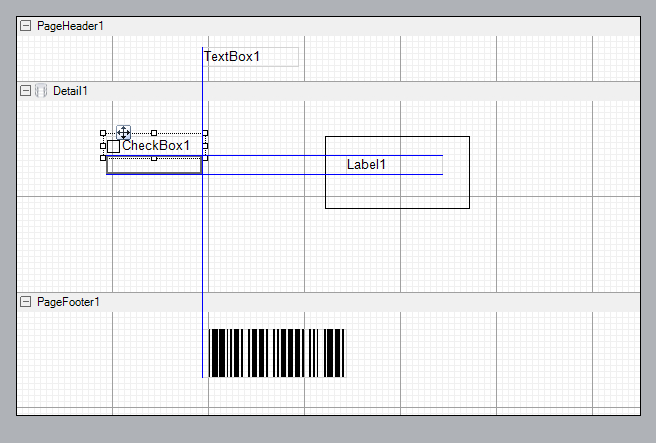
Snap lines appear on the design surface by default. In order to disable them, click the **Snap Lines** button below the design surface, or in Section reports, hold down the **[Alt\]** key while dragging a control to temporarily hide the snap lines.
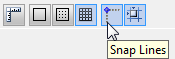
When you drag a control on the design surface, blue snap lines appear and the control slows down as it aligns with another control or a section edge. Unless you are also using the **Snap to Grid** setting, with **Snap Lines**, the control can move freely around the report and can be placed anywhere on the design surface.
> type=info
> **Tip**: If you plan to export a report to Excel format, use snap lines to ensure that your controls are aligned in columns and rows to avoid empty cells or overlapping of controls in the spreadsheet.
### Snap Line Behavior
### On dragging with a mouse
When you drag report controls across the design surface, they snap to other controls, report and section edges. Snap lines appear when the control you are dragging aligns with any edge of any of the following:
* Any control inside any section of the report.
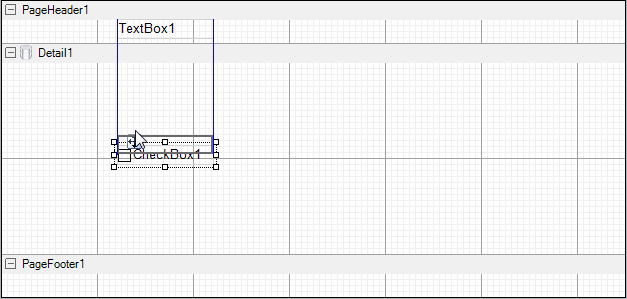
* Another control inside the same data region.
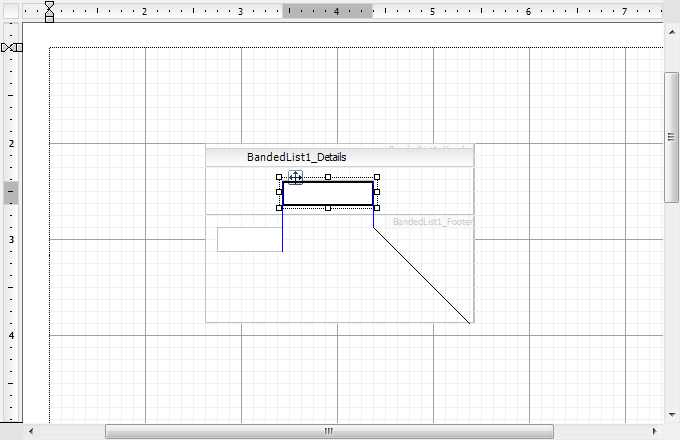
* Parts of a data region (bands in a [Banded List](/activereportsnet/docs/v20.1/report-authors/report-controls/report-controls-page-rdl-report/bandedlist), or columns and rows in a [Table](/activereportsnet/docs/v20.1/report-authors/report-controls/report-controls-page-rdl-report/table)).
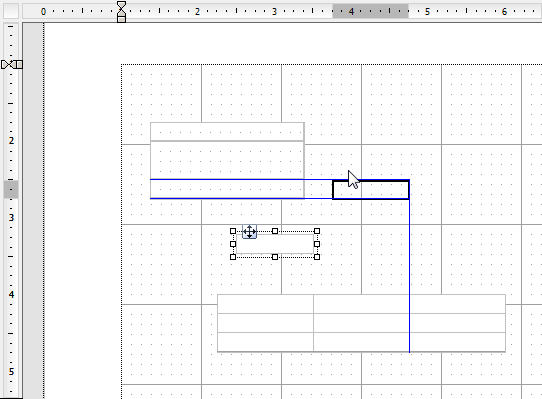
* Report edges and section edges.
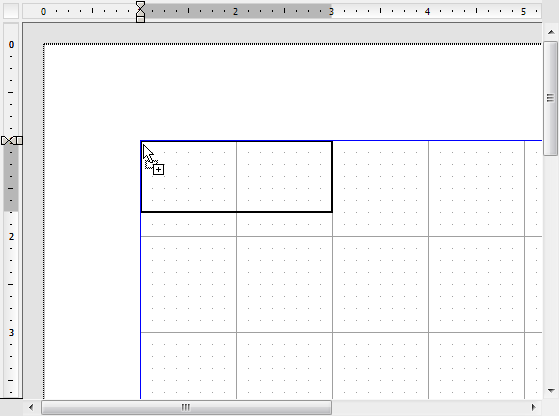
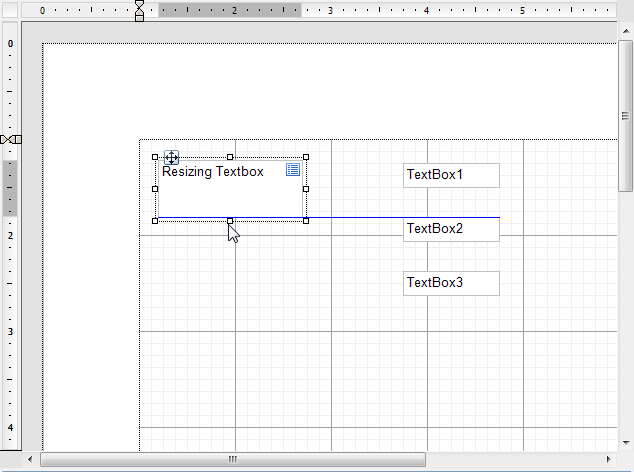
* Other control edges while resizing with a mouse.
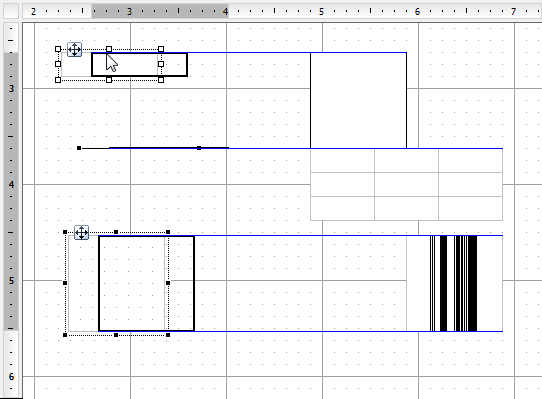
* On selecting multiple items where all the items move as a single unit, snap lines appear for all items in the selection.
### With keyboard actions
* Use [Ctrl\] + [Shift\] + Arrow keys to resize the selected control from one snap line to the next.
* Use [Ctrl\] + Arrow keys to move the selected control to the next snap line.
* Use [Ctrl\] + Left mouse button to copy the control and see snap lines appear between the edges of the copied control being dragged and the original control.
> type=note
> **Note**: Snap lines do not appear when you move a control with arrow keys.
## See Also
[Designer Buttons](/activereportsnet/docs/v20.1/developers/working-with-reports-devs/activereports-designer/designer-buttons)