# Quick Start
A quick start guide to using ActiveReports.
## Content
Quickly begin using ActiveReports by following the steps below.
## Quick Start to ActiveReports
1. [Install ActiveReports](/activereportsnet/docs/v20.1/devops/install-activereports).
2. In **Microsoft Visual Studio 2026**, select **ActiveReports 20 ASP.NET Core MVC Application** template and click **Next**.
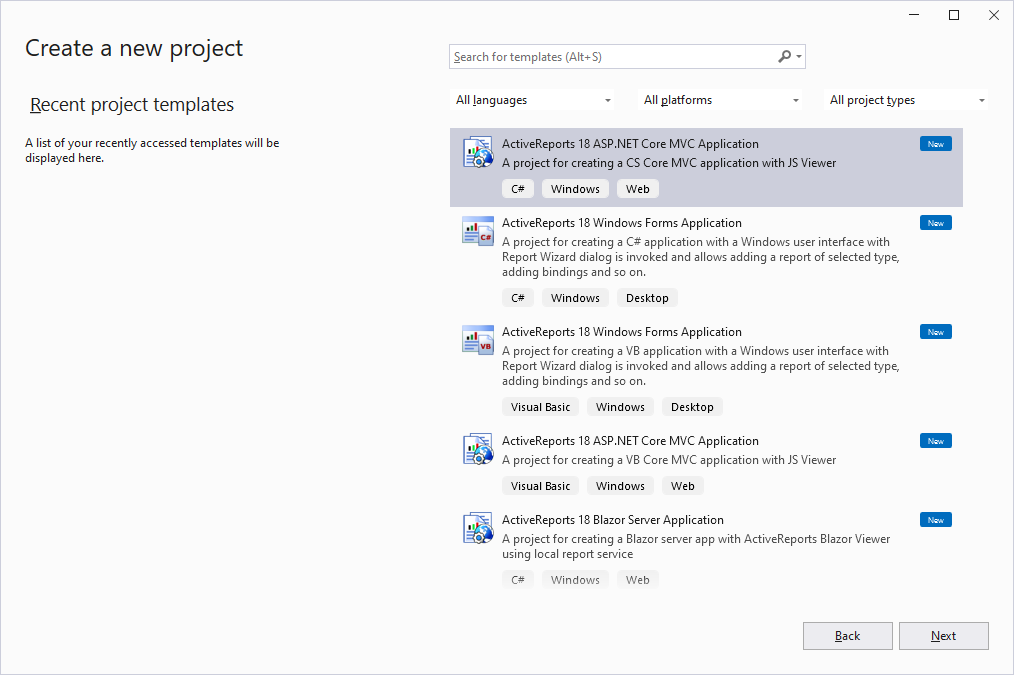
For complete list of built-in templates, see the [Project Templates](/activereportsnet/docs/v20.1/devops/install-activereports) topic.
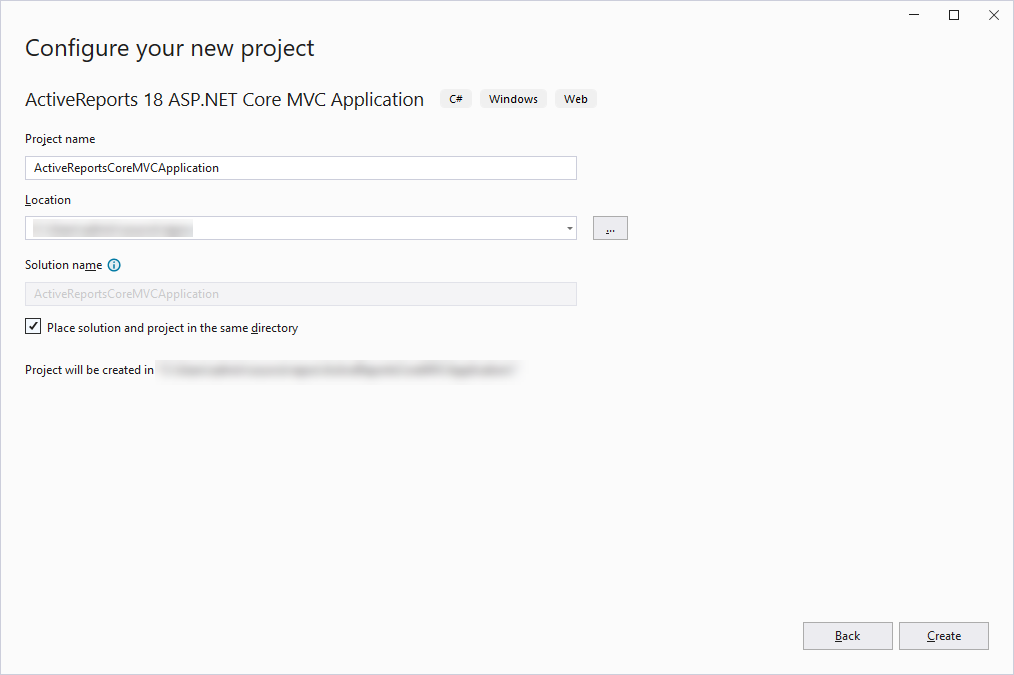
3. Type a name for your project and click **Create**.
4. Select RDLX from report types and click **Finish**:
* RDLX
* RDLX Dashboard
* Page
* Section
Check [Report Types](/activereportsnet/docs/v20.1/report-authors/reporttypes) topic that will help you choose a report type.
5. Open the default 'Report.rdlx' report from the 'Reports' folder and design. You can also choose to add report types from the context menu of the 'Reports' folder.
* For information on designing a report, see [Report Authors](/activereportsnet/docs/v20.1/report-authors) (Designer Components).
* For information on viewing a report, see [Report Readers](/activereportsnet/docs/v20.1/report-readers) (Viewer Components).
6. Make sure to set the **Build Action** property of the report to 'Embedded resource'.
7. Modify **index.cshtml** to provide the name of the report you want to preview in **viewer.openReport()** method:
`viewer.openReport("Report.rdlx"); `
The complete index.cshtml looks as below.
```html
JS Viewer
```
In **Startup.cs**, the root directory containing the report is resolved using config.UseFileStore(rootDir). The complete **Startup.cs** looks like below.
```csharp
using GrapeCity.ActiveReports.Aspnetcore.Viewer;
using Microsoft.AspNetCore.Builder;
using Microsoft.AspNetCore.Hosting;
using Microsoft.Extensions.DependencyInjection;
using Microsoft.Extensions.Hosting;
using Microsoft.Extensions.Logging;
using System;
using System.IO;
namespace ActiveReportsCoreMVCApplication
{
public class Startup
{
// This method gets called by the runtime. Use this method to add services to the container.
public void ConfigureServices(IServiceCollection services)
{
services
.AddLogging(config =>
{
// Disable the default logging configuration
config.ClearProviders();
// Enable logging for debug mode only
if (Environment.GetEnvironmentVariable("ASPNETCORE_ENVIRONMENT") == Environments.Development)
{
config.AddConsole();
}
})
.AddReportViewer()
.AddMvc(option => option.EnableEndpointRouting = false);
}
// This method gets called by the runtime. Use this method to configure the HTTP request pipeline.
public void Configure(IApplicationBuilder app, IWebHostEnvironment env)
{
if (env.IsDevelopment())
{
app.UseDeveloperExceptionPage();
}
app.UseReportViewer(settings =>
{
var reportsFolder = Path.Combine(env.ContentRootPath, "Reports");
settings.UseFileStore(new DirectoryInfo(reportsFolder));
});
app.UseStaticFiles();
app.UseMvc();
}
}
}
```
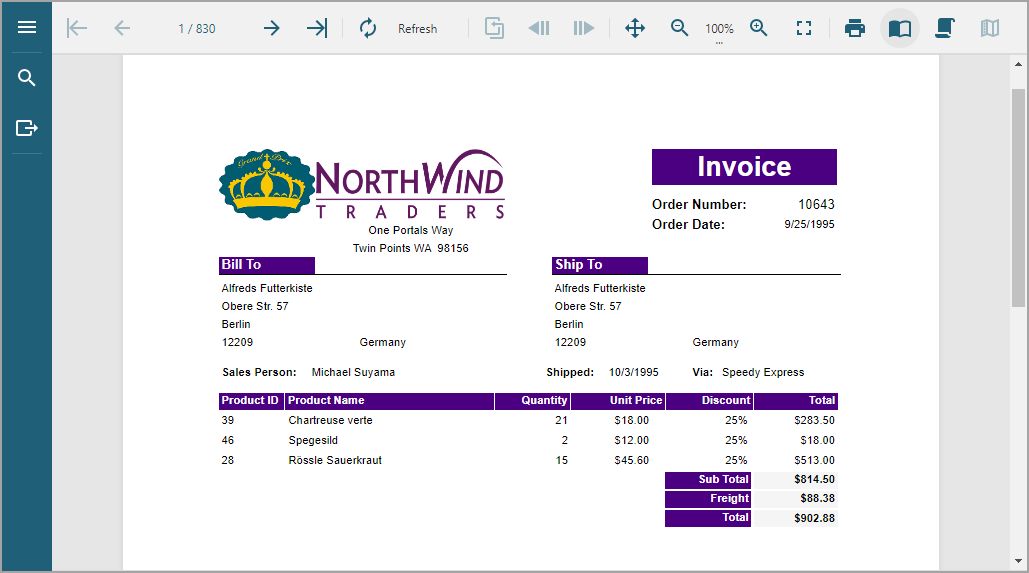
8. Run the application. The report opens in the JSViewer.