# Print Reports on a Single Page
This topic explains how to set the printing options for an RDLX report to print it on a single page, despite the report page height. This is useful for printing receipts, bills menu, recharge ticket, etc. where all data is printed in one page.
## Content
You can set the printing options for an RDLX report to print it on a single page, despite the report page height. This is useful for printing receipts, bills menu, recharge ticket, etc. where all data is printed in one page.
1. Open an RDLX report in the Designer. This sample uses a report with a Table data region, based on the **Customers** dataset.
2. With a report selected, go to **Properties** and set the **PageSize** > **Height** property to **Auto**. Note that if the **PaperOrientation** property is set to **Portrait,** this property gets disabled when you set **PageSize.Height** to **Auto**.
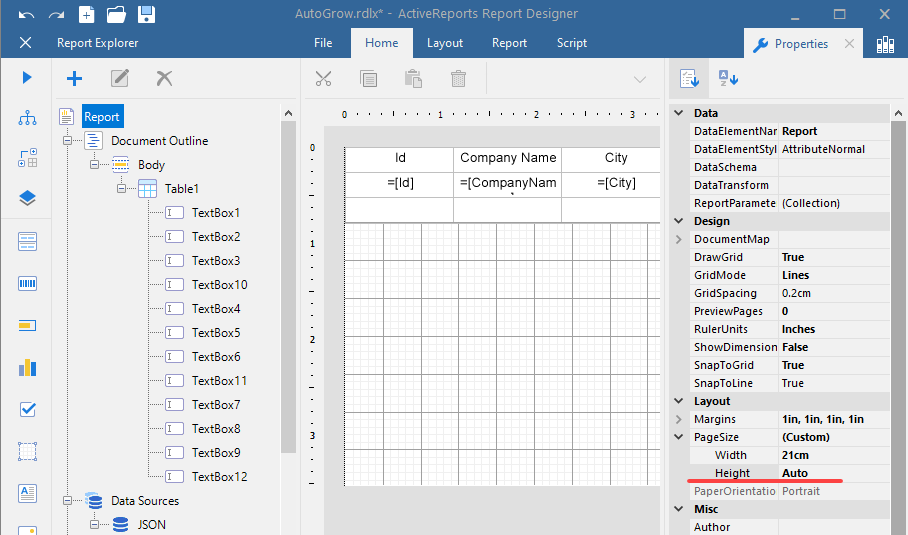
3. Click **Preview** to see that now the report has one page.
4. Click **Print**.
5. In the **Print** dialog that opens, click **Properties**, and select a page size.
6. Click **OK** to print a report on a single page.
> type=note
> **Note**:
>
> * If your report has page breaks, then printing on a single page for the report will not work.
> * The user should set the correct **Paper Size** in **Printing Preferences** before sending the **Print** command.
> * This feature is available in the Visual Studio Integrated Designer and Standalone Report Designer.
## See Also
#### Samples
[Print Multiple Pages per Sheet](/activereportsnet/docs/v20.1/samples/samples-ar/api-sample/section-api/print-multiple-copies)