# Custom Annotation
This topic demonstrates how to add the custom annotation button to the report Viewer toolbar and adding a new annotation to the report.
## Content
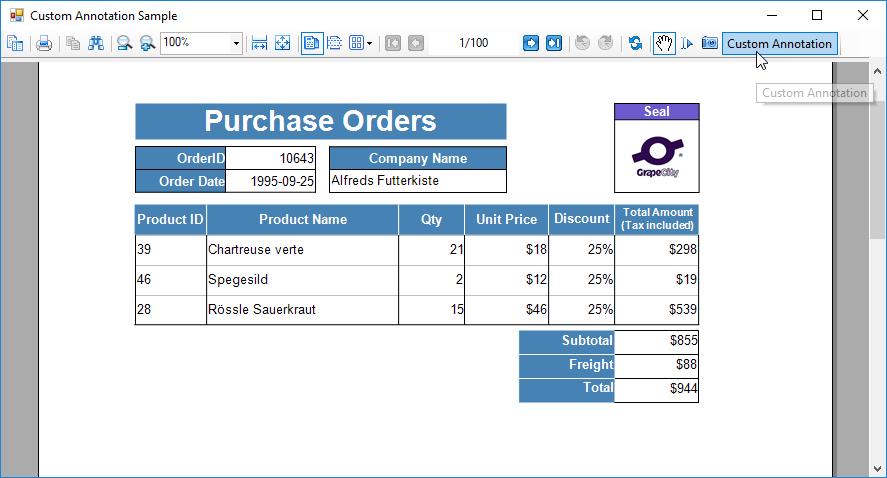
The Custom Annotation sample demonstrates how to add the **Custom Annotation** button to the Viewer toolbar and depicts the method to add any annotation (seal image in this case) to the report. Only one annotation can be used per page.
### Sample Location
**Visual Basic.NET**
[https://github.com/activereports/Samples19/tree/main/API/Section/CustomAnnotation/VB.NET](https://github.com/activereports/Samples19/tree/main/API/Section/CustomAnnotation/VB.NET)
**C#**
[https://github.com/activereports/Samples19/tree/main/API/Section/CustomAnnotation/C#](https://github.com/activereports/Samples19/tree/main/API/Section/CustomAnnotation/C%23)
### Details
When you run the sample, the report appears in the Viewer control. The Viewer control toolbar contains the **Custom Annotation** button that opens the report annotation.
> type=note
> **Note**: To run this sample, you must have access to the **Nwind.db**. The NWIND.db file can be downloaded from [GitHub](https://github.com/activereports/Samples19/tree/main/Data/): ..\\Samples19\\Data\\NWIND.db.
* AnnotationForm: Add **Custom Annotation** button in Form\_Load event. The behavior on clicking the Custom Annotation button is mentioned in the description of the Click event.
* Annotation report:
* **ghOrderID section**
Product order receipt is grouped according to OrderID.
* **Detail section**
Use RepeatToFill property to output empty rows till the end and perform page break group wise.
* **GFOrderID section**
This group footer section displays the bulk of the data for the report in TextBox controls that have values passed in code, or are bound to fields from the report's **Fields** collection (see FetchData and DataInitialize events in the code) using the DataField property. The total units and sales for each product are summarized using the following properties:
* **SummaryFunc**: Sum (the default value) adds values rather than counting or averaging them.
> type=warning
> **Caution**: SummaryFunc has no effect unless the SummaryType property is set to either SubTotal or GrandTotal.
* **SummaryGroup**: ghOrderID summarizes the values that fall within the current order id.
* **SummaryRunning**: None (the default value) ensures that this value is reset each time the order id changes.
* **SummaryType**: SubTotal summarizes the current group rather than a page or report total.
* Resources folder: This folder holds the icon used for adding annotation (seal image) to the report.
* Resource1.resx: This file contains the string for the message box that appears when **Custom Annotation** button is clicked again to add the annotation.