# RichTextBox
With ActiveReports, you can load a file into the RichTextBox control and can even set various properties for it, such as background color, multiline, etc.
## Content
The RichTextBox control is used to display, insert, and manipulate formatted text. It is different from the TextBox control in several ways. The most obvious is that it allows you to apply different formatting to different parts of its content.
You can add fields to the text you enter directly in the RichTextBox control by right-clicking and choosing **Insert Fields** and providing a field name or you can load an RTF, an HTML, or a Text file into the control.
> type=note
> **Note**: The RichTextBox control supports loading an RTF file at design time with both **CrossPlatform** and **GDI** compatibility modes of a report. However, the RichTextBox control does not support the RTF file at run-time when the report's **CompatibilityMode** is set to **CrossPlatform**.
## Supported Formats
ActiveReports supports most of the XHTML 1.1 standard; please see [Wikipedia](https://en.wikipedia.org/wiki/XHTML) for more information. The limited support for reading XHTML5 and HTML5 documents is also available. The RichTextBox control supports formats such as:
* Simple RTF content (without complicated tables, styles) with data binding support.
* Complicated RTF content (if **RtfRenderingType** property is set to any mode, other than **RTF**); uses the latest available WordPad features.
* Plain text content (is converted to simple HTML).
* HTML content (almost all XHTML 1.1 specification with some HTML5 extensions are supported)
## Load File Dialog
With the control selected on the report, in the Commands section at the bottom of the Properties panel, you can click **Load file** to open the dialog. This allows you to select a file to load into the control at design time. Supported file types are as follows.
* Text (\*.txt)
* RichText (\*.rtf)
* HTML (\*.htm, \*.html)
### RichText file
When you load a RichText file, the control will display the file in edit mode.
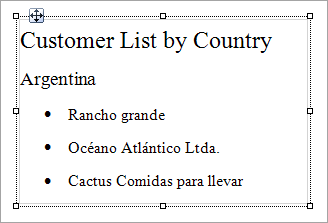
### Text/HTML file
When you load a Text or an HTML file, the control will display the HTML markup in the edit mode.
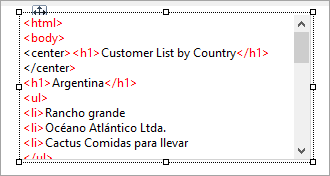
> type=warning
> **Important**: The HTML text in an HTML file, loaded into the RichTextBox control, must be enclosed in the **\\** tags. Otherwise, the HTML data is converted into RTF.
## Important Properties
| Property | Description |
| -------- | ----------- |
| CanGrow | Determines whether ActiveReports should increase the height of the control based on its content. |
| CanShrink | Determines whether ActiveReports should decrease the height of the field based on its value. |
| RenderRtfAsContinuousImage | If True (default), the property renders the content as one continuous image split across the pages. This property is actual if **RtfRenderingType** property is set to either Metafile or PNG.
\> \!type=note
>
\> **Note**: This property should be set to 'False' if the RtfRenderingType property is set to a Metafile or PNG, to avoid any trimmed text at the end of the pages. |
| RtfRenderingType | Renders the RTF control with a legacy renderer or with the WordPad as a metafile or raster image. Only the legacy RTF renderer supports fields. |
| DataField | Gets or sets the field name from the data source to bind to the control. |
## RichTextBox Dialog Properties
You can set the RichTextBox properties in the RichTextBox dialog. To open it, with the RichTextBox selected on the report, under the Properties panel, click the **Property dialog** link.
### General
**Name**: Enter a name for the RichTextBox that is unique within the report. This name is displayed in the Document Outline. You can only use underscore (\_) as a special character in the Name field. Other special characters such as period (.), space ( ), forward slash (/), backslash (\\), exclamation (!), and hyphen (-) are not supported.
**Tag**: Enter a string that you want to persist with the control. If you access this property in code, it is an object, but in the Properties panel or Property dialog, it is a string.
**Visible**: Clear this check box to hide the control.
**DataField**: Select a field from the data source to bind to the control.
**Max length**: Enter the maximum number of characters to display in the control. If you do not specify a value, it displays an unlimited number of characters.
### Appearance
**Background Color**: Select a color to use for the background of the control.
### Format
**RichTextBox height**
**Can increase to accommodate contents**: Select this check box to set CanGrow to True.
**Can decrease to accommodate contents**: Select this check box to set CanShrink to True.
**Multiline**: Select this check box to allow the control to display multiple lines of text.
## Supported HTML Tags and Attributes
The RichTextBox control supports HTML tags and attributes same as the FormattedText control. For more information, please see the topic on [FormattedText](/activereportsnet/docs/v19.2/report-authors/report-controls/report-controls-page-rdl-report/formattedtext#supported-html-tags-and-attributes).
## Write an RTF file to load into a RichTextBox control
1. Open WordPad, and paste a formatted text into it, for example:
**[Paste the following section into an RTF File]- - - - - - - - - - - - - - - - - - - - - - - - - - - - - - - - - - - - - - - - - - - - - - - - - -**
Customer List by Country
Argentina
* Rancho grande
* Océano Atlántico Ltda.
* Cactus Comidas para llevar
Austria
* Piccolo und mehr
* Ernst Handel
Belgium
* Suprêmes délices
* Maison Dewey
Brazil
* Familia Arquibaldo
* Wellington Improtadora
* Que Delícia
* Tradição Hipermercados
* Ricardo Adocicados
* Hanari Carnes
* Queen Cozinha
* Comércio Mineiro
* Gourmet Lanchonetes
\- \- \- \- \- \- \- \- \- \- \- \- \- \- \- \- \- \- \- \- \- \- \- \- \- \- \- \- \- \- \- \- \- \- \- \- \- \- \- \- \- \- \- \- \- \- \- \- \- \-
2. Save the file as **sample.rtf**.
> type=note
> **Note**: The RichTextBox control is limited in its support for advanced RTF features such as the ones supported by Microsoft Word. In general, the features supported by WordPad are supported in this control.
## Load an RTF file into a RichTextBox control
1. On the report design surface, add a RichTextBox control.
2. With the RichTextBox control selected, at the bottom of the Properties Panel, click **Load file**.
3. In the **Open** dialog that appears, browse to an \*.RTF file (For example, sample.rtf) and click the **Open** button to load the file in the RichTextBox control.
## Write an HTML file to load into a RichTextBox control
1. Open a Notepad, and paste an HTML code into it, for example:
```html
Customer List by Country
Argentina
- Rancho grande
- Océano Atlántico Ltda.
- Cactus Comidas para llevar
Austria
- Piccolo und mehr
- Ernst Handel
Belgium
- Suprêmes délices
- Maison Dewey
Brazi1>
- Familia Arquibaldo
- Wellington Improtadora
- Que Delícia
- Tradição Hipermercados
- Ricardo Adocicados
- Hanari Carnes
- Queen Cozinha
- Comércio Mineiro
- Gourmet Lanchonetes
```
2. Save the file as **sample.html**.
## Load an HTML file into the RichTextBox control
1. On the report design surface, add a RichTextBox control.
2. With the RichTextBox control selected, at the bottom of the Properties panel, click **Load file**.
3. In the **Open** dialog that appears, browse to a \*.html file (For example, sample.html) and click the **Open** button to load the file in the RichTextBox control.
ActiveReports also provides limited support for reading XHTML5 and HTML5 documents.
## Keyboard Shortcuts
In the edit mode, you can use the following keyboard shortcuts.
| Key Combination | Action |
| --------------- | ------ |
| Enter | New line. |
| Alt + Enter | Saves modifications and exits edit mode. |
| Esc | Cancels modifications and exits edit mode. |