# Scripts
Learn how to access the script editor and select the scripting language using ActiveReports. Also, learn the tips for using script in a Banded Layout report.
## Content
In a section report, ActiveReports allows you to use VB.NET or C# script to port your custom logic to report layouts. This permits layouts saved to report XML (RPX) files to serve as standalone reports. By including scripting before you save the report layout as an RPX file, you can later load, run, and display the report directly to the viewer control without using the designer. In conjunction with report files, scripting allows you to update distributed reports without recompiling your project.
## Script Editor
To access the script editor, click the Script tab from the top menu in the Standalone Designer application or below the report design surface in Visual Studio Integrated Designer. The script tab contains two drop-downs (Object and Event).
* **Object**: Drop down the list and select one of the report sections, or the report itself.
* **Event**: Drop down the list and select from the list of events generated based on your selection in the Object drop down. If you select a report section as the Object, there are three events: Format, BeforePrint, and AfterPrint. If you select ActiveReport as the Object, there are seven events. See [Report Events](/activereportsnet/docs/v19.2/report-authors/design-reports/design-section-reports/report-events) for further information.
Add script to the events in the same way that you add code to events in the code view of the report. When you select an event, the script editor generates a method stub for the event.
Using the [ScriptLanguage](/activereportsnet/api/v19.2/MESCIUS.ActiveReports/GrapeCity.ActiveReports.SectionReport.html#SCRIPTLANGUAGE) property of the report, you can set the script language that you want to use.
## Select the scripting language to use
* In design view of the report, click in the grey area below the report to select it.
* In the Properties window, drop down the ScriptLanguage property and select C# or VB.NET.
You can also add scripts at run time using the [Script](/activereportsnet/api/v19.2/MESCIUS.ActiveReports/GrapeCity.ActiveReports.SectionReport.html#SCRIPT) property.
> type=warning
> **Caution**: Since the RPX file can be read with any text editor, use the [AddCode](/activereportsnet/api/v19.2/MESCIUS.ActiveReports/GrapeCity.ActiveReports.SectionReport.html#ADDCODE) or [AddNamedItem](/activereportsnet/api/v19.2/MESCIUS.ActiveReports/GrapeCity.ActiveReports.SectionReport.html#ADDNAMEDITEM) method to add secure information such as a connection string.
## Tips for Using Script
* **Keep the section report class public**: If the Section Report class is private, the script cannot recognize the items in your report. The Section Report class is public by default.
* **Set the Modifiers property of any control referenced in script to** **Public**: If the control's **Modifiers** property is not set to **Public**, the control cannot be referenced in script and an error occurs when the report is run. The **Modifiers** property has a default value of **Private**, so you must set this property in the designer.
* **Use "this"** (as in C# code-behind) **or** "**Me"** (as in VB code-behind) **to reference the report.** Using "rpt" to reference the report is also possible but it is recommended to use the "this" and "Me" keywords.
> type=note
> **Note**: The basic approach of using the "this/Me" and "rpt" keywords is as follows - use "this/Me" to access the properties and controls added to the sections of the report, whereas use "rpt" within the instance of the ActiveReports class only to access its public properties, public events and public methods.
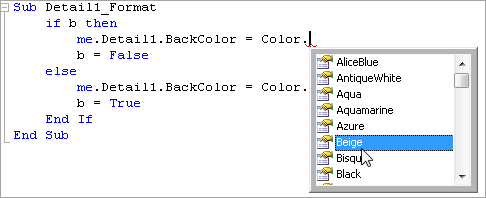
* **Use Intellisense support**: The script tab supports IntelliSense that helps in inserting the language elements and provides other helpful options when adding script to a report.
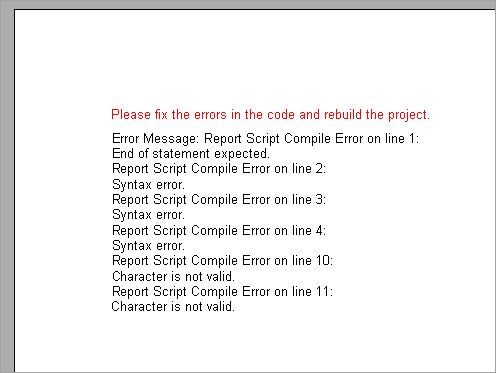
* **Use Run-time error handling**: When run-time errors occur, a corresponding error message is displayed in the Preview tab stating the problem.
> type=note
> **Note**: A declared variable is not static by default. Use the **static** keyword to declare static variables.
## Difference in script and code-behind event handler
Code-behind and the script tab require a different syntax for the event handler method definition. Use the **Private** modifier in code-behind and the **Public** modifier in the script editor.
See the following examples of the ReportStart event handler definition in Visual Basic and C#:
### Script and code-behind examples in Visual Basic
**The ReportStart event handler definition in the script editor**:
```vbnet
Sub ActiveReport_ReportStart End Sub
```
**The ReportStart event handler definition in code-behind**:
```vbnet
Private Sub SectionReport1_ReportStart(ByVal sender As System.Object, ByVal e As System.EventArgs) Handles MyBase.ReportStart End Sub
```
### Script and code-behind examples in C#
```csharp
public void ActiveReport_ReportStart() { }
```
**The ReportStart event handler definition in code-behind**:
```csharp
private void SectionReport1_ReportStart(object sender, EventArgs e) { }
```
## See Also
#### Developers
[Add Code to Layouts Using Script](/activereportsnet/docs/v19.2/developers/working-with-reports-devs/section-report-developers/code-based-section-reports/add-code-to-layouts-using-script)