# Hyperlinks
In Section reports, you can set the HyperLink property of the Label, TextBox, and Picture controls to add hyperlinks that connect to a Web page. You can use the HyperLink property to open an e-mail or jump to a bookmark.
## Content
In Section reports, you can set the **HyperLink** property available with the [Label](/activereportsnet/docs/v19.2/report-authors/report-controls/report-controls-section-report/label), [TextBox](/activereportsnet/docs/v19.2/report-authors/report-controls/report-controls-section-report/textbox-section), and [Picture](/activereportsnet/docs/v19.2/report-authors/report-controls/report-controls-section-report/picture) controls that allow you to add hyperlinks that connect to a Web page. You can use the **HyperLink** property to open an e-mail or jump to a bookmark.
You can also use any URI scheme in the **HyperLink** property of the controls mentioned above. For the full list of URI schemes, see [Uniform Resource Identifier (URI) Schemes](https://www.iana.org/assignments/uri-schemes/uri-schemes.xhtml).
Hyperlinks are supported when you preview a Section report and export a report in [HTML](/activereportsnet/docs/v19.2/developers/export-reports/exporting-page-rdl-section-reports/html-export), [PDF](/activereportsnet/docs/v19.2/developers/export-reports/exporting-page-rdl-section-reports/pdf-export), [RTF](/activereportsnet/docs/v19.2/developers/export-reports/exporting-page-rdl-section-reports/rtf-export), and [Excel](/activereportsnet/docs/v19.2/developers/export-reports/exporting-page-rdl-section-reports/excel-export) formats.
> type=note
> **Note**: We recommend that you specify the full URL address (for example, "https://developer.mescius.com") for the **Hyperlink** property to avoid broken links while viewing reports.
## Link to a Web page
1. Select an existing control or drag and drop a control from the Toolbox onto the design surface.
2. In the Properties Panel, set the **HyperLink** property to any valid URL. For example, [https://developer.mescius.com](https://developer.mescius.com).
Alternatively, you can set the HyperLink property in the control dialog that appears by clicking the **Property dialog** link under Properties.
## Link to an e-mail address
1. Select an existing control or drag and drop a control from the Toolbox onto the design surface.
2. In the Properties Panel, set the **HyperLink** property to mailto: any valid e-mail address.
Alternatively, you can set the HyperLink property in the control dialog that appears by clicking the **Property dialog** link under Properties.
## Create a hyperlink that jumps to a bookmark
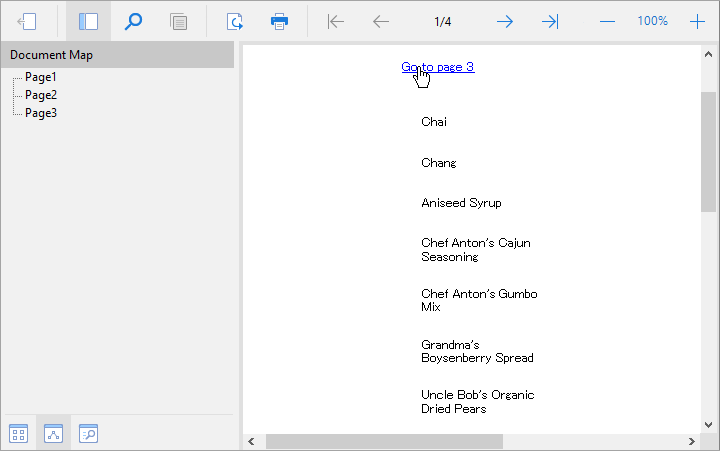
1. Let's first create bookmarks to predefined page. Follow the steps on [Add bookmarks to a predefined page](/activereportsnet/docs/v19.2/report-authors/design-reports/design-section-reports/interactivity-section/bookmarks-section#bookmarks)
2. Add a report header where we will place a text box to contain the hyperlink.
3. Drag-drop a [TextBox](/activereportsnet/docs/v19.2/report-authors/report-controls/report-controls-section-report/textbox-section) control onto the **ReportHeader** section.
4. With the Textbox control selected, click the **Property dialog** link to open the control's properties.
5. On the **General** page, set the **Text** to 'Go to page 3' and the **Hyperlink** to 'TOC://Page3'.