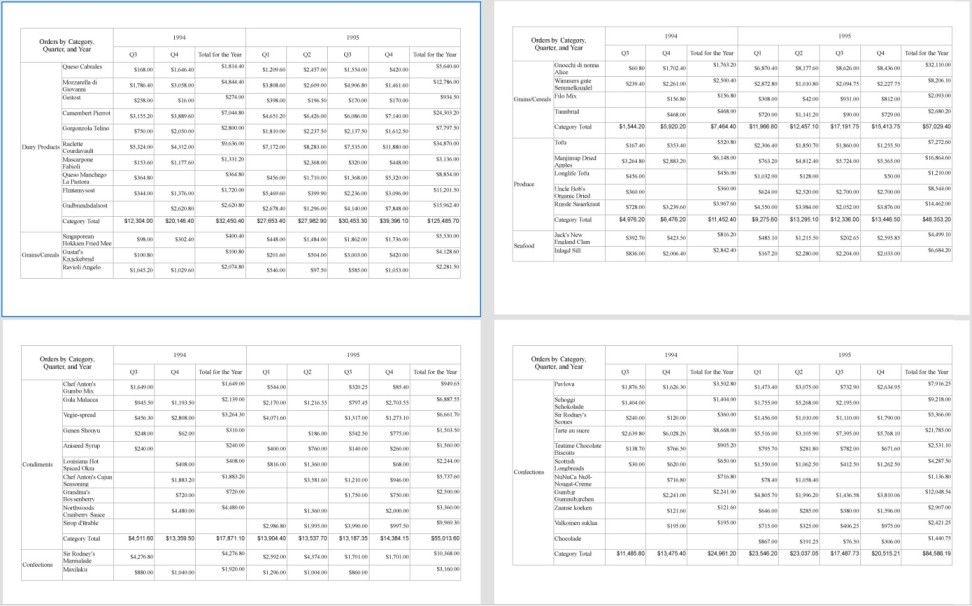
# Set Page Layout in Z- or N-Order
This topic explains the usage of the LayoutPagesOrder property of a Page/RDLX report, which helps you specify the page layout order - Z-Order or N-Order.
## Content
If a report has horizontally or vertically growing data rendered across multiple pages during the preview, you may want the preview to show the report pages in a particular order.
Using the **LayoutPagesOrder** property of the report, you can specify the page layout order for a Page or an RDLX report. There are two types of page layout order, Z-Order or N-Order, supported in ActiveReports as explained below.
## Z-Order
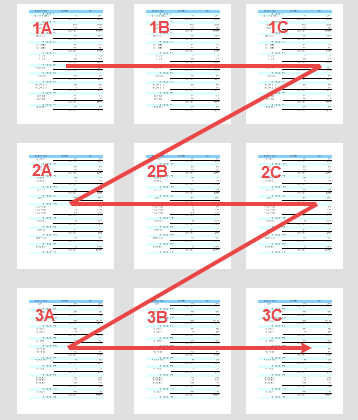
The Z-order renders the report in the shape of the alphabet 'Z'. This means the horizontally expanding data in the report is rendered first on the upcoming pages followed by the vertically expanding data.
A report in Multipage view with page layout order set to Z-order is as shown. Note the page layout order: 1A -> 1B -> 1C -> 2A -> 2B -> 2C ->3A -> 3B -> 3C.
> type=note
> **Note**: The **LayoutPagesOrder** property does not affect the page layout when exporting to CSV, JSON, XML, CSV, Excel Data, or DOCX file format.
## N-Order
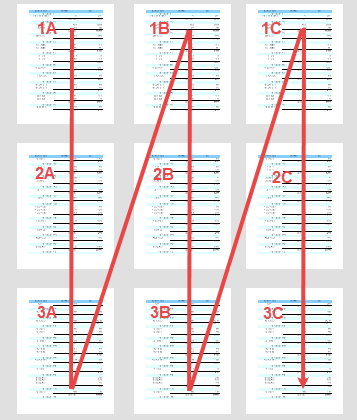
The N-order renders the report in the shape of the alphabet 'N'. This means the vertically expanding data in the report is rendered first on the upcoming pages followed by the horizontally expanding data.
A report in Multipage view with page layout order set to N-order is as shown. Note the page layout order: 1A -> 2A -> 3A -> 1B -> 2B -> 3B -> 1C -> 2C -> 3C.
## Set a Z- or N-Order in Report
1. From the Report Explorer, select the **Report** node.
2. Go to the Properties panel, set the **LayoutPagesOrder** property to 'ZOrder' or 'NOrder'.
Or,
1. From the Report Explorer, select the **Report** node.
2. Click the **Property dialog...** to open the **Report** dialog
3. From the **Appearance** page, set **Pages layout order** to 'Z-order' or 'N-order'.
### Layout Order in RDLX Reports
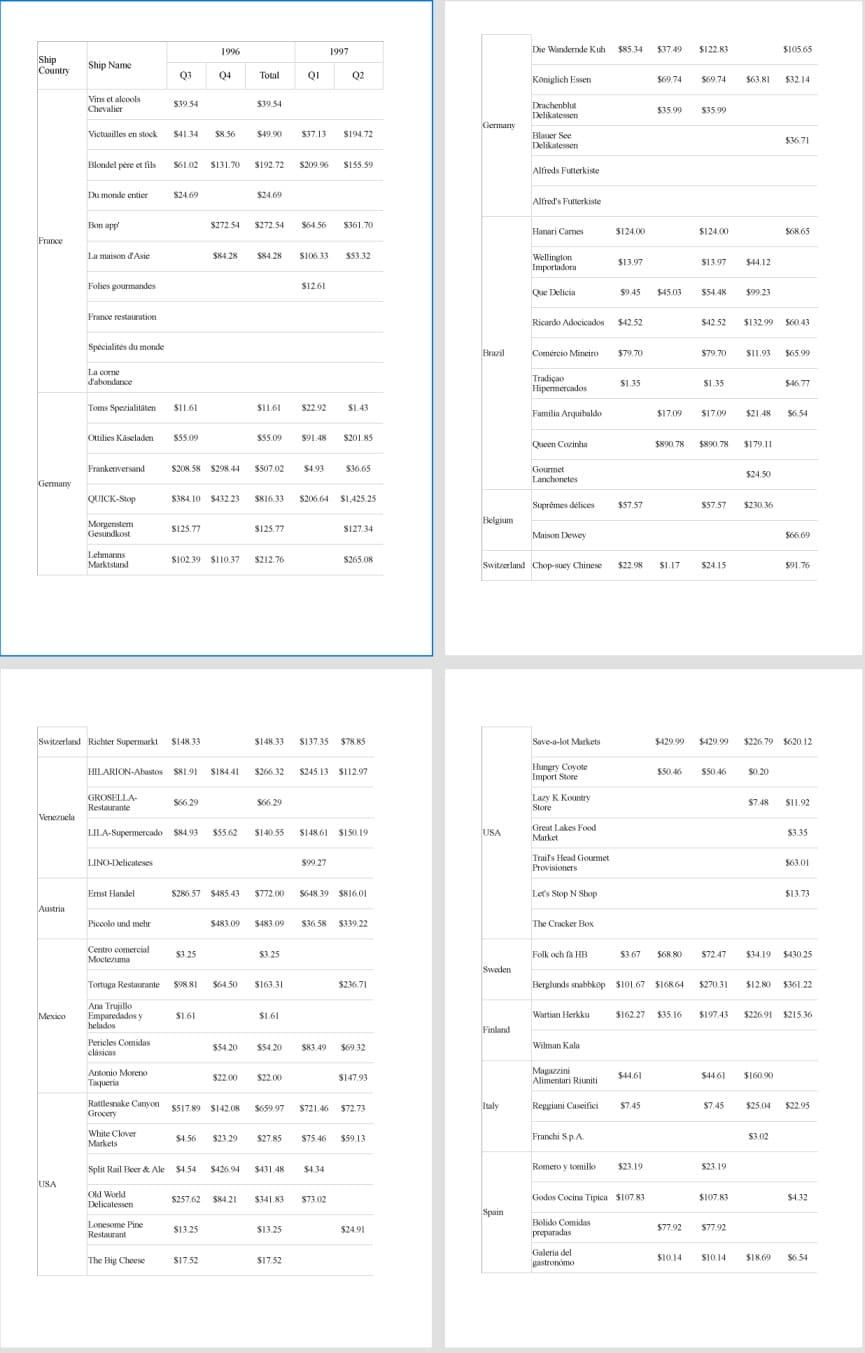
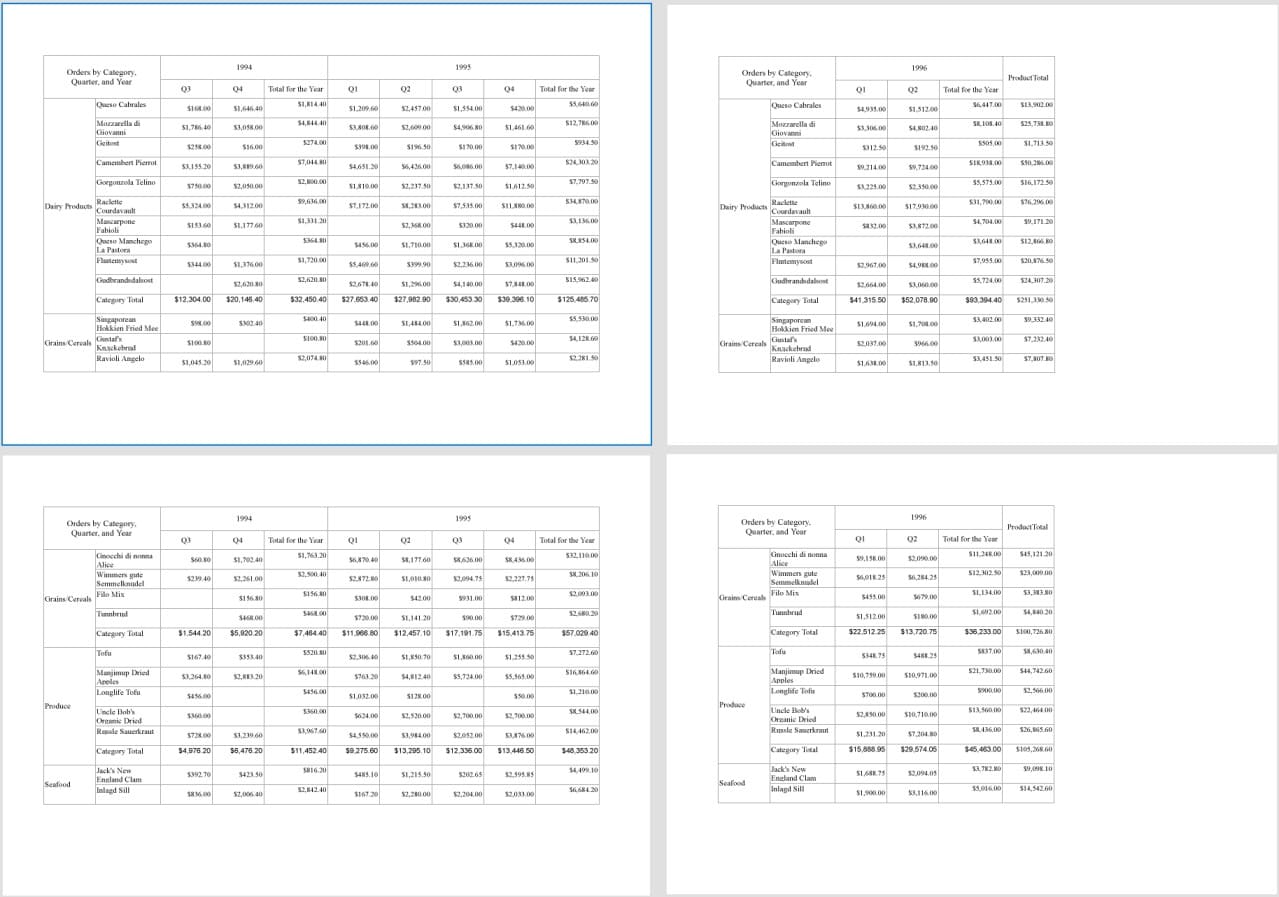
In RDLX reports, controls or data regions grow vertically or horizontally to accommodate data. In an RDLX report with a Tablix data region, if the tablix data is too large to fit inside a single page, the data expands over multiple pages in both horizontal and vertical directions. The following image shows the preview of such a report in Z-order.
_(For an enlarged image view, open the image in a separate tab.)_
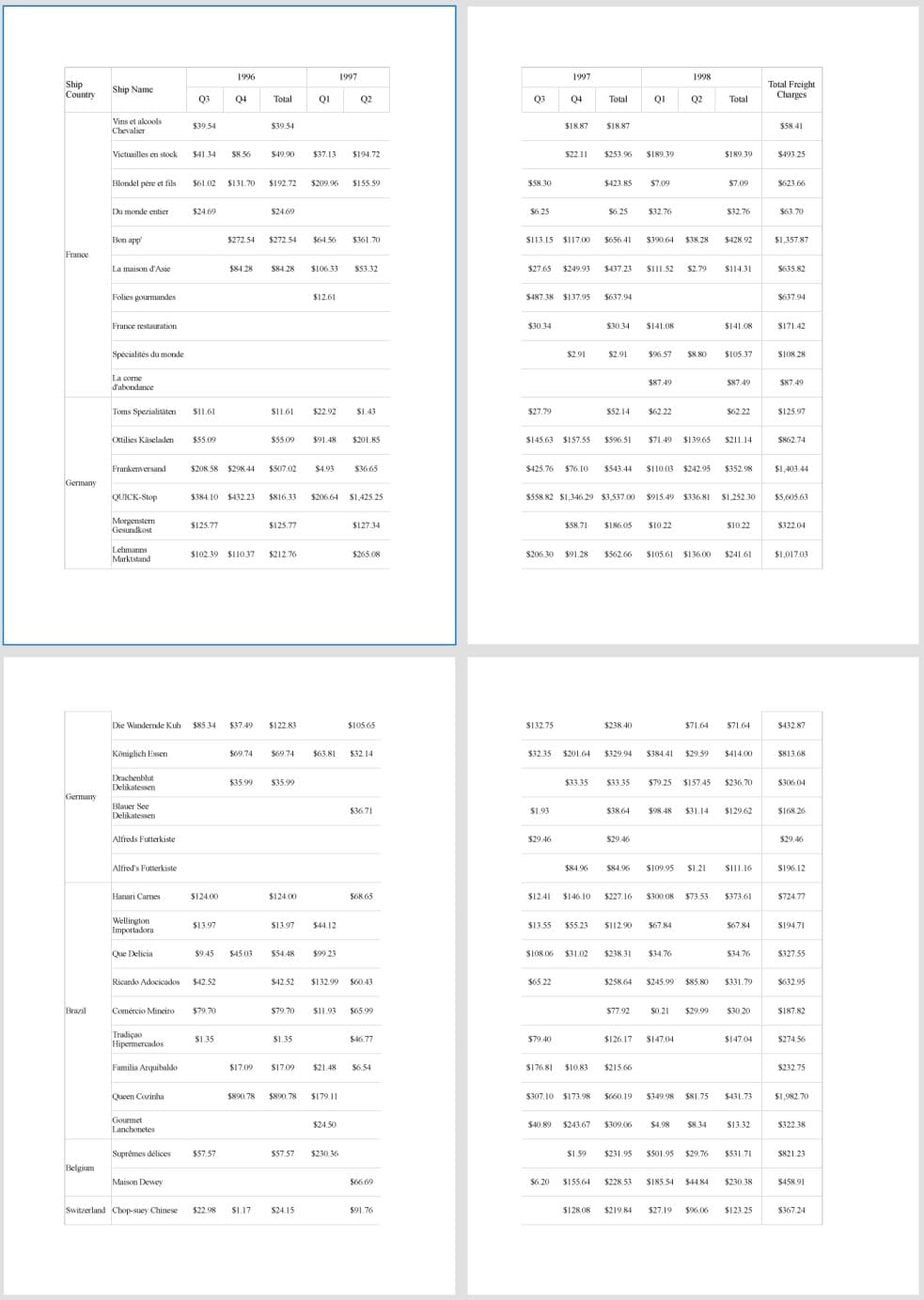
The following image shows the preview of the above report in N-order.
_(For an enlarged image view, open the image in a separate tab.)_
### Layout Order in Page Reports
In a Page report, controls or data regions do not change in size based on the data. To handle expanding or overflowing data on multiple pages, Page reports use [Overflow Place Holder](/activereportsnet/docs/v19.2/report-authors/report-controls/report-controls-page-rdl-report/overflowplaceholder) control, with a data region placed on the first page of the report and the OverflowPlaceHolder controls on subsequent pages.
The following image shows the preview of a Page report with a Tablix data region on one page and an Overflow Place Holder control on the next page in Z-order.
_(For an enlarged image view, open the image in a separate tab.)_
The following image shows the preview of the above report in N-order.
_(For an enlarged image view, open the image in a separate tab.)_