# Multi-Value Parameter
Learn how to design a Page/RDLX report and create a multi-value parameter and specify a value for selecting all options from the list.
## Content
A multi-value parameter allows you to input one or more than one parameter values in a report. You can choose a few options from the list or simply choose 'Select all' to select all options. You can also use an **empty array** as a value for your multi-value parameter with most data providers, except Postgres and ODBC data providers.
**Empty Array in Multi-Value Parameter**
The **EnableEmptyArray** option allows a multi-value parameter to accept an empty array (i.e., no selection) as a valid input.
You can find this option in the **Report - Parameters** dialog when the **Multivalue** setting is enabled. It's also accessible programmatically via the public API using the `EnableEmptyArray` property.
**Option Values**
* Auto \(default\) \| Determines behavior based on the provider and context\.
* False \| Default legacy behavior – empty array is not allowed\.
* True \| Empty array is treated as a valid value\.
**Behavior in Reports**
* When enabled, the parameter value becomes an empty array (`[]`) at runtime if no items are selected.
* It’s up to the report's logic (queries, filters, etc.) to define what to return when no values are passed.
* This allows more flexible report execution and conditional behavior.
**Limitations**
The **EnableEmptyArray** option is not supported for the following data providers:
* **PostgreSQL**, due to its native handling of array types.
* **ODBC**, as it does not support multi-value parameters.
> type=info
>
> When using an empty array in your SQL query, make sure to adapt your query logic accordingly (e.g., using IN (NULL) or conditional logic). See [Add Dataset](/activereportsnet/docs/v19.2/report-authors/data-binding/data-binding-page-rdl-reports/add-dataset) for more details.
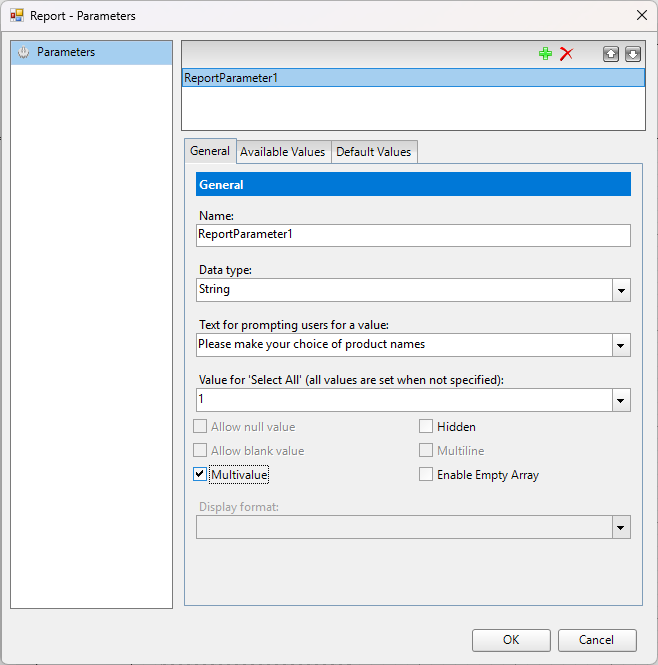
You need to check the **Multivalue** option to make a parameter multi-value, and optionally set **Value for 'Select All'**. If there are large number of options to choose from, choosing 'Select all' option creates an SQL query too long for an SQL Command to run. In such a case, you can specify a value to the multi-value parameter in **Value for 'Select All'** option.
The following procedure takes you through a step by step process of how to create a multi-value parameter and specify a value for selecting all options from the list. The report binds to the 'Products' table from 'NWIND.db' data source available on [GitHub](https://github.com/activereports/Samples19/tree/main/Data/). It is a SQLite Provider, a custom data provider that works if [System.Data.SQLite](https://www.nuget.org/packages/System.Data.SQLite/) package is added and referenced in the ActiveReports.config file. See setting up the dependencies and configuration file as described in the topic [Configure ActiveReports using Config file](/activereportsnet/docs/v19.2/devops/customization/configure-ar).
**Create a Report**
In the ActiveReports Designer, create a new Page or an RDLX report.
**Bind Report to Data**
As you create a new report, **Report Datasource dialog** appears for you to configure the report data connection. You can also access this dialog by right-clicking the Data Sources node in the **Report Explorer** and then selecting the **Add Data Source** option.
> **Connect to a Data Source**
>
> 1. In the Report Data Source dialog, select the **General** page and enter the name of the data source.
> 2. Under Type, select 'SQLite Provider'.
> 3. In the **Connection String**, enter the path of the .db, here, 'NWIND.db', for example
> `Data Source=C:\Data\NWIND.db`
> 4. Click OK to close the dialog and complete the data source connection.
> **Create Dataset to Populate Parameter Values**
1. In the Report Explorer, right-click the Data Source (DataSource1 by default) node and select **Add Data Set**. See [Add Dataset](/activereportsnet/docs/v19.2/report-authors/data-binding/data-binding-page-rdl-reports/add-dataset) for more information.
2. In the DataSet dialog that appears, select the **Query** page.
3. Enter an SQL query like the following into the **Query** text box:
`SELECT DISTINCT productName FROM Products
`
See [Query Builder in Microsoft SQL Client and OLEDB Providers](/activereportsnet/docs/v19.2/report-authors/data-binding/data-binding-page-rdl-reports/add-dataset/query-builder-in-sqlclient-oledb) for more information on building SQL queries.
4. Click the **OK** to close the dialog. You see the data set, **DataSet1**, and the field, **productName**, in the Report Explorer.
**Add Report Parameter**
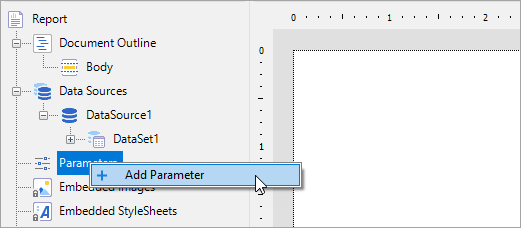
1. In the Report Explorer, right-click the **Parameters** node and select **Add Parameter**.
2. In the **Report - Parameters** dialog that appears, add a name for the parameter, **ReportParameter1**.
3. Ensure that the **Data type** matches that of the field (String for ProductName).
4. Enter some text in the **Text for prompting users for a value** field.
5. Select the check box next to **Multivalue** to allow users to select more than one item from the list.
6. In the **Value for 'Select All'** option, enter '1'.
**Provide List of Values for Report Parameter**
7. In the **Report - Parameters** dialog, go to the **Available Values** tab and select the **From query** radio button.
8. Under the **Dataset** field, select the dataset created in the previous steps (DataSet1).
9. Under the **Value** and **Label** fields, use the drop-down to select the field, productName.
10. Click **OK** to close the dialog and add the parameter to the collection.
**Add Dataset with Parameter**
1. In the Report Explorer, right-click the Data Source (DataSource1) node and select **Add Data Set**.
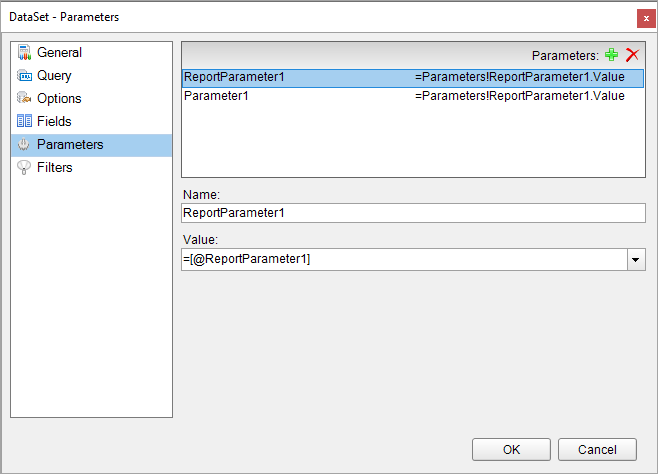
2. In the DataSet dialog, on the **Parameters** page, click the **Add (+)** icon above the parameters list and add the following to the dataset to provide values for the parameters we add to the query in the step 3 below.
**Name**: ReportParameter1 **Value**: =Parameters!ReportParameter1.Value
**Name**: Parameter1 **Value**: =Parameters!ReportParameter1.Value
3. On the **Query** page, enter a SQL query like the following in the **Query** text box:
`SELECT * FROM products WHERE ProductName in (?) OR '1' in (?)`
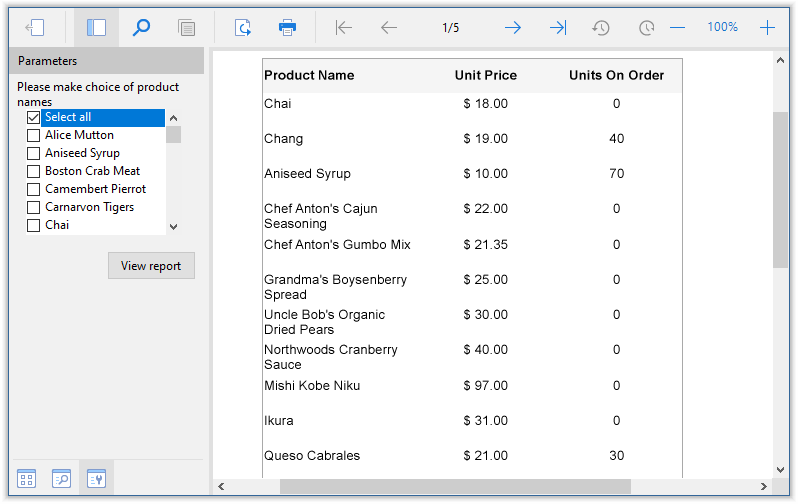
At run time, this query matches the selected product name and fetches data accordingly. If the user chooses 'Select all' (for which we have specified value '1'), then query after 'OR' is evaluated and data is fetched for all products.
4. Click the **Validate DataSet** icon to validate the query and to populate the Fields list.
5. Click the **OK** to close the dialog. You see the data set, **DataSet2**, and the fields in the Report Explorer.
**Design report**
1. Drag-drop **Table** data region and bind it to the **DataSet2**.
2. Fill-in the table with some fields, for example, [ProductName], [UnitPrice], and [UnitsOnOrder]. See page on [Table](/activereportsnet/docs/v19.2/report-authors/report-controls/report-controls-page-rdl-report/table) data region for more information.
3. Preview the report and observe the 'Parameters panel in the sidebar with **Select all** option at the top. For more information on Parameters pane, see [Windows Forms Viewer](/activereportsnet/docs/v19.2/report-readers/desktop-viewers/windows-forms-viewer).
> type=note
> **Note**: If the **Available Values** (queried or non-queried) for a parameter contain only some values from database and the **Select all** value is specified for the parameter, then at report preview, selecting the 'Select all’ checkbox shows all records from the database instead of only those present in the parameter. For example, if the database has four records and in the **Available values** there are only two records, with the **Select all** value specified, then on previewing report and selecting 'Select all' checkbox, all four records are shown instead of only two.