# Hidden Parameter
This topic explains how to create a non-queried hidden parameter in a Page/RDLX report.
## Content
If you want to run a report without prompting the user for a value at run time, you need to set a default value for each parameter. The report collects the required parameter value from the default value and uses it to generate the report.
Default values can be queried or non-queried. A non-queried default value can be a static value or an expression. A queried default value is a field value from a dataset.
> type=note
> **Note**: This topic uses the DVDStock table in the Reels database. The Reels.db file can be downloaded from [GitHub](https://github.com/activereports/Samples19/tree/main/Data/).
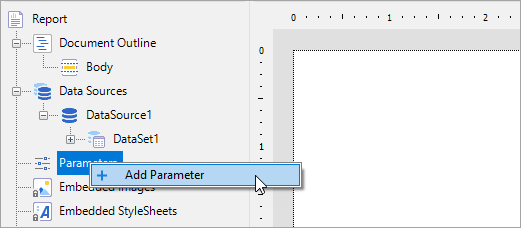
1. In the Report Explorer, right-click the **Parameters** node and select **Add Parameter**.
2. In the **Report - Parameters** dialog that appears, add a parameter named **StorePrice** with an **Integer** data type. Click the checkbox next to **Hidden** to hide the parameter UI at run time.
3. On the Default Values tab, select **Non-queried** and click the Add(+) icon to add an empty expression for the value.
> type=note
> **Note**: When you use **From query** to provide a default value, only the first returned row value is used as the default value.
4. In the **Value** field enter 5 and click **OK** to close the Report - Parameters dialog.
> type=note
> **Note**: When adding multiple default values, in the Report - Parameters dialog, General tab, check the **Multivalue** check box, otherwise the report collects only the first default value from the list and uses it to generate the report.
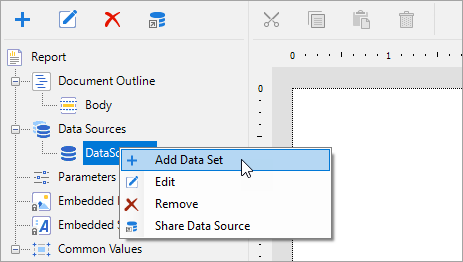
5. In the Report Explorer, right-click Data Source (DataSource1 by default) node and select **Add Data Set** to create a dataset.
6. In the DataSet Dialog that appears, on the Parameters page, click the Add(+) icon to add an empty expression for the parameter.
7. In the Name field, enter the same parameter name (**StorePrice**) you had added in the steps above and set its value to:
```
=Parameters!StorePrice.Value
```
8. On the Query page of the DataSet Dialog, use the following SQL query to fetch data from the DvDStock table.
`SELECT * FROM DvDStock WHERE StorePrice IN (?)`
9. From the Toolbox, drag and drop a Table data region (or any other data region) onto the design surface, and from the Report Explorer, drag the **Title**, **StorePrice** and **In Stock** fields onto the table Details row.
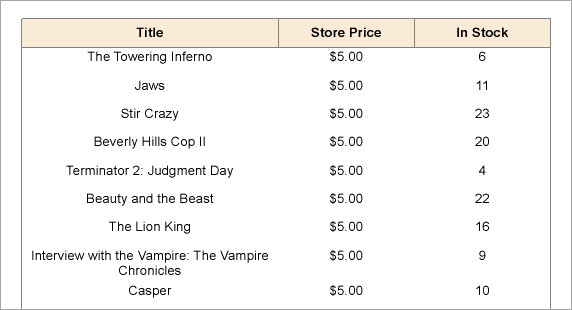
10. Preview the report to view the result.
Notice that the report collects the required parameter value from the default value (i.e. 5) and uses it to display the list of Movie DVDs with Store Price $5.