# XML
This article explains connecting a Page or an RDLX report to an XML data source. It also gives an overview of XML Data Provider configuration settings.
## Content
This article explains connecting a Page or an RDLX report to a XML data source. You can connect to this data source while creating a new report (via report wizard) or using report explorer (via report data source dialog).
## Connect to XML Data Source using Report Wizard
The steps to connect to the XML data source are:
1. Create a New Report.
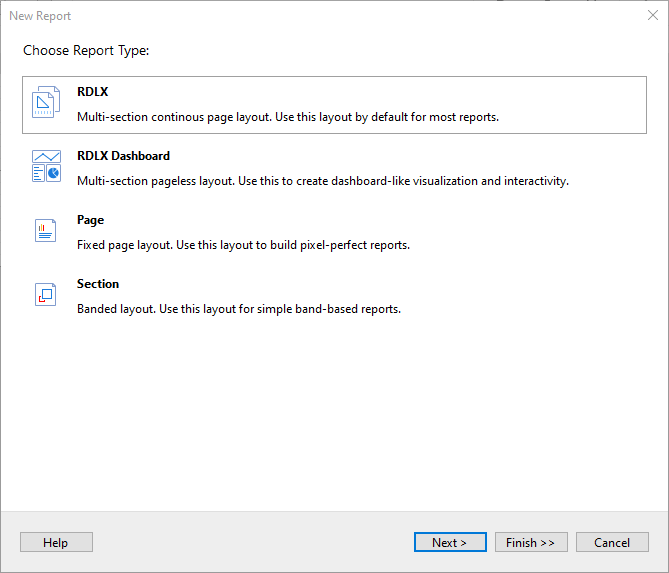
2. In the **New Report** dialog, choose the Report Type as RDLX, RDLX Dashboard, or Page and click **Next**.
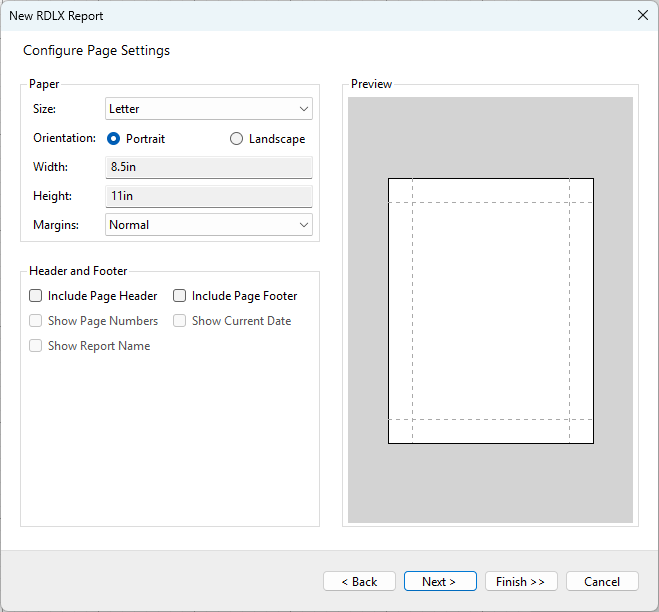
3. Configure page settings if you need to customize the report page settings and click **Next >**.
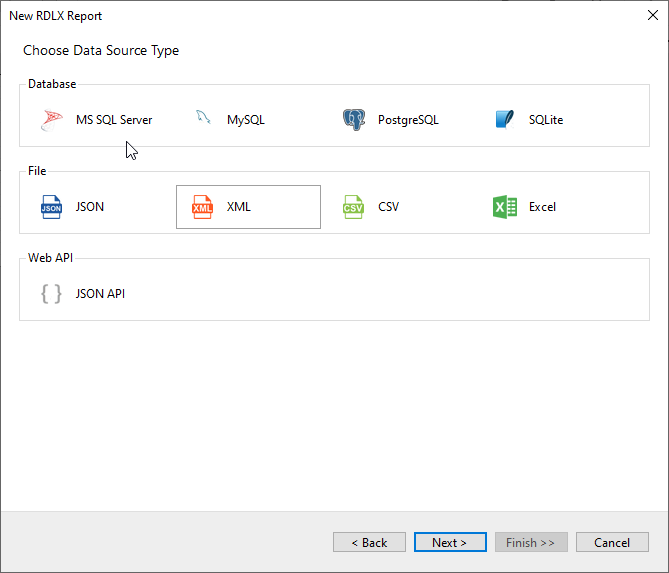
4. Select the Data Source Type as **XML** and click Next.
5. To specify the xml **File Path**, click the **Browse** button and navigate to the desired file on your system. For example, you can connect to the 'Factbook.xml' sample data source that can be downloaded from [GitHub](https://github.com/activereports/Samples19/tree/main/Data/).
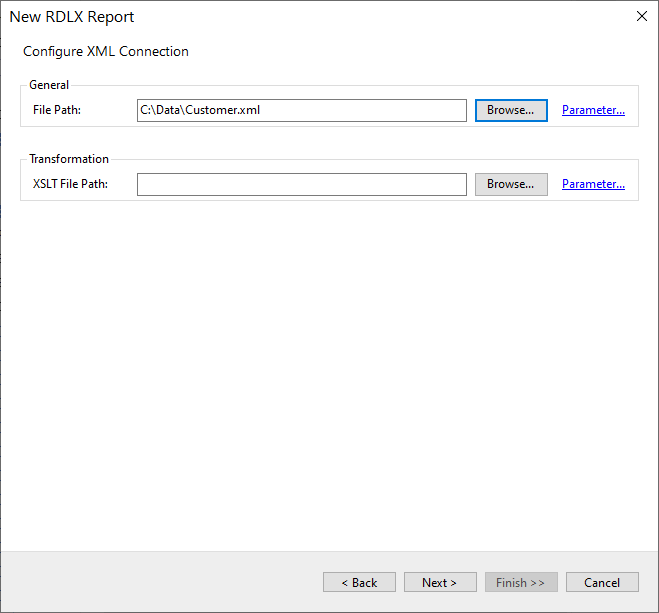
6. To specify the runtime connection values, click **Parameter** (or **Insert Parameter** for queries) to open the **Parameters** dialog. Then click the **Add** button to add a new parameter, or select the existing parameter and specify the below details:
* **Name**: Specify the name of the parameter.
* **Type**: Select the value type (string by default) from the drop-down list.
* **Testing Value**: Specify the runtime value for the connection properties.
* **Input Source**: Select **Interactive** for non-hidden parameters and **Programmatic** for hidden parameters from the drop-down list.
7. Click the **Next** option and configure the dataset by adding a valid query. Select the node from the data tree in the **Path** section to generate the query. The resulting query is displayed in the **Query** field.
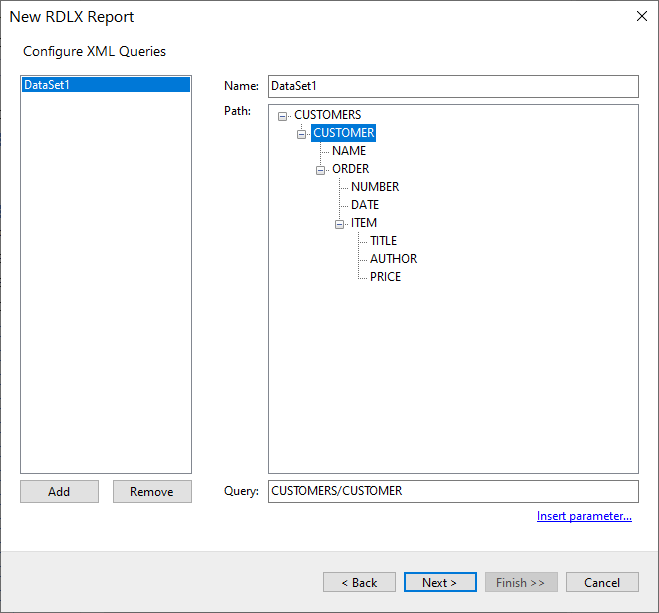
8. On the final screen of the Report Wizard, review the summary of the report and click **Finish** to successfully add the report with the XML data source.
## Connect to an XML Data Source using Report Data Source dialog
1. In the **Report Explorer**, right-click the **Data Sources** node and select the **Add Data Source** option or click the **Add** button and select the **Data Source** option.
2. In the **Report Data Source** dialog that appears, select the **General** page and enter the data source name in the Name field. By default, the data source name is set to DataSource1. This name appears as a child node to the Data Sources node in the Report Explorer.
3. Under the **Type** field, select Xml Provider.
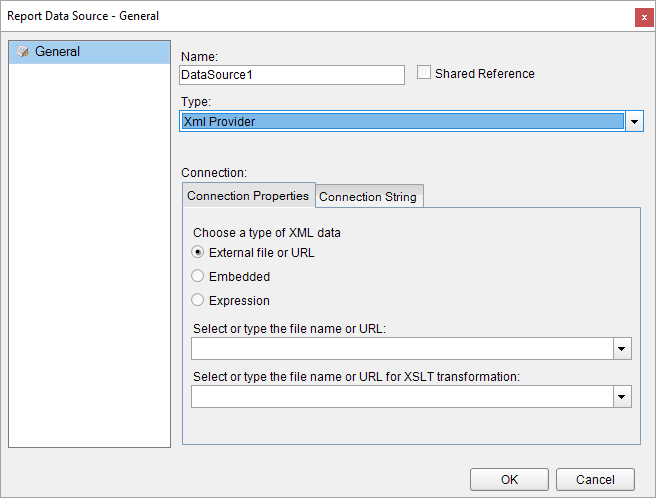
4. In the **Connection Properties** tab, select the type of XML data as an **External file or URL**.
5. Click the dropdown next to the **Select or type the file name or URL** field and select the **** option to specify the xml file path. For example, you can connect to the Factbook.xml sample data source which can be downloaded from [GitHub](https://github.com/activereports/Samples19/tree/main/Data/).
The **Connection String** tab displays the generated connection string as shown below:
```
xmldoc=C:\Factbook.xml
```
For more information, see the [Configuration Settings for XML Data Source](/activereportsnet/docs/v19.2/report-authors/data-binding/data-binding-page-rdl-reports/connect-to-a-data-source/xml#conf-settings-xml) section.
6. Verify the generated connection string by clicking the **Validate DataSource** icon .
7. Click the **OK** button to save the changes.
### Configuration Settings for XML Data Source
The XML Data Provider provides the following configuration settings in the **Report Data Source** dialog.
The **Connection Properties** tab describes the type of xml data you want to use for connecting to a data source. You can also specify an XSLT file to apply to the XML data.
* **External file or URL**: This field requires you to enter the path of an external XML source such as a local file or the http location of a file.
* **Embedded**: This field requires you to enter the path of the XML file to embed in the report. You can also enter the data manually or edit the data in the selected XML file.
* **Expression**: This field requires you to enter the path expression. Users can also enter the path expression in the connection string.
The **Connection String** tab displays the XML connection string based on the defined configuration settings in the **Connection Properties** tab.
* If you choose the **External file or URL** option, the connection string will be as follows -
```
xmldoc=C:\MyXmlFile.xml;
```
where the **xmldoc** refers to a specific XML file located on either the file system or at a web-accessible location.
* If you choose the **Embedded** option, the connection string will be as follows -
```
xmldata= John Doe Jane Smith
```
where the **xmldata** provides specific XML data in the connection string itself.
* If you choose the **Expression** option, the connection string will start with an "equals to" as shown -
```
="xmldoc=" & [@Parameter]
```
Note that elements in the connection string must be terminated with a semicolon (;) character.