# JSON API
This article explains connecting a Page or an RDLX report to a JSON API data source. It also gives an overview of JSON API Data Provider configuration settings.
## Content
This article explains connecting a Page or an RDLX report to a JSON API/Web API data source. You can connect to this data source while creating a new report (via report wizard) or using report explorer (via report data source dialog).
## Connect to JSON API Data Source using Report Wizard
The steps to connect to the JSON API data source are:
1. Create a New Report.
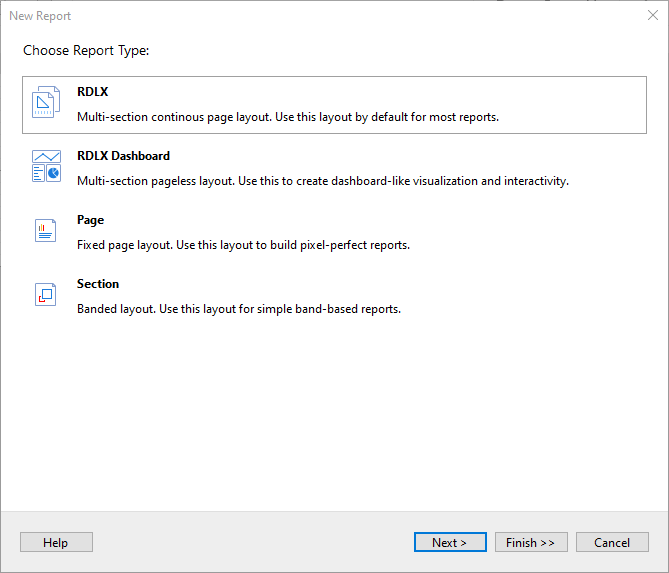
2. In the **New Report** dialog, choose the Report Type as RDLX, RDLX Dashboard, or Page report and click **Next**.
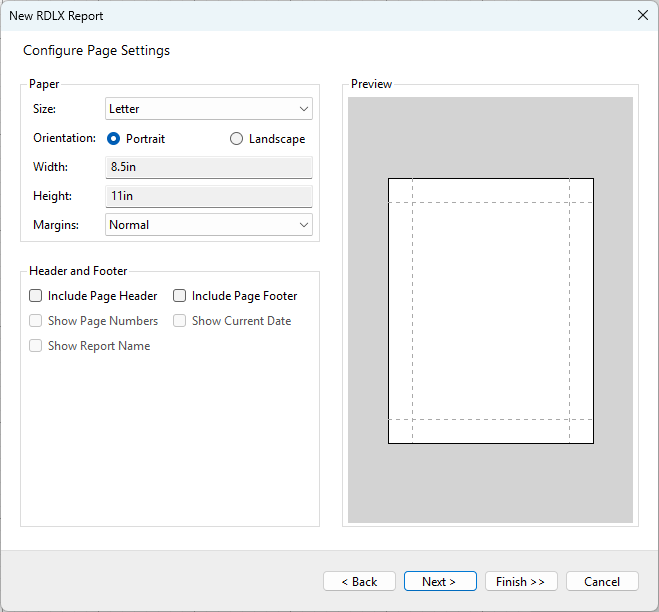
3. Configure page settings if you need to customize the report page settings and click **Next >**.
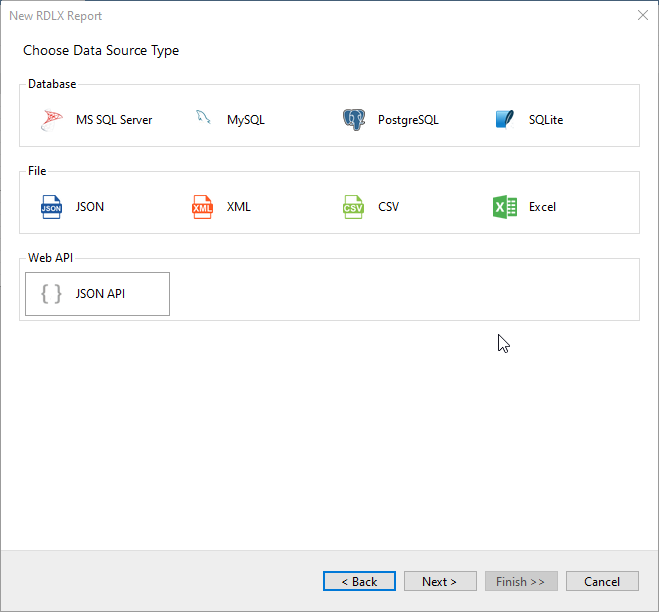
4. Select the Data Source Type as **JSON API** and click Next.
5. To configure Web API request, select **GET** from the **HTTP Method** section and enter the URL in the **General** section or you use the **POST** HTTP method to connect to the server.
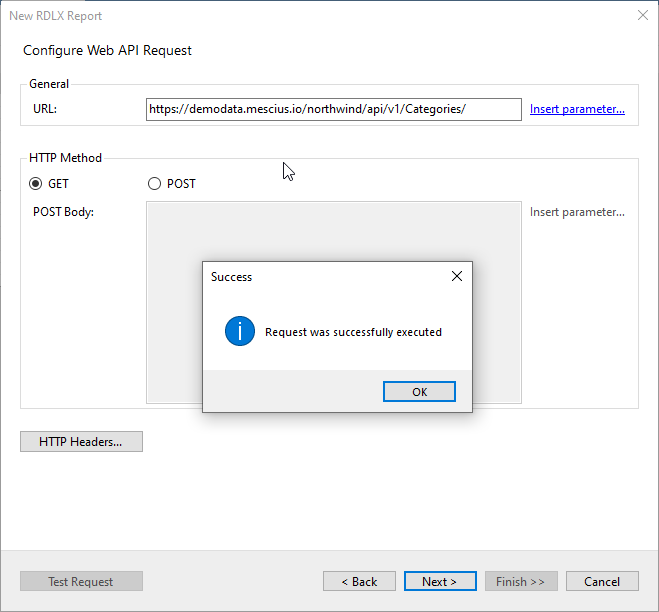
6. To specify the runtime connection values, click **Insert Parameter** to open the **Parameters** dialog. Then click the **Add** button to add a new parameter, or select the existing parameter and specify the below details:
* **Name**: Specify the name of the parameter.
* **Type**: Select the value type (string by default) from the drop-down list.
* **Testing Value**: Specify the runtime value for the connection properties.
* **Input Source**: Select **Interactive** for non-hidden parameters and **Programmatic** for hidden parameters from the drop-down list.
7. Then click the **Next** option and configure the dataset by adding a valid query. Select the node from the data tree in the **Path** section to generate the query. The resulting query is displayed in the **Query** field.
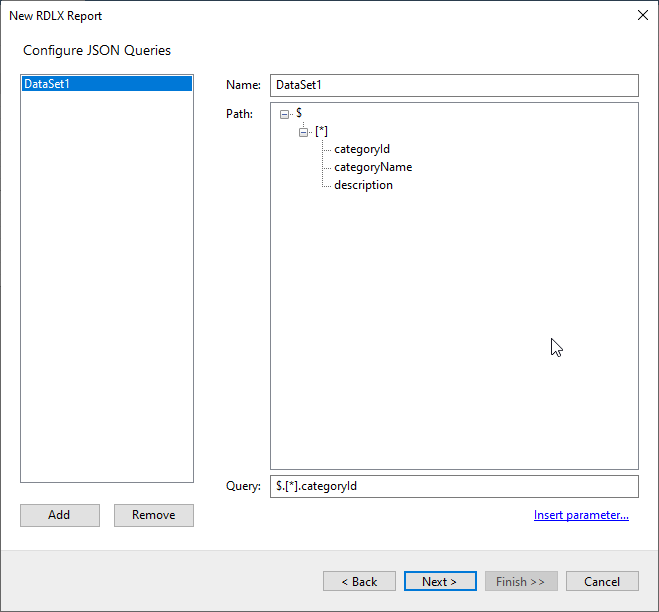
8. On the final screen of the Report Wizard, review the summary of the report and click **Finish** to successfully add the report with the JSON API/Web API data source.