# JSON
This article explains how to connect a Page/RDLX report to a JSON data source, as well as configuration settings and details on building the connection string.
## Content
This article explains connecting a Page or an RDLX report to a JSON data source. You can connect to this data source while creating a new report (via report wizard) or using report explorer (via report data source dialog).
## Connect to JSON Data Source using Report Wizard
The steps to connect to the JSON data source are:
1. Create a New Report.
2. In the **New Report** dialog, choose the Report Type as RDLX, RDLX Dashboard, or Page and click **Next**.
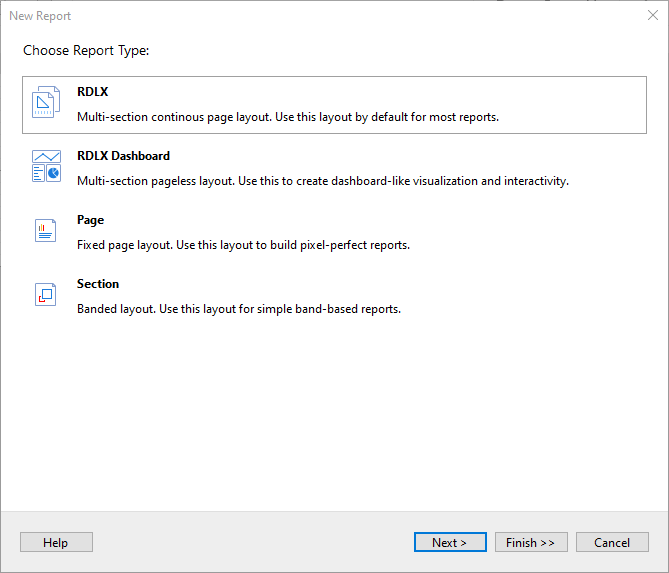
3. Configure page settings if you need to customize the report page settings and click **Next >**.
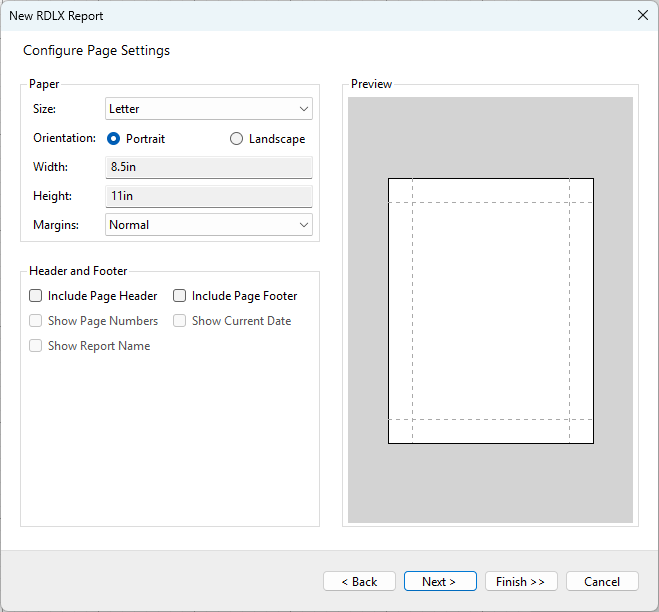
4. Select the Data Source Type as **JSON** and click Next.
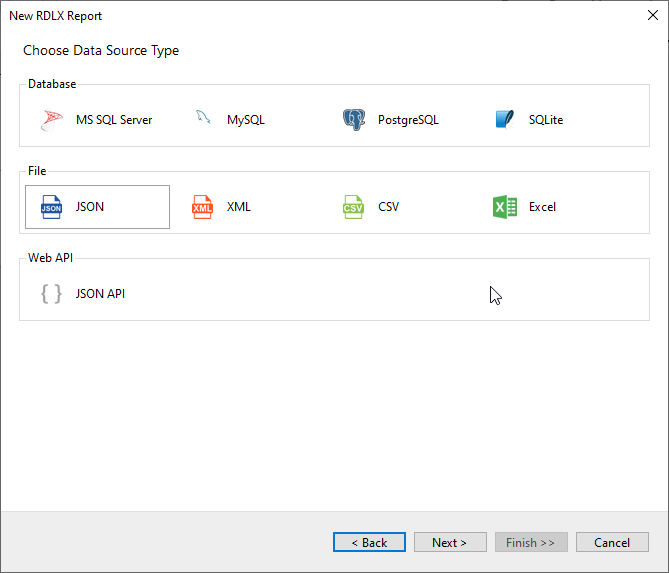
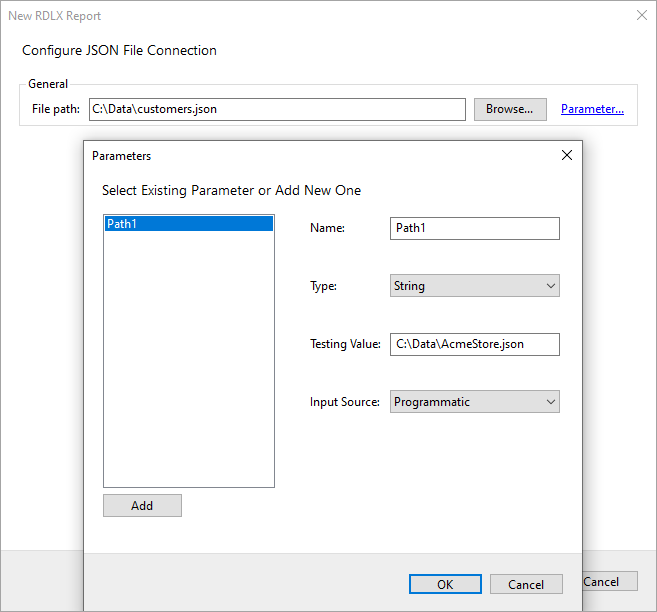
5. To specify JSON **File Path**, click the **Browse** button and navigate to the desired file on your system. For example, you can connect to the 'customer.json' sample data source that can be downloaded from [GitHub](https://github.com/activereports/Samples19/tree/main/Data/).
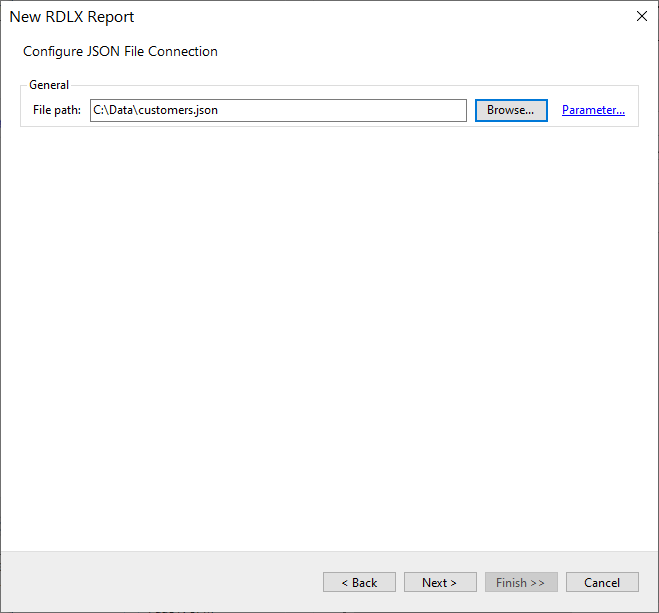
6. To specify the runtime connection values, click **Parameter** to open the **Parameters** dialog. Then click the **Add** button to add a new parameter, or select the existing parameter and specify the below details:
* **Name**: Specify the name of the parameter.
* **Type**: Select the value type (string by default) from the drop-down list.
* **Testing Value**: Specify the runtime value for the connection properties.
* **Input Source**: Select **Interactive** for non-hidden parameters and **Programmatic** for hidden parameters from the drop-down list.
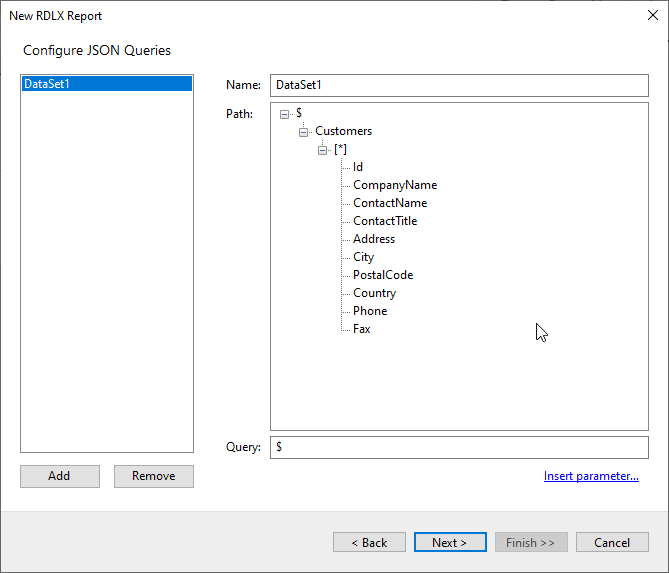
7. Click the **Next** option and configure the dataset by adding a valid query. Select the node from the data tree in the **Path** section to generate the path. The resulting query is displayed in the **Query** field.
8. On the final screen of the Report Wizard, review the summary of the report and click **Finish** to successfully add the report with the JSON data source.
## Connect to a JSON Data Source using Report Data Source dialog
1. In the designer, go to the **Report Explorer**, right-click the **Data Sources** node and select the **Add Data Source** option or click the **Add** button and then select the **Data Source** option.
2. In the **Report Data Source** dialog that appears, select the **General** page and enter the name of the data source in the Name field. By default, the data source name is set to DataSource1. This name appears as a child node to the Data Sources node in the Report Explorer.
3. Under the **Type** field, select Json Provider.
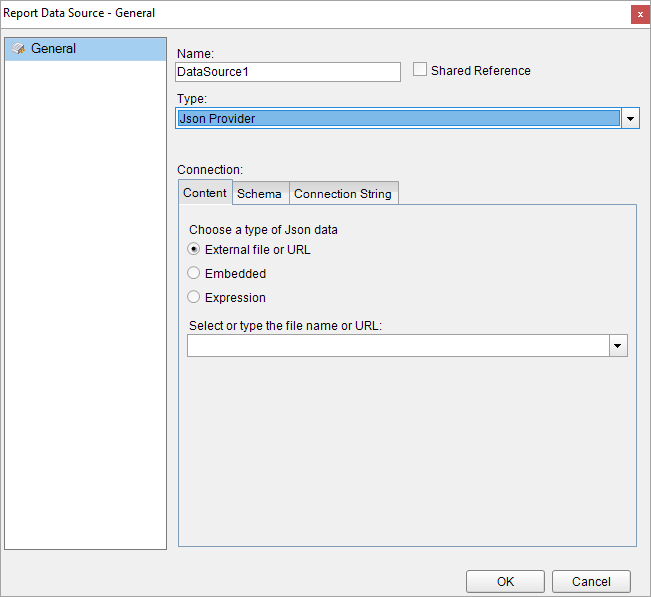
4. In the **Content** tab, set the type of Json data to 'External file or URL'.
5. Click the drop-down icon next to the **Select or type the file name or URL** field and select the **\** option to specify the json file path, or enter the URL. For example, connect to the '[https://demodata.mescius.io/northwind/odata/v1/Orders](https://demodata.mescius.io/northwind/odata/v1/Orders)' data source.
The **Connection String** tab displays the generated connection string as shown below:
```plaintext
jsondoc=https://demodata.mescius.io/northwind/odata/v1/Orders
```
The [Configuration Settings](/activereportsnet/docs/v19.2/report-authors/data-binding/data-binding-page-rdl-reports/connect-to-a-data-source/json#configuration-settings) are explained in the next section.
6. Verify the generated connection string by clicking the **Validate DataSource** icon .
7. Click **OK** to save the changes and close the **Report Data Source** dialog.
### Configuration Settings
The JSON Data Provider provides the following configuration settings under the Connection section in the **Report Data Source** dialog.
The **Content** tab describes the type of JSON data you want to use for connecting to a data source. The options available for specifying the JSON data are as follows:
* **External file or URL**: Enter the path or URL of an external JSON data file or select the file from the drop-down which displays the JSON files available in the same folder as the report. The connection string generated using this option starts with the keyword **jsondoc**.
* **Embedded**: Enter the path of the JSON data file to embed in the report. You can provide JSON data manually or select a JSON file containing the data. The connection string generated using this option starts with the keyword **jsondata**.
* **Expression**: Enter an expression to bind to the JSON data at runtime.
The **Schema** tab describes the options available for specifying the JSON schema in ActiveReports.
* **Auto**: This is the default option that auto-generates the JSON schema.
* **External file or URL**: Enter the path or URL of an external JSON schema file or select the file from the drop-down which displays the JSON files available in your system. The connection string generated using this option starts with the keyword **schemadoc**.
* **Embedded**: Enter the path of the JSON schema file to embed in the report. You can enter the schema manually or edit the schema in the selected JSON file. The connection string generated using this option starts with the keyword **schemadata**.
For generating JSON schema, use the JSON schema generator available at [JSONSchema](https://jsonschema.net).
The JSON schema describes the structure of the JSON data. In ActiveReports, the JSON data provider uses the JSON schema to obtain fields. For more information on JSON schema, please see [https://json-schema.org/understanding-json-schema/](https://json-schema.org/understanding-json-schema).
JSON data provider does not support the following schema keywords, such as:
* **type**: Indicates the type of JSON schema element. See [here](https://json-schema.org/understanding-json-schema/basics#the-type-keyword) for more information on the type keyword.
* **properties**: Indicates the properties collection for JSON schema elements with the object type. See [here](https://json-schema.org/understanding-json-schema/reference/object#properties) for more information on properties keyword.
* **items**: Indicates the definition of items for JSON schema elements with array type. Only single values are supported.
For example, "items" : [ {...}, {...}, {...} ] is not supported because it contains multiple values. See [here](https://json-schema.org/understanding-json-schema/reference/array#items) for more information on items keyword.
* **definitions**: Indicates the independent definitions which can be used by other JSON schema elements using $ref keyword. See [here](https://json-schema.org/understanding-json-schema/structuring#dollarref) for more information on definitions keyword.
* **$ref**: Indicates the reference to a definition for JSON schema elements with the object type. Only "definitions" ({ $ref : #/definitions/... }) references are supported.
The **Connection String** tab displays the JSON connection string based on the defined configuration settings in the **Content** and **Schema** tab.
* If you choose the **External file or URL** option, the connection string will be as follows:
```plaintext
jsondoc=C:\customers.json
```
or
```plaintext
jsondoc=https://demodata.mescius.io/northwind/odata/v1/Orders
```
* If you choose the **Embedded** option, the connection string will be generated as follows.
```plaintext
jsondata={"Customers":[{"Id":"ALFKI", "CompanyName":"Alfreds Futterkiste", "Country":"Germany"}, {"Id":"ANATR", "CompanyName":"Ana Trujillo
Emparedados y helados", "Country":"Mexico"}], "ResponseStatus":{}}
```
* If you choose the **Expression** option, the connection string will start with an "equals to", with other points to note as shown:
```plaintext
="jsondata={""Name"":""Name""};schemadata={""$schema"":""http://json-schema.org/draft-04/schema#"",""definitions"":{},""id"":""http://example.com/example.json"",""properties"":{""Name"":{""id"":""/properties/Name"",""type"":""string""}},""type"":""object""}"
```
### Build Connection String
It is possible to configure the JSON data source connection string by using the **Build** button in the **Connection String** tab of the **Report Data Source - General** dialog. This allows fetching a JSON from an external URL using the specified method (GET, POST) and other request options. Clicking the **Build** button opens the **Configure JSON Data Source** dialog where you can create a JSON connection string with parameters such as data path, method (GET, POST), headers, and body.
To connect to a external URL containing JSON data, some settings are required to be configured as elaborated.
**Data Path**:
The URL or the endpoint of the request consists of service root URI, resource path, and query options. The fields from json provided in the data source's endpoint are extracted depending on the dataset’s settings. A URL with IP address (eg. *http://10.64.2.17:51980/admin*) or with a machine name (eg. *http://in-esxi-w10v17:8080/*) is also valid.
> type=note
> **Note**: The Data Path must be accurate with a valid URL, else it can not be validated by the builder.
**HTTP Headers**:
Contains additional info related to the request or the response, for eg, provide expected content type necessary for establishing connection with endpoint which must return json. For example, providing credentials to login to a service/URI to retrieve data. Collection editor to add header/value pair for headers is available. This parameter has to be set to send the request body in JSON format.
Example of Header,Value pairs:
* *Content-Type, application-json* (to send the request body in JSON format)
* *Accept, application-json* (to read the response in the desired format)
**HTTP Method**:
Request method can be **GET** (included in URL) or **POST** (included in 'body').
* **GET** requests data from a specified resource. GET method examples are provided in [Sample connection strings and dataset queries](/activereportsnet/docs/v19.2/report-authors/data-binding/data-binding-page-rdl-reports/connect-to-a-data-source/json#sample-connection-strings-and-dataset-queries) section.
* **POST** requests allow defining a body as an expression to obtain data.
**Request Body (POST)**:
Text area, applicable only in case of POST HTTP request.
You should provide a valid combination of configuration settings for the successful processing of the connection string with the POST method. If a combination of a valid URL, a valid header name, a valid header value, and a valid body is provided, then the connection string can be saved and validated. Only in this case, it is possible to create a dataset based on this data source.
If an invalid URL, an invalid header name or header value, invalid body, or a combination of these settings is entered, error message is displayed while validating the connection string.
#### Sample connection strings and dataset queries
#### Simple
```plaintext
jsondoc=https://demodata.mescius.io/northwind/api/v1/Categories
```
```sql
$.[*]
```
To convert the format of data in the requested URI to JSON, use either *$format* query or Http Header as shown in the following connection strings:
* *$format* query:
```plaintext
jsondoc=https://services.odata.org/v3/northwind/northwind.svc/Invoices?$format=json
```
* Http Header:
```plaintext
headers={"Accept":"application/json"};jsondoc=https://services.odata.org/v3/northwind/northwind.svc/Invoices
```
```sql
$.value[*]
```
#### Using Parameters to query specific fields
```plaintext
headers={"Accept":"application/json"};jsondoc=https://services.odata.org/v3/northwind/northwind.svc/Invoices?$select=ShipName,ShipRegion
```
```sql
$.value[*]
```
#### Using Parameters to filter database fields
```plaintext
headers={"Accept":"application/json"};jsondoc=https://services.odata.org/v3/northwind/northwind.svc/Invoices?$filter=ShipName eq 'Alfreds%20Futterkiste'
```
```sql
$.value[*]
```
## See Also
[Query Builder in JSON and XML Providers](/activereportsnet/docs/v19.2/report-authors/data-binding/data-binding-page-rdl-reports/add-dataset/query-builder-in-json-and-xml)
[Dynamic JSON Connection String](/activereportsnet/docs/v19.2/report-authors/data-binding/data-binding-page-rdl-reports/add-dataset/create-dynamic-json-connection-string)